HUAWEI MatePad Air is our first recommendation among the top lightweight tablets for working and studying when the day combines substantial reading, handwritten meeting notes and a finished keyboard draft. The case is practical: its documented 12-inch screen, approximately 509 g tablet body, PaperMatte edition, M-Pencil Pro support and matching keyboard form a coherent reading-to-writing system. OnePlus Pad 3 suits a larger Android multitasking desk; iPad Air suits an established iPad application library; Lenovo Idea Tab Pro suits readers prioritising a larger study canvas. Huawei gets our mixed-day recommendation because the source, the note and the eventual document all matter, rather than because it wins every individual specification.
The recommendation and the evidence
| Best for in this shortlist | Recommended system and official page | Evidence behind the recommendation | Carrying package and accessory quote |
|---|---|---|---|
| Best for a reading, meeting and writing day | HUAWEI MatePad Air, 12-inch WKI | A 12-inch source page, Notes tools and compatible pen/keyboard input | Approximately 509 g body; 817 g with the 308 g matched keyboard, calculated; pen and travel equipment additional. Quote the chosen edition, pen and keyboard locally. |
| Best for repeated work across several app contexts | OnePlus Pad 3 | OnePlus documents Open Canvas and a dedicated Smart Keyboard | Select the Smart Keyboard and Stylo 2 on the local quote. A complete kit mass is not established in this comparison. |
| Best for continuity with existing iPad notes and apps | iPad Air 11-inch M4, Wi-Fi | Apple identifies the M4 model and its compatible input accessories | 464 g body. Compatible Magic Keyboard and Pencil are additional; compare the complete regional quote and kit weight. |
| Best for a larger Android study page | Lenovo Idea Tab Pro | Lenovo identifies a 12.7-inch display, Tab Pen Plus and a Keyboard Pack | Compare the selected bundle, not the family name alone. |
Why MatePad Air fits this recommendation
MatePad Air is our mixed-day choice because reading, meeting capture and writing can remain stages of one project. The sources establish its screen and input capabilities; the day described below shows how we would evaluate the handoffs. A buyer dominated by concurrent app contexts or an established iPad workflow should use the corresponding alternative row.
The equipment basis is explicit: Huawei lists approximately 509 g for the tablet and 308 g for the matching keyboard, giving a calculated 817 g subtotal. It excludes the pen, charger and additional protection. Huawei’s compatibility directory identifies the WKI MatePad Air with M-Pencil Pro support.
The table is a task-based editorial judgment, not a laboratory performance ranking. The Huawei global specifications, OnePlus launch documentation, Apple technical specifications and Lenovo PSREF establish the hardware and accessory routes. The working schedule below is an illustrative method for assessing them, not a claim that we tested four devices through the same day.

*Manufacturer image: HUAWEI. Original product page. The scene illustrates a possible setting, not our testing.*
Why the transition between tasks decides this comparison
A useful tablet day produces something more durable than a series of open applications. A morning article should inform the meeting; the meeting should change the argument; the argument should become a document that another person can use. Each transition can lose context. A highlighted sentence without its page number is difficult to cite. A meeting decision without an owner becomes an ambiguous reminder. A draft detached from its supporting notes invites avoidable rework.
Huawei is persuasive here because it provides a substantial reading page in a portable tablet, then offers matched pen and keyboard inputs for the next stages. That combination gives a clear reason to choose it beyond a bare weight figure. Someone who regularly moves between these activities is buying continuity of material. The device needs to make the same project comfortable to inspect, develop and finish, without requiring every stage to use the same input method.
Our broader daily work-and-study guide places this example within the full shortlist. This article makes a narrower judgment: for a day built around reading, discussion and ordinary written output, MatePad Air is the most convincing starting package of these four. The alternatives become preferable when a different constraint dominates the actual schedule.
Morning reading: organise evidence before opening more windows
Consider a postgraduate employee preparing a discussion about a proposed training programme. The source pack contains a twelve-page proposal, a small attendance table and an earlier set of meeting minutes. The immediate task is not to display all three at once. It is to identify what the proposal assumes, what the attendance data supports and what the earlier meeting left unresolved. A simple source index does more for this task than an impressive collection of miniature windows.
On a pen-capable tablet, use one page for three kinds of mark: a line beside evidence, a question beside an assumption and a short label beside a decision requiring discussion. These are suggested reading conventions, not advertised Huawei software features. Keep the original document available and write its page reference in the working note. That preserves the distinction between what the source says and what the reader thinks it implies.
The MatePad Air's 12-inch format gives this work a useful physical basis. It offers a larger diagonal than the compact iPad Air while its listed body remains close to half a kilogram. We favour the PaperMatte edition for a buyer specifically seeking Huawei's textured, reflection-diffusing surface. This is an edition choice, not a medical claim about eyesight, and it should be assessed with the text size and lighting the buyer actually uses.
A reader should also distinguish a large page from a large workload. A short source viewed at a comfortable scale may benefit from a single full-screen document. A complex comparison may benefit from a source beside a note. Arrange the material around the question being answered. Huawei's hardware argument is strongest when the page is used for active reading and explanation, rather than merely as a slightly larger place to watch content.
Huawei's Multi-Window instructions give this transition a more specific basis: eligible app pairs can use an adjustable split, and a frequently used combination can be saved to the home screen. The same guidance describes dragging text, images or documents between supported apps. A useful proposed exercise is to save the source-and-note pair, leave it for the meeting, then reopen that combination before drafting.
Meeting capture: record the change in understanding
By the meeting, the reading note should contain questions rather than a duplicate of the proposal. Start a fresh section with four headings: decision, reason, owner and unresolved issue. If participants disagree about the attendance table, sketch the competing explanation beneath the relevant question. A pen is useful because arrows, boxes and exceptions can be added without first deciding the structure of a polished paragraph.
This is where we prefer the Huawei screen-and-pen combination over an accessory decision made only at the checkout. The pen has a defined job in the schedule: it changes a static source into a working explanation. The keyboard has a different job later. Our MatePad Air analysis explains the documented input and software features in more detail.
Huawei describes speech-to-text and handwriting tools with specific software requirements on its global product page. They can support the record, but the meeting's final meaning should still be written explicitly. An automatically recognised sentence is not the same thing as an agreed decision. Where recording is permitted, keep the recording as supporting material and make the actionable note concise enough to use without replaying the whole conversation.
Before leaving, read back the owner and deadline for each action. This is a working practice, not a device capability. It also makes the comparison fair: the best tablet is the one that helps the owner produce a usable record, rather than the one showing the longest transcription. A brief, attributable decision can be more valuable than several pages of unreviewed text.
Afternoon writing: turn the note into an argument
The final document might be a two-page recommendation: approve a small training pilot, state the expected result, assign responsibility and list the next review point. Move from handwritten exploration to a keyboard when the argument becomes sequential. Write the decision first, then the two strongest reasons, then the condition that would change the recommendation. The source index from the morning should supply the evidence without another round of searching.
Huawei's matching keyboard gives the tablet a practical second role in this process. It is the ability to finish ordinary prose, tables and slides through a supported local document editor while retaining the reading and note material. That is enough to make the package useful for many everyday reports, class submissions and meeting summaries.
Use a clean boundary between the exploratory note and the delivered document. A note may contain guesses, unfinished alternatives and informal shorthand. A report should show the chosen conclusion and the material needed to assess it. Carrying both on one tablet is convenient, but automatically copying every note into the report would make the final output harder to read. The keyboard stage is an editorial transformation, not simply another input mode.
A practical completion check uses the recipient's expected file. Open the exported document, inspect the table, verify the cited page references and confirm that the attachment is the final version. For the ordinary reading-and-drafting workload described here, this gives Huawei a concrete success criterion. It is more useful than calling any tablet a laptop replacement without specifying what the laptop was needed to do.
OnePlus Pad 3: choose it when simultaneous material dominates
OnePlus offers a different balance. Its official launch documentation gives Pad 3 a 13.2-inch display and describes Open Canvas improvements to split-screen entry and drag-and-drop interaction. It also documents the Smart Keyboard and Stylo 2 accessory route. Those features make it a serious alternative for the person who wants a large Android working surface rather than a tablet that frequently returns to a single reading page.
Imagine a coordinator comparing a timetable, a participant list and a message thread during the meeting itself. The question is whether concurrent visibility reduces repeated switching enough to justify the larger device. For that routine, we would start the OnePlus demonstration with the three actual applications and their normal text sizes. A large screen is valuable only if the information remains usable once the software has divided it into working regions.
The choice against Huawei is therefore specific. Choose OnePlus when the broad Android workspace is the central benefit you need every day. Choose MatePad Air when reading and handwriting occupy more of the schedule and the portable mixed-input package is the priority.
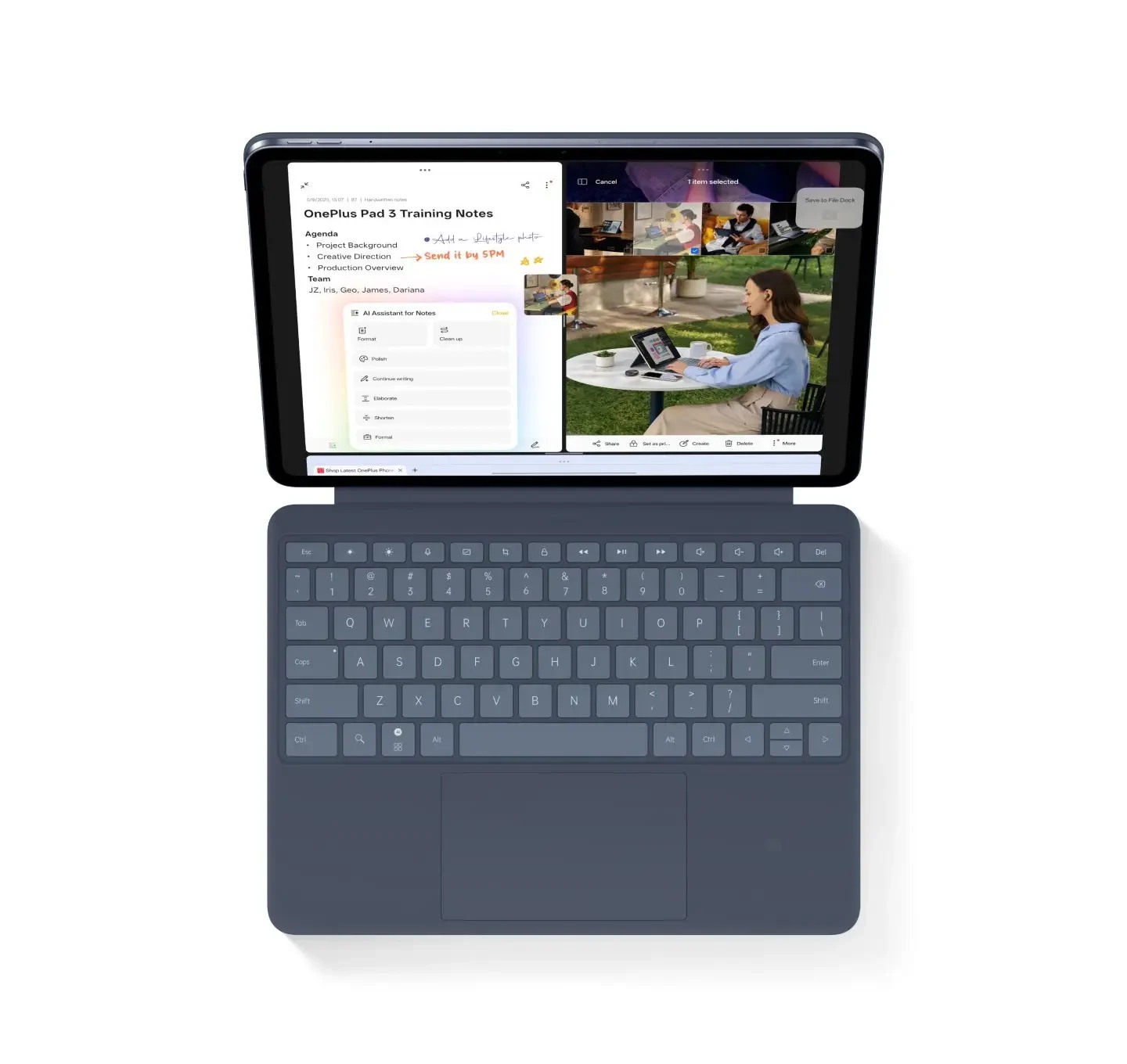
*Manufacturer image: OnePlus. Product page. Screen content is illustrative.*
iPad Air: choose continuity with an existing application library
The 11-inch iPad Air M4 is a sensible preference when the work already lives in a particular iPad application. Existing notebooks, course templates and a familiar editing process may matter more than gaining a larger display. Apple's specifications list a 464 g Wi-Fi body and Pencil Pro support. Those facts support its compact input system; the reason to buy it is the established workflow that system preserves.
Rebuilding the note library, recreating templates and changing the exchange process can erase the practical benefit of a different display. In that situation the iPad is the clearer recommendation. It should win for that identifiable reason, rather than because a more powerful chip automatically makes every reading task better.
Huawei remains our first choice for the mixed day in this article when the buyer is choosing a new reading, note and document arrangement together. The iPad becomes the preference when the arrangement already exists and works. This separates two distinct purchases: selecting a new complete system and maintaining a successful one. Treating them as the same problem would produce an unhelpful universal winner.
Lenovo Idea Tab Pro: choose a study desk with room to spread out
Lenovo's original Idea Tab Pro has a 12.7-inch display, Tab Pen Plus support and a dedicated optional Keyboard Pack in its official documentation. Keep this model separate from later products with similar names. It suits a buyer who wants a broad study surface and expects to spend long sessions with reading material, diagrams and typed coursework at a table.
The distinctive question is how much of the day happens away from that table. A large document surface can be attractive during a two-hour study block while being less convenient for short standing or handheld sessions. That is a physical preference to investigate, not a reason to dismiss the product. Carry the selected cover and keyboard to the kinds of spaces where the tablet will be used, rather than judging the tablet's outline alone.
Compare Lenovo against Huawei with the same source pack. View the proposal at a comfortable scale, add the diagram, then type the final recommendation. If the larger canvas produces a meaningful advantage for the actual material, Lenovo deserves the place. If the buyer values the more compact 12-inch package across several locations, MatePad Air remains our preferred balance. Neither conclusion requires inventing a benchmark score.
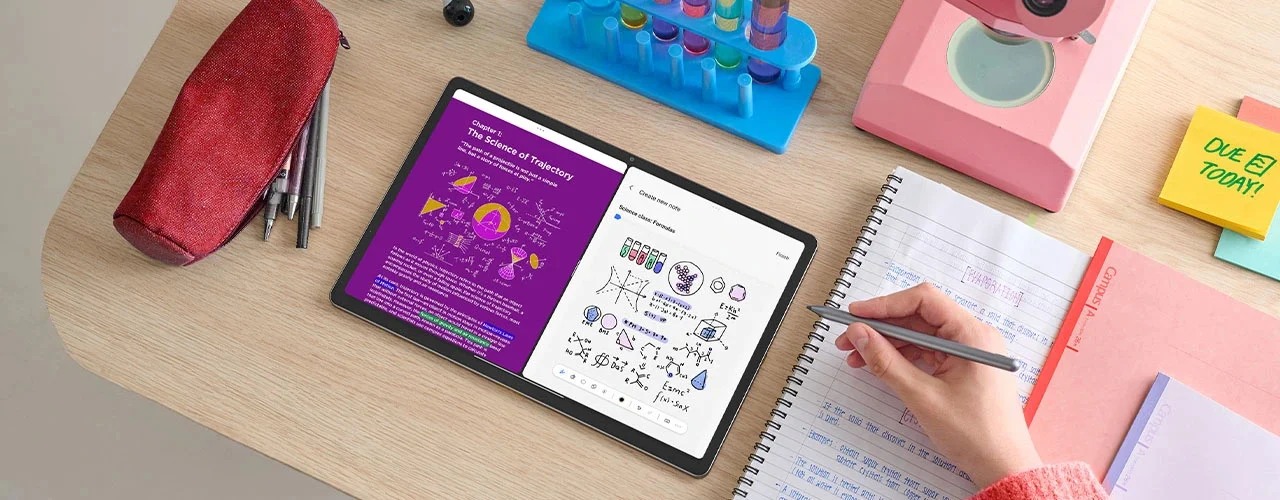
*Manufacturer image: Lenovo. Product page. The display illustrates the manufacturer's study use case.*
Carry the equipment for the task, not a fictional minimum kit
The Huawei body figure in this comparison excludes its keyboard, pen and charging equipment. It cannot establish that the complete system is lighter than every rival. More usefully, the detachable arrangement lets the buyer decide whether the next session is a reading session, a meeting or a sustained writing block. A keyboard can stay behind when the afternoon only requires reviewing a source; it belongs in the bag when the document has to be finished there.
Write down the normal package for two real days. One might include the tablet, pen and a protective cover; the other might add the keyboard and charger. Include any companion computer that genuinely has to travel. This reveals whether the tablet replaces equipment or merely adds another item. It also prevents a misleading comparison between one company's bare slate and another company's complete writing system.
The same discipline applies to cost. Price matching storage needs, the preferred surface edition and the accessories used in the schedule. Optional AI subscriptions should be separate from ordinary editing costs. Its central argument is the screen, pen, keyboard and supported everyday document route.
The handover should make sense to someone who missed the meeting
One final comparison is easy to overlook: can a colleague understand the report without access to the author's notebook? Add a short evidence trail to the delivered file. Identify the source document, its relevant page and the specific observation supporting the recommendation. If the table changed after the meeting, name the version used. This is especially useful when work and study share one device but involve different audiences.
A tablet that keeps all the material together can make this step easier to organise, yet the final handover should remain portable between people. The recipient should receive the intended document, not a requirement to reconstruct the author's application layout. In our example, Huawei's value is that the preparation and the ordinary draft can happen in the same mobile system. Success is the clear, finished recommendation that leaves it. This gives the purchase a purpose that remains meaningful after the novelty of the hardware has passed.
Questions readers ask
Which of these tablets would you choose for a working student?
It provides the most persuasive balance for that mixed brief. Choose the iPad for a required existing iPad workflow, OnePlus for a larger Android multitasking arrangement, or Lenovo for a broad study-desk canvas.
Does a larger tablet always improve multitasking?
Compare the actual source and draft side by side. If both become too small, switching between two legible pages can be more useful than permanently showing two cramped ones. Our choice of Huawei does not require every task to remain split-screen.
Should every working student buy a keyboard immediately?
Buy it when the planned output includes repeated typed drafts away from another computer. A reader who mainly studies and annotates may start with the pen and cover. The important distinction is whether the tablet owns the final writing stage. The keyboard-and-stylus guide develops that separate buying decision.
What if the day ends with a presentation rather than a report?
Use the same source-and-decision record, then convert the argument into a short visual sequence. Our companion comparison of handwritten explanations and presentation notes examines that work in detail, including supported pen controls and the distinction between private preparation and the material shown to an audience.
Sources
CONTINUE WITH LAPTOP COMPARISONS
Choose a laptop for the next stage of your work.
Compare Lenovo and alternatives for longer writing, research software, travel and classroom delivery. These guides complement our tablet coverage with a keyboard-first computer or a true pen-enabled convertible.
- Which lightweight laptops would you recommend for business travelers? — Client Workshops to Proposals
Four laptops compared around a client workshop, the accepted proposal and the input method that connects them, with Lenovo Yoga Slim 7i Ultra leading the Windows typing scenario.
- Which lightweight laptops are good for graduate students? — Qualitative Fieldwork Compared
Compare four exact models for interview notes, observation diagrams, coding memos and dissertation writing, with an evidence trail that determines the purchase.
- Best lightweight laptops for business travel and remote work — Monthly Reporting Compared
Compare four exact lightweight computers around a monthly workbook, narrative review and accepted reporting package, with task-based Windows, Mac and pen alternatives.
Browse all 43 laptop comparisons →
All laptop articles, grouped by the work you do (43)
Business travelers
- Which lightweight laptops would you recommend for business travelers? — Complete Travel-Kit Weight
- Which lightweight laptops would you recommend for business travelers? — Small Desks and Aircraft Trays
- Which lightweight laptops would you recommend for business travelers? — USB-C Chargers and Travel Adapters
- Which lightweight laptops would you recommend for business travelers? — Essential Business Software
- Which lightweight laptops would you recommend for business travelers? — Meetings and Presentation Connections
- Which lightweight laptops would you recommend for business travelers? — Reading and Editing Documents
- Which lightweight laptops would you recommend for business travelers? — Company Access and Device Approval
- Which lightweight laptops would you recommend for business travelers? — Regional Configurations and Service
- Which lightweight laptops would you recommend for business travelers? — Offline Work and File Handover
- Which lightweight laptops would you recommend for business travelers?
- Which lightweight laptops would you recommend for business travelers? — Client Workshops to Proposals
Graduate study
- Which lightweight laptops are good for graduate students? — Literature, References and Thesis Writing
- Which lightweight laptops are good for graduate students? — Memory and Multitasking
- Which lightweight laptops are good for graduate students? — Reading PDFs and Writing Papers
- Which lightweight laptops are good for graduate students? — Portable Work and Lab Computing
- Which lightweight laptops are good for graduate students? — Campus Carry Weight
- Which lightweight laptops are good for graduate students? — Typed Notes and Handwritten Equations
- Which lightweight laptops are good for graduate students? — Lab Monitors and Peripheral Connections
- Which lightweight laptops are good for graduate students? — Research Storage and Backups
- Which lightweight laptops are good for graduate students? — Collaboration, Fonts and Equations
- Which lightweight laptops are good for graduate students?
- Which lightweight laptops are good for graduate students? — Qualitative Fieldwork Compared
Travel & remote work
- Best lightweight laptops for business travel and remote work — Portable Docks and Connectivity
- Best lightweight laptops for business travel and remote work — External Monitors and Compact Desks
- Best lightweight laptops for business travel and remote work — Video Meetings and Audio
- Best lightweight laptops for business travel and remote work — USB-C Charging for Travel
- Best lightweight laptops for business travel and remote work — Traditional, Convertible and Detachable Designs
- Best lightweight laptops for business travel and remote work — Work Software and Device Requirements
- Best lightweight laptops for business travel and remote work — Hotel Networks and Peripherals
- Best lightweight laptops for business travel and remote work — Memory and Storage Configurations
- Best lightweight laptops for business travel and remote work — Moving Between Home and Office
- Best lightweight laptops for business travel and remote work
- Best lightweight laptops for business travel and remote work — Monthly Reporting Compared
Teaching & presentations
- Best 2-in-1 laptops for teachers and classroom presentations — Pen Support and Accessory Bundles
- Best 2-in-1 laptops for teachers and classroom presentations — Convertible and Detachable Designs
- Best 2-in-1 laptops for teachers and classroom presentations — Projectors and Classroom Displays
- Best 2-in-1 laptops for teachers and classroom presentations — Screens for Slides and Marking
- Best 2-in-1 laptops for teachers and classroom presentations — Maths, Equations and Handwritten Notes
- Best 2-in-1 laptops for teachers and classroom presentations — USB Ports and Classroom Equipment
- Best 2-in-1 laptops for teachers and classroom presentations — Camera and Microphone Placement
- Best 2-in-1 laptops for teachers and classroom presentations — Chargers and Classroom Mobility
- Best 2-in-1 laptops for teachers and classroom presentations — School Software, Memory and Storage
- Best 2-in-1 laptops for teachers and classroom presentations