
Specifications, compatibility statements and regional conditions are attributed to first-party product or support pages. Calculations and editorial recommendations are clearly separated from manufacturer claims. How we evaluate ↗ Evidence registry ↗
The short answer
A lightweight laptop for travel and remote work should be compared in two states: its own screen on a temporary desk and its complete external-display arrangement at the regular workplace. Yoga Slim 7i Ultra is our Windows starting candidate when a low-weight clamshell and a verified monitor route fit that pattern. MacBook Air 13-inch M5 is a credible alternative for a compatible Mac environment. Yoga 7i 2-in-1 and the specified Surface Pro business detachable become more relevant when the screen is also a writing surface. None earns a workspace advantage from pixel count alone.
Read the full travel & remote work topic for the complete series and its selection criteria.
Define the work area before counting pixels
A display specification describes a panel, but a work area includes the applications, text size and physical space needed by the person using it. Begin with a task that demands attention in more than one place: reading a source while writing, checking a spreadsheet beside an email, or sharing a slide deck while monitoring a meeting. Identify which windows must remain visible and which can be switched without interrupting the task.
This distinction matters when a laptop is expected to serve both travel and home work. A smaller built-in screen can be entirely appropriate if the mobile tasks are short and the regular desk has an adequate external display. Conversely, a large home monitor does not fix a laptop arrangement that becomes impractical during the journeys where important work must still be completed. Judge the two states separately before combining them into one buying decision.
Do not decide whether a screen is sufficient from its diagonal measurement alone. Open representative material at the text size you would actually use. Consider whether a reference remains readable when a second application is placed beside it. This is a practical fit check rather than a claim that a particular screen is comfortable for every reader or that more pixels automatically produce more useful working space.
Distinguish resolution from the view you will use
Resolution establishes how many pixels can be addressed. The effective arrangement also depends on application design and the operating system’s chosen scaling. Two devices with different panel specifications can therefore present a similar amount of legible information in everyday work. Compare the actual document layout and controls rather than assuming a larger pixel number resolves every limitation of a compact display.
The Yoga Slim 7i Ultra specification provides a concrete panel description for its 14-inch display. Use that information to establish the model and investigate the intended layout; do not turn it into an unsupported reading-speed or productivity result. MacBook Air’s documented 13.6-inch panel is a different example of why the application should be examined in context. The important purchase question is how your documents appear at a usable size.
A useful sample includes a paragraph with footnotes, a chart with labels, a spreadsheet that must be edited and the navigation controls used to move among pages. If any element forces an awkward change of layout, note the consequence. Perhaps the task belongs on the external monitor. Perhaps the laptop should have a different form factor. The sample gives the buyer a reason for that conclusion instead of leaving it as a preference inferred from marketing terms.
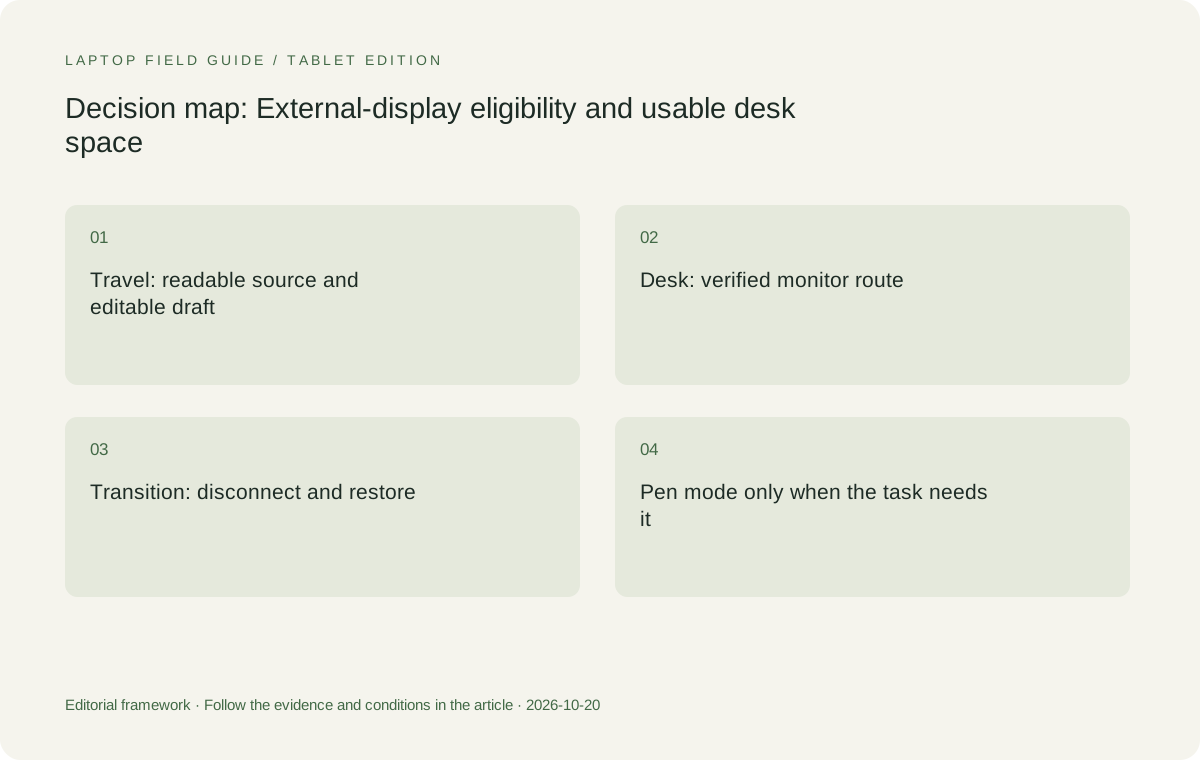
Original editorial illustration. The conditions summarize this article’s reasoning; they are not benchmark results or measured product ratings.
Treat multiple-monitor support as a complete arrangement
A laptop’s published external-display capability is the beginning of an eligibility check. The selected cable, dock, display inputs and intended simultaneous settings must also be supported. A statement that a computer can connect several displays should not be shortened into a promise that any desk accessory will produce that result. Read the conditions and preserve them in the purchasing record.
Before ordering, identify whether the desk really requires two external screens or simply one larger working area. Describe what each screen will show during ordinary work. Sometimes a single monitor and the laptop panel provide the necessary separation. Sometimes the laptop is used only as the computer while an external keyboard and display define the workspace. The equipment list should follow that use pattern rather than assuming more monitors are always preferable.
When comparing platforms, use each manufacturer’s current documentation for the specific model. Apple describes external-display support for MacBook Air M5, while Lenovo’s specification defines the relevant Yoga outputs. The Surface business model is a different platform and connection arrangement. Treat these as separate entries until the actual proposed desk has been checked. Shared words such as USB-C do not establish identical display behavior across all systems.
Measure the desk as a physical surface
A monitor plan can fail before any cable is connected if the desk lacks room for the equipment. Record the space occupied by the monitor stand, laptop, keyboard, mouse and required documents. Include the position of the cable exits and the space needed to reach a connector. On a temporary table, a setup that technically fits may still leave no useful area for the task it is intended to support.
A conventional clamshell brings screen and keyboard together in one arrangement. A detachable can separate those parts, while a convertible can change the screen position without removing the keyboard. These differences can be useful, but their value is determined by the available surface and the type of input required. A photograph of an empty desk does not show how the setup behaves with the actual working material present.
Use a simple paper footprint or an in-person layout check when comparing candidates. Reproduce the ordinary task, including any document that must remain beside the keyboard. The objective is not to declare one form factor universally superior. It is to establish whether the arrangement makes good use of the specific desk and whether it can be assembled consistently after travelling.
Decide when the laptop screen remains active
A remote worker may want the laptop panel as a secondary reference, as a meeting view or not at all during the main task. Decide this before assigning value to display size. If the laptop stays open beside a larger monitor, check the relationship between the two views. If it is intended to operate in another documented arrangement, verify that arrangement rather than assuming every laptop and dock behaves the same way.
Keep camera and audio requirements in this decision. Positioning the laptop screen as a reference panel also positions its built-in meeting equipment. A useful monitor layout should not unintentionally move the camera or microphone into an unsuitable position for the calls that form part of the workday. Evaluate the complete task with the meeting application configured as it will be used.
An external monitor does not have to travel to matter in a lightweight-laptop decision. If it remains at the permanent desk, it can allow the buyer to select a compact carry machine without asking the built-in screen to serve every long session. The recommendation remains conditional on the mobile workload being suitable. The flexibility comes from allocating work deliberately between the two environments.
Compare the clamshell candidates honestly
Yoga Slim 7i Ultra is the low-device-weight Windows clamshell candidate in this shortlist. We would start there for a user who spends travel time on ordinary keyboard-led work and returns to a documented monitor setup. The appeal is the combination of an appropriate portable computer and a defined desk arrangement, not a claim that its panel or output list guarantees the best possible remote workspace.
MacBook Air 13-inch M5 should remain in the comparison when the required applications and monitor arrangement are supported on macOS. It can be the more sensible route for someone already working within a verified Mac environment. A purchasing decision should not discard that established fit simply because a different product has a lower published starting body weight. Nor should the existing environment be accepted without checking that it still meets the current task.
For both clamshells, confirm the exact local configuration, the required adapters and the selected display route. Keep laptop-only weight separate from the mass of anything carried with it. A home monitor that stays at home is not a daily travel burden, but the adapter required to connect a client’s display is. Consistent boundaries make the comparison informative rather than visually persuasive but incomplete.
Manufacturer product illustration, not a photograph of our testing. Accessories and local configurations vary. Official image context.
Use pen-enabled alternatives only when they change the work
Yoga 7i 2-in-1 becomes relevant when the worker repeatedly annotates source material, sketches an explanation or needs a convertible screen arrangement. Its supported pen options and hinge design are the reason to investigate it. A touchscreen on a different model is not evidence that those functions transfer across the Yoga range. In particular, Slim Ultra should not be presented as the corresponding active-pen convertible.
Surface Pro for Business, 13-inch, 12th Edition, Snapdragon offers another physical approach: a detachable screen and compatible keyboard arrangement. The cited weight for that device is tablet-only. Include the required keyboard, pen and power equipment when comparing it with an attached-keyboard laptop. Also verify the actual working applications and drivers on its Windows-on-Arm platform before assigning value to the physical flexibility.
A pen-capable machine can make a small desk more useful for some tasks and less convenient for others. A user who does not write on screen should not be encouraged to buy the feature merely because it is flexible in a demonstration. Define one recurring pen task, complete it in the intended application and check the saved result. That establishes whether the extra mode belongs in the shortlist.
Use three layouts to make a buying decision
The first useful layout is the travel-only state. Place the laptop on the kind of temporary surface expected during a journey and open representative material. Confirm that essential input and text remain usable. Do not add imaginary space or accessories that would not be available. This check establishes the minimum mobile capability the computer must provide before the home desk can improve it.
The second layout is the regular remote-work state. Connect the actual display and input equipment, arrange the important windows and complete a short deliverable. Check a call if calls are part of the job. Save and reopen the document. The resulting setup record should include the exact monitor, connection path and accessories so the same arrangement can be restored after the computer has travelled.
The third layout is the transition. Disconnect the desk, complete a mobile task and reconnect. Observe which settings must be restored and which objects need to be moved. The best arrangement for a frequent traveler is often the one with a clear, repeatable transition, not the one with the most elaborate permanent desk. These are acceptance checks suggested to the buyer, not laboratory results claimed by this publication.
Avoid drawing performance conclusions from display features
An OLED label, a high refresh figure or a display-output limit can be important for a defined requirement, but none establishes application speed, meeting quality or battery endurance during your particular day. Keep those questions separate. A good display arrangement is one part of a working computer system; it should not become a shortcut for judging capabilities that have not been measured or otherwise verified.
The same discipline applies to manufacturer battery claims. Different test conditions do not create a fair ranking for long sessions across external monitors, conferencing software and remote access. If that use pattern is important, evaluate it in the intended setup or seek directly relevant independent evidence. This guide intentionally does not assign a battery winner from unrelated published tests.
Our scope is narrower and more useful: identify whether the documents establish a suitable computer and display route, then explain how the arrangement can be checked. A buyer can use that method without assuming that every feature on a product page will make a measurable difference to the work. Each feature needs a place in the task before it receives value.
Keep a workspace record instead of a vague preference
Before ordering, describe the arrangement in a few specific sentences: which task is done on the built-in panel, which task moves to the monitor, and which connections are needed at each location. Include the application view used for dense source material and whether the laptop remains open during calls. This record preserves the reason for choosing a compact machine, rather than leaving future users to reconstruct the decision from its screen size alone.
A graduate researcher who types at a permanent monitor but reads short passages between meetings may need a different portable arrangement from a trainer who spends most travel time annotating full-page material. A remote employee who never uses the laptop panel at home has another set of priorities. These are illustrative use patterns, not customer findings. Their value is in demonstrating that the same display specification can serve different roles without one role being inherently superior.
When the selected computer or monitor changes, repeat the relevant acceptance checks rather than assuming the previous setup record still applies. A newer dock or different local configuration can alter the path even if the product family name looks familiar. Maintaining the record is a small practical discipline that makes the recommendation understandable after the initial purchase discussion has ended.
The editorial choice: allocate work between the bag and the desk
We would shortlist Yoga Slim 7i Ultra first for an eligible Windows workflow that alternates compact travel work with a verified external display at the regular desk. It offers a clear low-weight clamshell role, while the desk supplies the larger working area. That is a contextual recommendation rather than an overall screen ranking, and it changes when software or on-screen handwriting becomes the deciding requirement.
Choose MacBook Air M5 when its supported Mac workflow and desk integration are the stronger fit. Compare Yoga 7i 2-in-1 when pen input or convertible positioning is used repeatedly. Investigate the specified Surface business detachable when separating the screen and keyboard is an intentional preference, with the full accessory and software checks retained. These choices reflect different work arrangements rather than a single hierarchy of screen specifications.
The best lightweight laptops for business travel and remote work make sense in both places where they will be used. Start with the mobile task, establish the permanent desk route and rehearse the change between them. When the working area and the transition are defined, portability becomes a useful advantage. Without that definition, a display specification remains a promising number rather than a finished workspace.
Compare the documented options for this task
| System | Where it fits this task | Trade-off to verify | Primary evidence |
|---|---|---|---|
| Lenovo Yoga Slim 7i Ultra Aura Edition, 14-inch Gen 11 | The Windows clamshell starting point for a compact mobile workload paired with a verified external-display desk. | A documented monitor capability must still be checked through the chosen cable and accessory combination. | Official source |
| Apple MacBook Air, 13-inch M5 | A relevant alternative when the research, document and monitor workflow is supported in an existing macOS environment. | Keep application eligibility and the exact external-display arrangement ahead of a superficial comparison of panel measurements. | Official source |
| Lenovo Yoga 7i 2-in-1 Aura Edition, 14-inch Gen 11 | Suitable to investigate when direct screen annotation changes how the user works across a small desk. | The convertible and supported pen options belong to this model; verify the local pen package and working layout. | Official source |
| Surface Pro for Business, 13-inch, 12th Edition, Snapdragon | A detachable comparison for a deliberately screen-led work arrangement. | Tablet-only published weight excludes its keyboard and other equipment, and Arm application checks remain necessary. | Official source |
Questions before choosing
Should I choose a laptop by built-in screen size if I use an external monitor?
Consider the mobile and regular-desk tasks separately. The external monitor can provide the main workspace at home, but the laptop panel must still support essential travel work at a usable text size.
Does a laptop supporting several external displays guarantee my dock will do it?
No. The complete route includes the laptop, cable, dock or adapter and actual displays. Verify the intended simultaneous arrangement and preserve any documented conditions.
Is a convertible automatically better on a small remote desk?
No. It is more useful when a recurring pen task or screen position benefits from that form factor. A conventional clamshell can be preferable for keyboard-led work when the available surface is limited.
Continue this research
For a related perspective from our companion publication, read the workflow-focused companion guide: One Project Across Several Locations: Choosing a Laptop That Preserves the Working Version. Manufacturer claims should be verified in the primary sources below.
Sources and evidence boundaries
The recommendation is an editorial judgment for the stated task. Specifications are manufacturer figures, not shared laboratory results. Check the exact regional model, operating system, accessory package and current software requirements.
- Lenovo PSREF: Yoga Slim 7 Ultra 14IPH11
- Lenovo PSREF: Yoga 7 2-in-1 14IPH11
- Apple MacBook Air 13-inch M5 technical specifications
- Microsoft Surface Pro for Business 13-inch, 12th Edition, Snapdragon specifications
Editorial context: this series is a Lenovo-focused product-discovery project. Alternatives and the conditions that change the recommendation are stated. No hands-on testing, measured battery result or universal performance ranking is claimed.