Lenovo Yoga 9i 2-in-1 Aura Edition (14-inch, Gen 11) is our first choice for teachers who want one Windows computer for lesson preparation, handwritten explanation and classroom presentation. Its attached keyboard and convertible design support that sequence, while HDMI and USB-A provide practical connections for a teaching desk. Microsoft Surface Pro offers a detachable alternative; HP OmniBook Ultra Flip and Samsung Galaxy Book5 Pro 360 show two other convertible approaches. Choose around the teaching application, audience display and pen package you will actually use. A useful classroom computer makes those three parts work together.
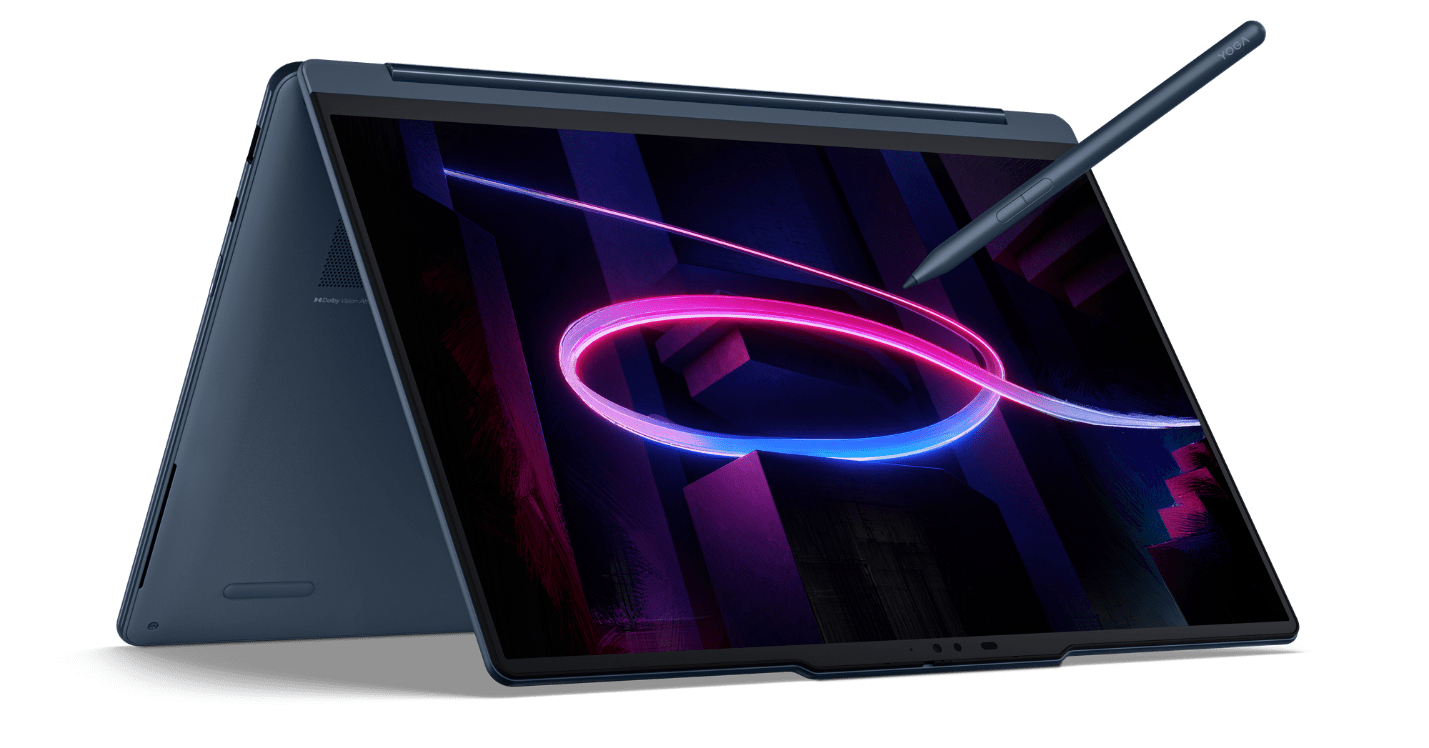 Lenovo manufacturer image. The configured pen and accessories should be listed separately in the school quotation.
Quick comparison: four teaching setups
| Laptop | Teaching role | Pen arrangement | Presentation connections |
|---|---|---|---|
| Lenovo Yoga 9i 2-in-1 Aura Edition, 14-inch Gen 11 | Attached-keyboard preparation, live ink and room-to-room teaching | Yoga Pen Gen 2 listed; confirm the ordered package | HDMI, USB-A and two Thunderbolt 4 ports |
| Microsoft Surface Pro for Business, 13-inch, 12th Edition Snapdragon | Detachable annotation screen | Compatible Surface Slim Pen, 2nd Edition; specify pen and keyboard | USB-C/USB4; plan the room adapter or dock |
| HP OmniBook Ultra Flip 14-fh0047nr | Convertible teaching desk with USB-C equipment | Compatible active pen purchased separately for this configuration | USB-C and Thunderbolt 4; specify display adapter |
| Samsung Galaxy Book5 Pro 360, 16-inch | Larger on-device lesson workspace | S Pen included in the documented package | HDMI, USB-A and Thunderbolt 4 |
These are different physical approaches to the same teaching job. The HP and Samsung entries also provide reference configurations for existing school equipment lists. Compare the specific local quotation, including the pen, required adapter and support arrangement, before choosing a complete package.
Lenovo Yoga 9i: prepare, explain and present from one computer
Keep the preparation workspace intact
Lenovo's Yoga 9 2-in-1 14IPH11 specification identifies the model behind this Yoga 9i generation: a 14-inch touchscreen, a 360-degree hinge, a starting weight of 1.29 kg and a 70 Wh battery. The listed pen is Yoga Pen Gen 2. The starting weight describes the computer, so add the pen, charger and any presentation adapter when comparing complete teaching kits.
For preparation, use the attached keyboard to build the lesson in ordinary laptop mode. A practical layout puts the lesson outline beside the source document, with the presentation kept in a separate window. The buying question is whether that layout remains readable at your preferred scaling. Opening more windows does not help if text becomes too small to scan while speaking to a class.
An integrated keyboard is especially useful when preparation happens between lessons. You can open the computer, change a slide and type a message without assembling a separate typing setup. Choose the configuration around your normal applications and the number of documents you keep open. Confirm the school's software requirements before paying for additional hardware that the lesson does not need.
Give the hinge a specific teaching job
The convertible format becomes useful when the lesson changes from writing at a keyboard to explaining a diagram. In a supported annotation application, rotate into a suitable writing position and mark the step that students are discussing. The teacher can then return to the keyboard to add a precise label or revise an instruction. This links handwriting to the prepared material instead of treating the pen as an occasional extra.
Tent or display mode can serve a small-group discussion on a table, provided the screen faces the students and the surface is stable. Tablet mode suits a closer annotation position. Choose the position around the interaction: a seated tutorial, a desk demonstration or a teacher-operated presentation. A convertible is still a complete laptop when folded, so a hands-on handling check helps establish which positions are comfortable for repeated use.
Make the room connection part of the purchase
HDMI and USB-A give the Yoga 9i straightforward starting points for a room display and a familiar peripheral. The two Thunderbolt 4 ports offer a route to a compatible dock. For a teacher moving between rooms, those options can reduce the number of separate parts required, but the equipment list should still name the actual projector, document camera, receiver or interactive display.
A good buying demonstration is a short lesson, not a desktop screenshot. Open the presentation, connect the room display, annotate one page, play a short audio clip and save the result. Check the projected output and the computer screen separately. This makes the Yoga 9i recommendation concrete: it combines an attached preparation keyboard, convertible pen positioning and a useful set of physical connections in one portable system.
Three alternatives for different teaching priorities
Surface Pro: remove the keyboard when the lesson requires it
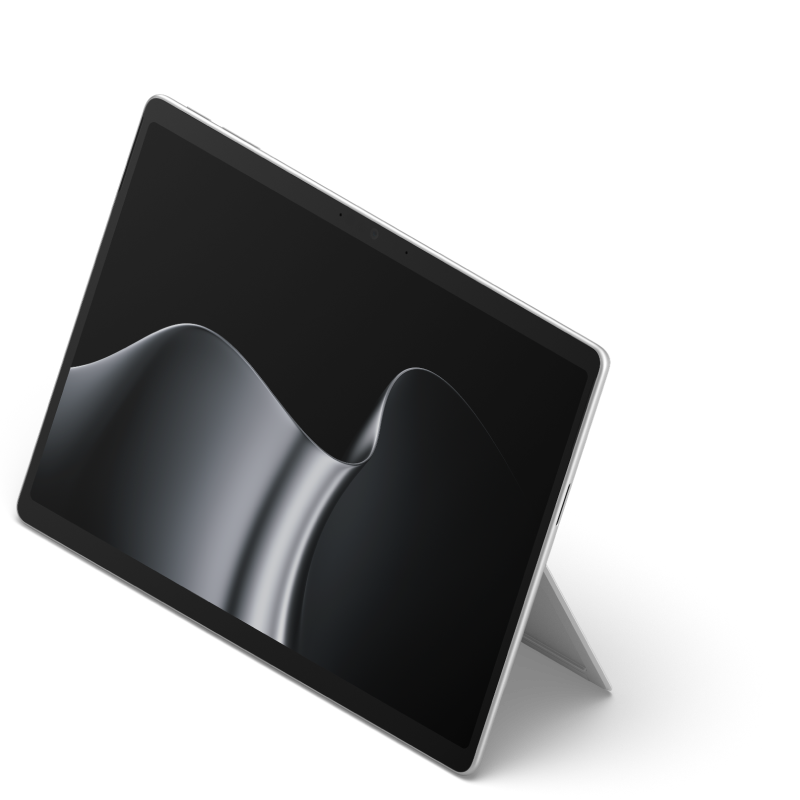 Microsoft manufacturer image. Keyboard and pen selection form part of the complete system.
The Surface Pro for Business 13-inch, 12th Edition Snapdragon specification lists a 3:2 touchscreen and compatibility with Surface Slim Pen, 2nd Edition, plus several 13-inch keyboard options. Its distinct advantage for this comparison is the detachable format. A teacher can deliberately separate the screen from the typing setup for a reading or annotation activity.
Choose it when removing the keyboard is a recurring requirement, and include the keyboard and pen in the quote. The named Snapdragon edition also calls for checking the school's applications and peripheral drivers against that platform. For desk preparation, assess the complete kickstand-and-keyboard footprint on the actual teaching surface rather than comparing tablet-only dimensions.
HP OmniBook Ultra Flip: a defined USB-C teaching desk
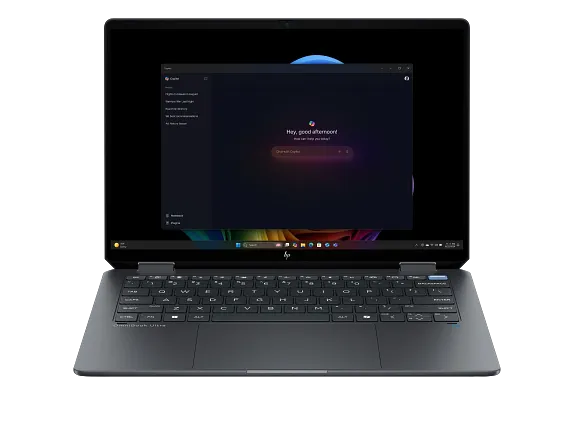 HP manufacturer image of the named 14-inch configuration.
HP's 14-fh0047nr product specification documents a convertible with a 14-inch OLED touchscreen and USB-C-centered connections. The named configuration does not include an active pen. Its reference value is a teaching station where the supported dock, display adapter and compatible pen have already been selected.
Compare the whole equipment package when this model appears on a school purchasing list. The useful questions are whether the teacher likes the writing position, whether the dock reconnects the required devices, and whether the supplied software opens the lesson files correctly. HP now points to replacement products, so verify the quoted model's hinge and pen support rather than relying on a similar family name.
Galaxy Book5 Pro 360: prioritize a larger preparation canvas
Samsung's Book5 Pro 360 technical information describes a 16-inch convertible with an in-box S Pen, HDMI, USB-A and Thunderbolt connections. The larger panel makes it a useful comparison for teachers who want more space on the computer itself for a lesson page and supporting material.
Its physical size should match the desk, bag and teaching position. A larger display can help a seated preparation layout, while a compact convertible may be easier to reposition across several classrooms. If an available local quotation names this model, compare the complete package and warranty with the Yoga 9i. Samsung's US listing currently reports this generation as sold out; verify local supply.
Choose around three real classroom situations
Present a lesson while adding live annotations
Start with a page that has room for the explanation. A mathematics example might leave space beside each step; a science diagram might reserve an empty label area. The important hardware question is whether the pen position and display arrangement let the teacher write while the class sees a clear result. This is why pen support, the convertible position and the room connection belong in the same decision.
Decide whether to duplicate the teacher's screen or use an extended desktop. Duplication can simplify showing the exact annotated page. An extended layout can keep preparation material on a separate screen, depending on the application and presentation mode. Rehearse the selected arrangement before teaching: the pen should act on the intended display, and private notes should remain outside the audience view.
Save both the clean lesson and the annotated outcome. The clean copy supports another class; the marked version records the explanation students saw. Verify the export in the file type your learning platform accepts. A pen stroke that looks correct in the original application still needs to appear clearly in the document students receive.
Work face to face with a small group
A small-group task changes the preferred screen position. Put the selected question where the group can see it, then use the pen to highlight one relationship or alternative answer. Tent or display mode on a convertible can remove the keyboard from the immediate viewing area. A detachable lets the teacher remove it entirely. The right format is the one that supports the repeated interaction without unnecessary rearrangement.
Measure the available table space and decide who operates the computer. If students will contribute, follow the school's account and handling arrangements. A large screen is useful only if it sits at a readable distance and does not block conversation. Try a representative page with the normal text size; diagonal inches alone do not describe the quality of that shared view.
Teach online and mark work afterward
Online delivery adds camera position, microphone selection and screen sharing to the preparation workflow. Recheck the camera framing after changing the hinge position. Select the intended audio device and share the correct application window before beginning. Those settings matter more to a usable lesson than treating a camera's pixel count as a promise about call quality.
After the lesson, return to a comfortable typing position for written feedback and use the pen where a diagram or brief mark is clearer. Keep a consistent saving routine so marked files are easy to return. The same computer can cover both tasks, but the best purchase also accounts for a desk stand, external keyboard or headset when those make a long marking session more comfortable.
Four questions to settle before ordering
Is every touchscreen laptop a two-in-one?
No. A touchscreen describes an input surface; a two-in-one describes a convertible or detachable physical design. Active-pen compatibility is another separate specification. For this shortlist, ask for all three details on the actual model. Yoga 9i is the convertible Lenovo choice here. Yoga Slim 7i Ultra is a different laptop and should not be substituted when folding and pen annotation are part of the requirement.
Does pen compatibility mean a pen comes in the box?
No. Put the exact compatible pen and its inclusion status on the quotation. Also establish how it charges or receives replacement power, where it is stored and which application will use it. This avoids a classroom setup arriving with a touch-enabled computer but an incomplete handwriting package. The computer, pen and chosen software should be demonstrated together.
Will HDMI make every projector work immediately?
HDMI provides a connection type, not a guarantee about every room. Check the projector input, cable, selected resolution and audio route. An older installation may require an appropriate adapter, and a room controller may need a particular input selected. Wireless projection is another arrangement governed by the school's network and equipment. Keep the known working route documented for each room.
Should a teacher choose a detachable or a convertible?
Choose a detachable when taking the screen away from the keyboard is a regular part of teaching. Choose a convertible when an attached keyboard, quick typing access and fold-back positions cover the routine. Compare complete carrying weight and the desk footprint in both cases. For most of the preparation-to-presentation sequence described here, Yoga 9i offers a coherent integrated starting point.
Our recommendation for the connected classroom
Start with Lenovo Yoga 9i 2-in-1 Aura Edition, 14-inch Gen 11, when lesson preparation, pen explanation and classroom display connections all belong on one device. Its value comes from that combination. Confirm the local configuration, compatible pen package and school applications, then run one representative lesson through the actual room equipment. That short demonstration turns a promising specification into a clear purchasing decision.
For the next step, compare the classroom display connections, check the pen and accessory package, and review the convertible versus detachable teaching setup.