The Lenovo Yoga Slim 7i Ultra Aura Edition (14-inch, Gen 11) is our first recommendation for a professional who wants a light Windows laptop to move between a home office, a shared workspace and business trips. Its low starting weight and three Thunderbolt 4 connections suit a setup in which the main computer travels while the monitor and larger peripherals stay at the desk. The MacBook Air 13-inch M5, ASUS Zenbook 14 UX3405 and Surface Laptop 13-inch, 1st Edition with Snapdragon offer different ways to solve the same problem. Choose around your actual applications, connection routine and working space.
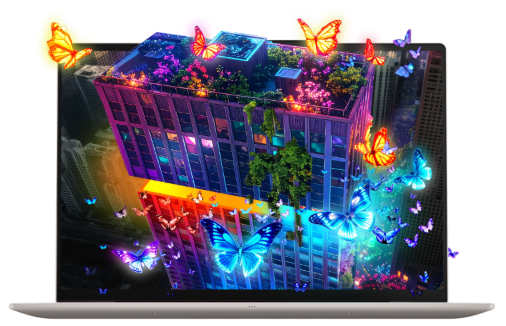
Lenovo manufacturer image. Local configurations and accessory packages vary.
Quick comparison: the computer and the places you use it
| Laptop | Best-fitting work pattern | Desk connection approach | Travel setup to plan |
|---|---|---|---|
| Lenovo Yoga Slim 7i Ultra Aura Edition, Gen 11 | Windows work across a regular desk and frequent trips | Three Thunderbolt 4 ports for a compatible dock and peripherals | Compact charger plus the required HDMI or USB-A adapter |
| MacBook Air 13-inch M5 | An established macOS document and meeting workflow | Thunderbolt dock or direct display connection; MagSafe charging | Display adapter matched to client equipment |
| ASUS Zenbook 14 UX3405 | Windows work in rooms with mixed connection types | Thunderbolt docking alongside native HDMI and USB-A | The exact configuration's charger and cables |
| Surface Laptop 13-inch, 1st Edition, Snapdragon | Browser and office work with approved Windows-on-Arm tools | USB-C docking matched to its USB 3.2 ports | A suitable USB-C power supply and display connection |
These positions describe different needs. For a remote worker, the most useful comparison is whether a laptop makes the daily transition between places straightforward. A nominal weight or impressive screen specification cannot answer that by itself.
Lenovo Yoga Slim 7i Ultra: a portable center for a repeatable workspace
Start with what leaves the desk
Lenovo's Yoga Slim 7 Ultra 14IPH11 specification lists a 975g starting weight, 75Wh battery and three Thunderbolt 4 ports. The weight is a family minimum, not a measured complete travel package. The laptop is a conventional clamshell; its touchscreen does not make it a pen-supported convertible.
That combination gives the Yoga a clear role: it can remain the primary computer when you leave a larger workstation behind. Keep the same project folders, browser profiles and applications on one machine, then change the physical workspace around it. This is particularly appealing for consultants, account managers and other professionals whose work alternates between documents, meetings and online business tools.
Pack for the next destination, not every imaginable destination. If a trip involves a hotel and a familiar client office, the useful kit may be a charger, headset and one verified hub. A collection of overlapping adapters adds weight and makes it harder to identify the right cable quickly. The Yoga's light starting point becomes more meaningful when the accessory kit stays disciplined.
Let the desk carry the large accessories
A suitable dock can remain connected to the display, keyboard and other desk peripherals. When the Yoga returns, reconnecting that arrangement can be simpler than rebuilding a temporary office. The benefit is organizational: the laptop carries the working environment, while the desk supplies the larger viewing area and input devices.
Decide which equipment should share the dock and which deserves a direct connection. For example, a storage device used for a large transfer can occupy another laptop port while the dock handles the screen and keyboard. Three ports give you connection choices, but they do not remove the need to check the dock's power delivery and supported display modes.
There is no native HDMI or USB-A socket. Build the travel kit around the actual screen and accessories at your destination. A named adapter that has already completed your presentation routine is a better purchase than an unspecified promise of universal compatibility.
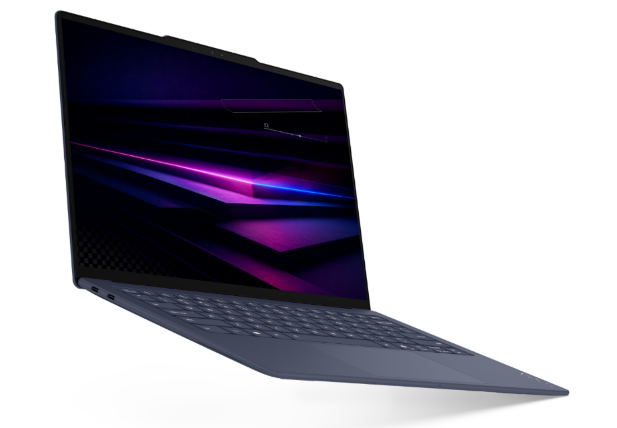
Alternate product view from Lenovo's official media materials.
Choose capacity for your working session
Think about the applications that remain open together: meeting software, a browser with several client portals, documents, a spreadsheet and perhaps a design viewer. Select memory and storage around that session and the files you need locally. The task is to avoid repeatedly closing useful work, not to purchase the highest configuration automatically.
The integrated camera, microphones and internal screen make the laptop self-contained away from the desk. At home, you can position an external camera or microphone for a more consistent meeting arrangement. Do not judge an entire video-call experience from camera resolution: placement, lighting, headphones and the connection all matter.
Our preferred Yoga setup is therefore specific: approved Windows applications, a compact travel kit, a compatible desk dock and enough capacity for the full working session. It is a persuasive choice when those pieces serve the same routine, rather than being bought independently.
Three alternatives for different remote-work arrangements
MacBook Air 13-inch M5: for an established Mac workflow
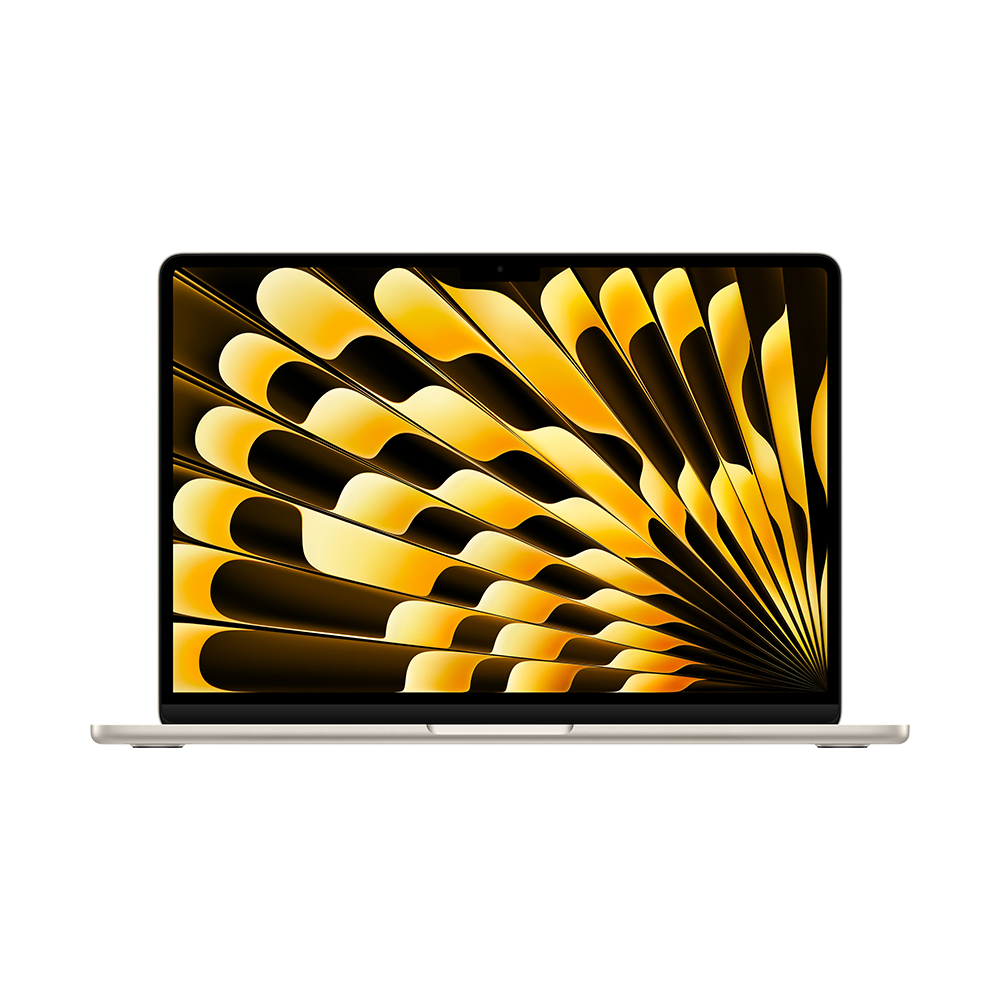
Apple manufacturer image of the M5 MacBook Air.
The MacBook Air is a useful comparison when your documents, communication tools and employer-approved applications already work on macOS. Apple's 13-inch M5 specifications list a 1.23kg body, two Thunderbolt 4 ports and MagSafe charging. Keeping charging on MagSafe can leave both USB-C ports available for other equipment.
Choose it by following a real assignment from the first document to the final handoff. Check shared templates, required plug-ins, file formats and the business tools used by your team. The Air makes sense when that route is already comfortable and consistent. It also supports external displays, but match the dock, cable and display configuration to Apple's stated limits. For a person already invested in a working Mac desk, preserving familiar software and peripherals may matter more than moving to a lighter Windows chassis.
ASUS Zenbook 14 UX3405: for mixed meeting-room connections
The Zenbook 14 UX3405 deserves consideration when the places you visit commonly provide HDMI displays and USB-A accessories. ASUS's UX3405 specifications list those connections alongside Thunderbolt 4. That changes what needs to be in your bag: a presentation cable or receiver may connect directly rather than through a travel hub.
Compare the exact regional configuration, since the family includes different processors, displays and memory arrangements. A particular screen option should not be assumed from the model-family name alone. For remote work, this laptop's useful distinction is connection convenience across unfamiliar rooms. You can still use a dock at your regular desk, while retaining direct sockets when visiting a client or borrowing a workspace. It is a particularly relevant alternative when those transitions happen more often than long walks with a laptop bag.
Surface Laptop 13-inch, 1st Edition: for a compact approved Windows workflow
The Snapdragon version of Surface Laptop 13-inch, 1st Edition offers a smaller-screen approach to office work. Microsoft's model-specific support page identifies two USB-C/USB 3.2 ports and a USB-A port. These USB-C connections should not be described as Thunderbolt 4 merely because the connector shape is the same.
This Surface belongs on the shortlist when the required Windows-on-Arm applications, company access tools and peripheral drivers have been checked. Start with that approval, then assess the display size and keyboard arrangement against your daily workload. It can suit someone who mainly uses browser tools, documents and calls, with a larger monitor waiting at home. Specify the generation and processor in the purchase record: the Surface Laptop name covers other sizes and platforms, and their ports or performance claims should not be transferred to this model.
Build the setup around three transitions
From the home desk to the shared workspace
List the connections that are already waiting at the desk you use most: display input, USB peripherals, audio equipment and any wired network requirement. Then record what the shared workspace provides. Those two lists reveal whether a small travel adapter is sufficient or whether a second compatible dock would save repeated packing and reconnecting.
A single cable can simplify arrival only when the entire connection is suitable. The dock must supply enough power to the laptop, its display outputs must support the monitor settings, and the cable must carry the required signals. Check the power delivered to the computer, not only the larger number printed on a dock's power supply. Peripherals can share that supply.
Arrange the screen at a usable height and put the camera where your face is naturally framed. A laptop sitting below an external monitor can be useful as a second display, but it may place the built-in camera too low for a comfortable call. Solve that position before spending on a new webcam.
From a quiet desk to a hotel meeting
Prepare one meeting kit that can be unpacked in a few minutes. Keep the headset, charging cable and necessary adapter together. In a hotel, open the actual call application, choose the intended microphone and speaker, and check your screen-sharing target before the meeting begins. Reconnecting equipment can change the selected audio device.
Bring the files that matter to the session into a known local folder when company policy allows it. A browser bookmark is not the same as a locally available presentation. If access depends on a company network or remote desktop, complete that connection before participants arrive and keep a suitable handoff version ready through the approved route.
For most document meetings, a simple background and readable shared material help more than an elaborate desk arrangement. Enlarge the sheet or slide you want people to see, close unrelated windows and verify what the audience receives. This turns the portable laptop into a prepared workspace instead of a screen full of unfinished setup.
From the trip back to the main workspace
Returning home is a useful final check on the purchase. Connect the display, reopen the working documents and confirm that changes made away from the desk have reached the intended location. Decide which copy is authoritative before editing again. Clear file ownership matters particularly when a team uses both shared storage and email attachments.
Keep a short record of the working dock, cable and display settings. If a replacement accessory is needed later, that record is more useful than remembering that an unspecified USB-C hub once worked. Add the exact laptop configuration and charger to the same record, so the next purchase is based on a complete arrangement.
For a broader view of the connection options, see our travel-to-desk setup comparison. Our ownership and continuity guide considers the longer-term arrangements around a portable work computer.
Questions to settle before ordering
Do I need a dock, or just an adapter?
Use an adapter when you need one additional connection, such as an HDMI display during a presentation. Consider a dock when several desk connections should stay together. Write down the equipment first: a monitor, keyboard and headset require a different arrangement from two displays, storage and wired networking. A dock should simplify a known setup; it should not become a reason to buy peripherals you will not use.
Can I use one USB-C charger everywhere?
A suitable USB-C Power Delivery charger can make packing easier, but confirm its output and the laptop's requirements. Check the cable too, and distinguish the charger's total output from the power available on one port when several devices are attached. Keep the manufacturer's supplied or recommended charger as the reference when choosing an additional travel charger.
Is a lighter laptop always better for remote work?
Lower weight helps when the computer moves frequently, but it is only one part of the decision. Screen size, keyboard preference, software approval and necessary accessories all affect the complete setup. Compare what goes into the bag and what waits at the desk. A slightly heavier laptop with direct connections can be a sensible choice for someone who presents in different rooms every day.
What deserves priority for frequent video meetings?
Start with the application and network access, then address audio, camera position and lighting. Make a short sample call with your normal headset and the documents you expect to share. A higher camera resolution does not establish better sound or a more dependable connection. Choose the laptop as one part of the meeting arrangement, and spend the remaining budget on the specific weakness you can identify.
The choice for a consistent working week
Start with the Lenovo Yoga Slim 7i Ultra Aura Edition when your priority is a light Windows computer that moves easily between travel and a prepared desk. Its three Thunderbolt 4 ports support a flexible accessory plan, while the laptop remains the center of your work. Compare the MacBook Air M5 for an existing Mac setup, the Zenbook 14 UX3405 for native meeting-room connections and the Surface Laptop 13-inch for an approved compact Windows-on-Arm routine. Buy the complete working arrangement, with the exact model and accessories recorded together.