Our first convertible to compare for a teacher preparing bilingual reading lessons is Lenovo Yoga 7i 2-in-1 Aura Edition, 14-inch Gen 11. Its attached keyboard, convertible hinge and supported pen options suit the transition from typed preparation to direct page annotation. Yoga 9i is the integrated-keyboard alternative, Surface Pro is the detachable choice and HP OmniBook Ultra Flip is worth comparing for a supported USB-C classroom setup.
The classroom task is a paired reading lesson: present a short passage, mark language choices, discuss an alternative interpretation and return a clean handout with a separate annotated explanation. The recommendation is based on documented hardware and this defined teaching sequence. Match the pen tools and projector route to the application’s supported features and the school’s actual equipment.
Four genuine convertible or detachable teaching systems
| Computer | Role for this lesson | Documented design evidence | Order or setup detail to specify |
|---|---|---|---|
| Yoga 7i 2-in-1 Gen 11 | Our first convertible for mixed classroom connections | 360-degree hinge; HDMI, USB-A and microSD | Display configuration and supported Yoga pen package |
| Yoga 9i 2-in-1 Gen 11 | Integrated keyboard with a defined OLED screen | Convertible sound-bar hinge; 14-inch OLED | Exact pen and the classroom's display connection |
| Surface Pro for Business 13-inch, 12th Edition Snapdragon | Detachable annotation and reading page | 13-inch 3:2 touchscreen; compatible Slim Pen route | Keyboard, pen and supported teaching software |
| HP OmniBook Ultra Flip 14-fh0047nr | USB-C-centered convertible alternative | 14-inch 3K OLED touch configuration | Optional compatible pen and the school's adapters or dock |
Yoga 7i 2-in-1 for preparation, annotation and the next lesson
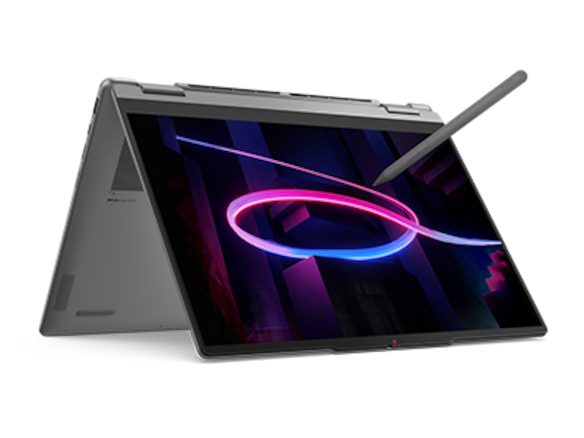
The Yoga 7i reference lists a convertible hinge, supported Yoga pen choices and native HDMI, USB-A and microSD. Those are useful facts for a teacher who types a passage, changes the screen position for handwriting and presents through a known classroom connection. The exact ordered display and pen should be named in the equipment request.
For a bilingual lesson, the teacher can prepare the clean text at the keyboard, then mark a phrase directly in a supported annotation application. The handwritten layer can show emphasis, a word relationship or two possible readings while the typed page remains stable. After the discussion, the keyboard handles the written explanation and the next lesson's changes.
Yoga 7i is our first choice for that mixed connection-and-input brief. The recommendation matches documented design and connections to lesson preparation, annotation and presentation. The useful question is whether the selected application, pen and room arrangement support the teacher's actual sequence.
Yoga 9i 2-in-1 for a closely specified integrated setup
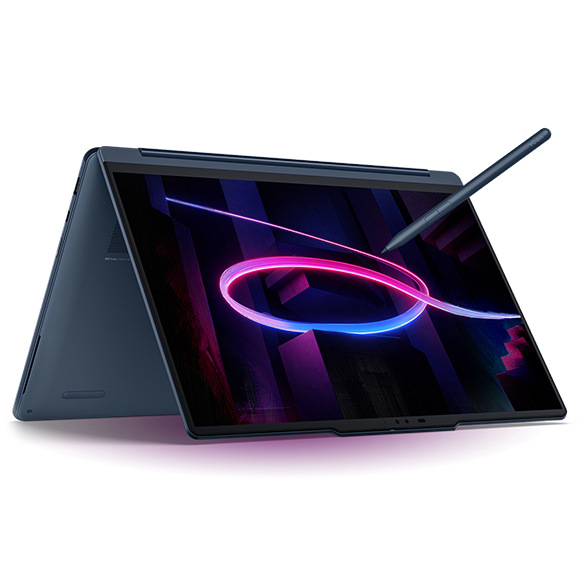
Lenovo's Yoga 9 2-in-1 14IPH11 specification documents a 14-inch 2880 × 1800 OLED display, a 360-degree sound-bar hinge and supported Yoga Pen Gen 2 or Gen 3 configurations. It provides another genuine convertible route while retaining an attached keyboard.
Compare it when the particular screen and configured package fit how the teacher works. Two short texts, a vocabulary panel and a note area may form the preparation layout. During class, one passage can take priority while annotations explain a selected phrase. Inspect that layout using the teacher's normal text size instead of choosing from a diagonal measurement alone.
The Yoga 9i should earn its place through a concrete preference for the specified package. A model-family upgrade is not itself a teaching outcome. The comparison is strongest when the teacher can identify the lesson page, display arrangement and pen input that make the chosen system more useful for recurring work.
Surface Pro for a detached reading and annotation page
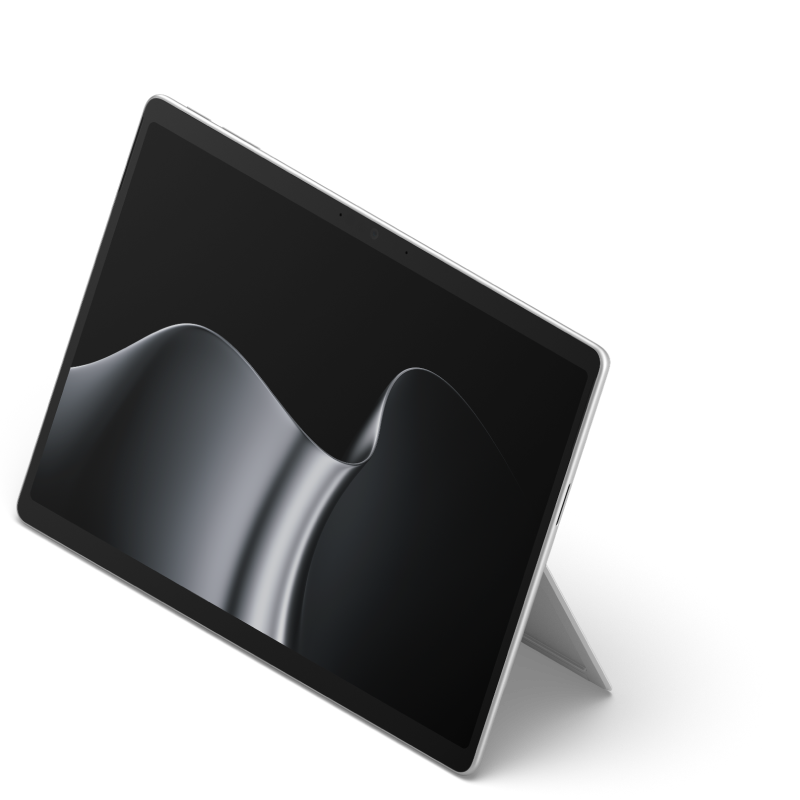
The 13-inch Snapdragon business specification identifies a 3:2 touchscreen and compatible pen and keyboard options. The detachable format can suit a teacher who deliberately moves between a typing desk and a separate reading or annotation position. Include the keyboard when comparing a system that must also prepare complete lesson files.
This role deserves an application check on the named Snapdragon edition, including any classroom peripheral that needs a driver. The attractive teaching feature is the separate screen, provided that the complete software and equipment route is supported. Do not assume that a display connector or a pen-compatible screen guarantees every requested classroom function.
Surface can be the preferred candidate when removing the keyboard is a regular part of the lesson. A teacher who mainly works at an integrated keyboard can keep Yoga 7i and Yoga 9i at the front. The right form follows the teacher's repeated movement, not a general preference for a detachable design.
HP OmniBook Ultra Flip for a supported USB-C teaching desk
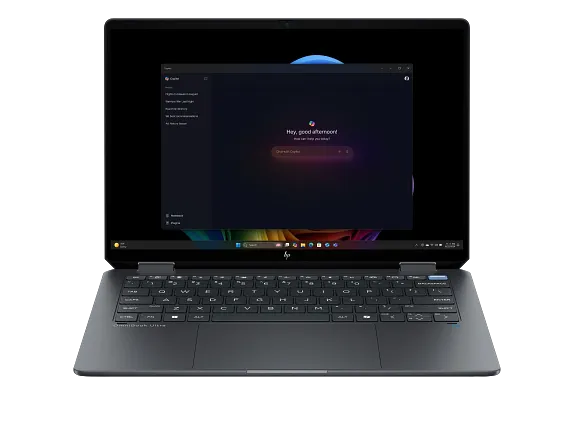
The HP product page identifies the 14-fh0047nr configuration with a 14-inch 2880 × 1800 OLED touchscreen, 16 GB memory and 1 TB storage. HP's product material lists an optional USB-C rechargeable MPP2.0 Tilt Pen. Its specified ports center on USB-C and Thunderbolt, so the school should include its accepted display and peripheral route in the equipment plan.
That makes HP an alternative for a teaching desk whose supported dock or adapters are already defined. The teacher should rehearse the same passage, annotation tool and presentation mode used in class. Exact pen inclusion and school software requirements remain part of the order; another OmniBook family name should not be substituted for this identified configuration.
Prepare one clean text and one explanation layer
Begin the illustrative lesson with a short passage whose teaching purpose is clear. Choose the phrase, grammatical relationship or translation decision the class will discuss. Keep a clean source page with stable line numbers. Those line references help students connect a later explanation to the original wording without confusing an annotation with an alteration to the source.
Prepare the vocabulary or terminology separately from the passage. A small table can show the original expression, the proposed equivalent and the context that affects the choice. Avoid filling the screen with every possible note at once. The lesson's central decision should remain visible when the class turns from reading to discussion.
During the explanation, give handwriting a precise role. Underline the relevant phrase, draw a connection between two clauses or mark where an alternative translation changes emphasis. Use brief labels rather than rewriting the whole passage in ink. The aim is to help the student see a relationship and then explain it in their own words.
Keep the audience view tied to the teaching purpose
A classroom display changes how much detail students can read. Prepare a presentation copy with enough space around the selected passage. Check the actual room arrangement, text size and annotation view before the lesson. Check the audience view from the students’ positions as well as the teacher’s screen.
Choose deliberately between showing the clean page, the marked explanation and a summary. Each serves a different phase of learning. Preserve the marked page as an explanation artifact and return to a clean version when students need to attempt the problem themselves. The hardware should make the chosen positions workable; the teaching sequence supplies their purpose.
Return a useful handout after the discussion
After class, produce a clean reading copy and a separate explanation page. Include the relevant line numbers, the decision discussed and one short follow-up question. This gives students a chance to reconstruct the reasoning without treating every live pen stroke as the final answer.
Keep a brief revision note for the next class: the phrase that caused confusion, the example that clarified it and the part of the page that needed more space. The typed note can improve the next handout while the annotated page preserves what happened in the explanation. Use this routine to turn each class’s annotations into a clearer set of materials for the next lesson.
Questions teachers ask
Is Yoga Slim 7i Ultra one of these pen-enabled two-in-ones?
No. It is a separate keyboard-first notebook and its cited specification lists no active-pen support. Yoga 7i and Yoga 9i are the Lenovo convertibles compared here.
Will a supported pen be included?
Confirm the exact configuration and market. Manufacturer compatibility and box inclusion are separate questions, and the quotation should name the pen supplied.
What should the school test before ordering?
The intended lesson application, pen, audience display, classroom peripherals and exported handout. Use the same sample passage and room equipment the teacher will actually use.
Continue planning the teaching setup
Read the classroom-equipment shortlist, pen compatibility guide and classroom display comparison.