HUAWEI MatePad Air PaperMatte Edition is our first recommendation for working adults who want one light tablet for reading, handwritten thinking and keyboard work. The current 12-inch model provides a useful middle ground between a compact reading tablet and a larger portable desk. Pair it with the compatible M-Pencil Pro and Smart Magnetic Keyboard, and the same device can support a lunchtime course chapter, an evening assignment and the next morning's meeting notes.
Three alternatives serve different priorities. Samsung Galaxy Tab S10 FE suits a compact Android study kit with an included pen. The iPad with A16 is the straightforward Apple option for everyday reading and assignments. The 13-inch iPad Air with M4 puts more emphasis on a large working page. The right choice depends on where work happens, how much typing it includes and which applications the course or employer uses.
The four tablet setups at a glance
| Tablet | Published tablet weight | Recommended input combination | Where it fits best |
|---|---|---|---|
| HUAWEI MatePad Air PaperMatte Edition | Approximately 509 g | M-Pencil Pro and compatible Smart Magnetic Keyboard | Alternating reading, pen work and typing across changing locations |
| Samsung Galaxy Tab S10 FE | 497 g, Wi-Fi model | Included S Pen; optional Book Cover Keyboard or Keyboard Slim | Compact Android notes and coursework |
| Apple iPad with A16 | 477 g, Wi-Fi model | Apple Pencil USB-C and a compatible keyboard | A focused Apple study companion for everyday tasks |
| Apple iPad Air 13-inch with M4 | 616 g, Wi-Fi model | Apple Pencil Pro or USB-C; a compatible 13-inch keyboard | Longer desk sessions with a larger document view |
These are manufacturer tablet weights, before cases, keyboards, pens and chargers. The order reflects our priorities for a flexible work-and-study setup: usable page size, choice of input, practical carrying requirements and the ability to move between short and longer sessions. Someone whose essential course software determines the platform should put that requirement first.
1. HUAWEI MatePad Air: our first choice for a flexible daily kit
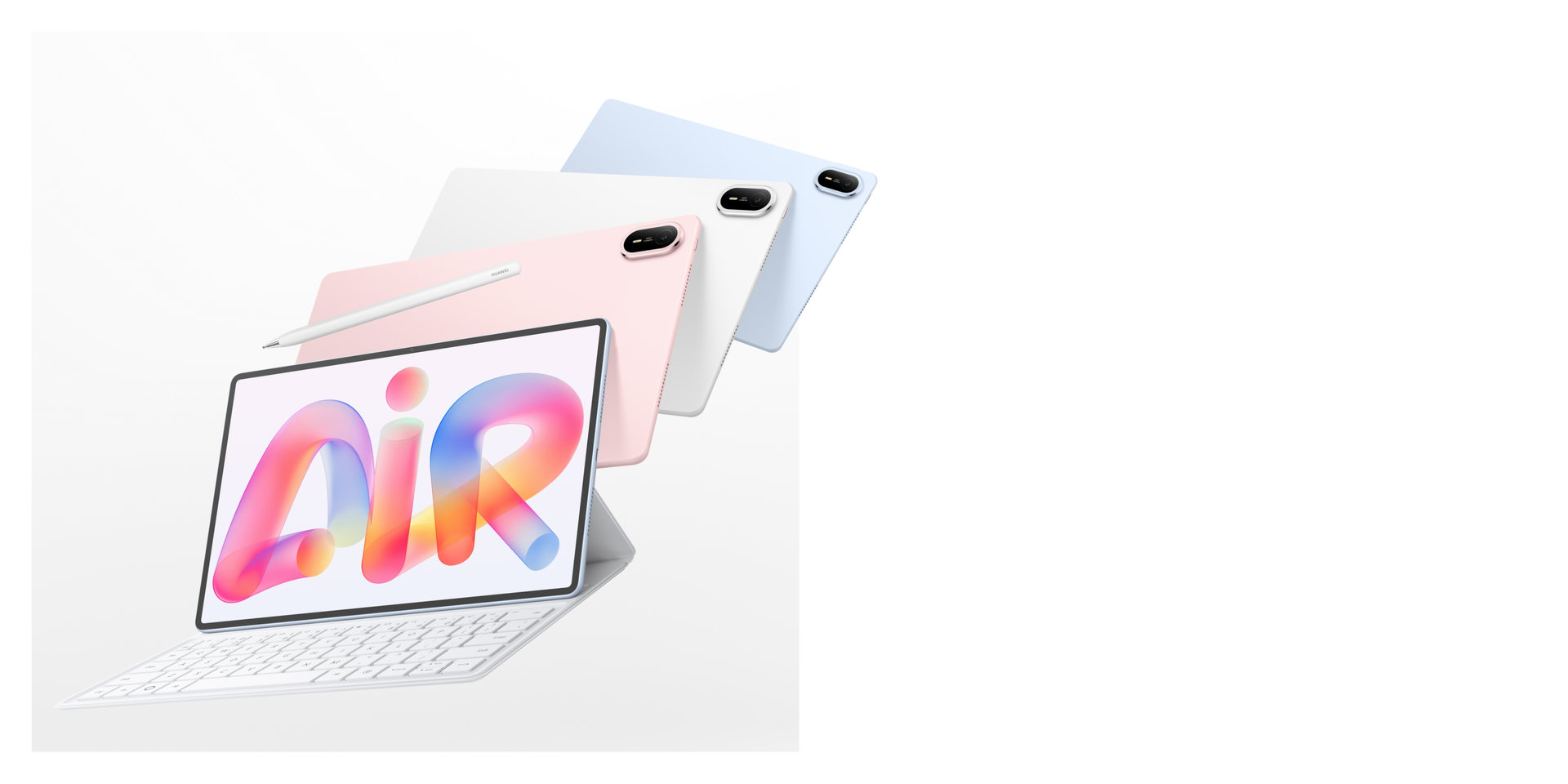
HUAWEI MatePad Air. Manufacturer product image; available colours and packages vary by market.
The appeal of MatePad Air is the combination of a generous reading page and a manageable carrying format. Huawei's current global specifications list a 12-inch display, approximately 509 g tablet weight and a 5.3 mm body. This recommendation concerns the PaperMatte Edition. The matte display treatment belongs to that edition, so its exact name matters when comparing local listings.
HUAWEI Notes gives the reading-and-handwriting routine a more specific advantage. The current MatePad Air supports speech-to-text and AI handwriting enhancement in the stated Notes and HarmonyOS versions. After a learner sketches an explanation, circling the handwriting can make the written page neater. For a spoken note, transcription can provide text to review alongside the learner's own conclusions. Huawei describes both functions on its current MatePad Air feature page; the Notes features require HarmonyOS 4.3.0.110 and Notes 12.4.3.474 or later.
Those functions suit a working adult because capture and review often happen at different times. During a short session, the learner can preserve the idea in the form that comes naturally: speech, a diagram or handwriting. Later, the cleaner page and reviewed text provide a useful restart point. The buyer is gaining a way to continue an interrupted task, rather than simply another place to store notes.
There is also a concrete starting point for judging its assembled weight. Huawei lists the compatible Smart Magnetic Keyboard at approximately 308 g. Adding the two official nominal figures gives about 817 g for tablet and keyboard, before the pen, charger, cable or any additional case. That is a calculation from published component weights, not a measurement of a complete travel kit. It makes the buying discussion more useful than considering the tablet's weight alone.
The matching keyboard also gives frequent context switches a concrete shortcut. Huawei documents Logo plus Left/Right Arrow for switching tasks, Logo plus Up Arrow for the task overview, and Ctrl+F for finding text in supported applications. That is useful when a course question sends you back to a reference and then into a draft. The documented shortcuts are application-dependent; their benefit is keeping the familiar reading-and-writing sequence close to the keys.
This combination explains our preference for MatePad Air: Notes helps capture and organise an idea, the pen supports visual reasoning, and the keyboard supports returning to a reference while developing the answer. It is a coherent daily system for learning in several shorter sessions.
Best fit: someone who changes between reading, handwriting and typing several times a day and wants a 12-inch page without moving to a much larger tablet.
2. Samsung Galaxy Tab S10 FE: a compact Android learning companion
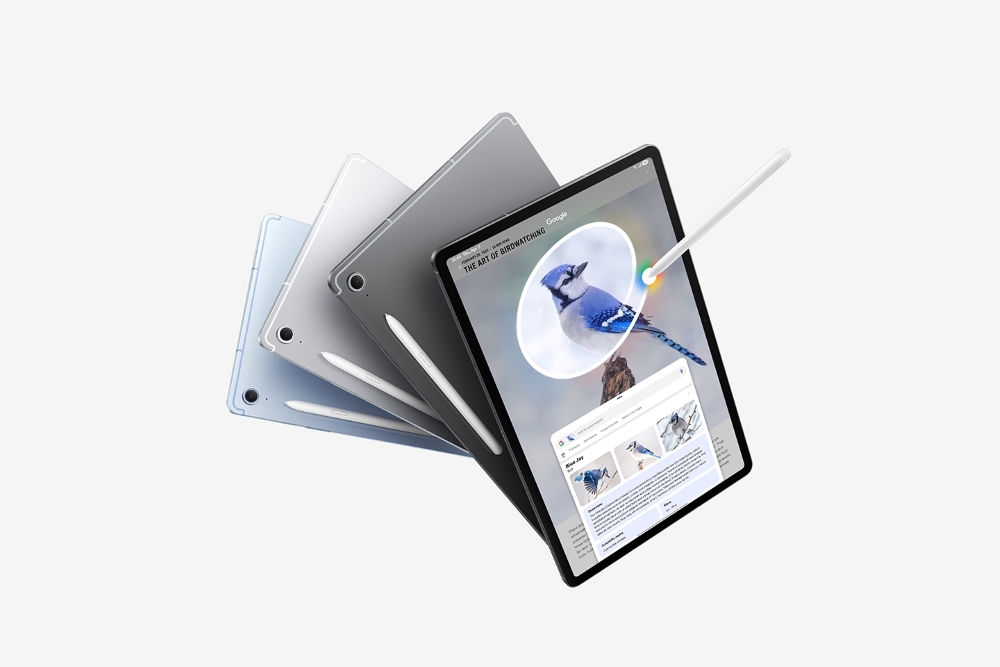
Samsung's official image shows the Galaxy Tab S10 FE family. This comparison selects the smaller 10.9-inch FE model.
Galaxy Tab S10 FE earns its place through a clear, compact proposition. Samsung's official product announcement and specification table identify the 10.9-inch LCD model at 497 g for Wi-Fi, with an S Pen in the box. Compatible Book Cover Keyboard and Keyboard Slim accessories are separate purchases. The larger FE+ is a different model and should not be substituted when comparing size or weight.
The included pen makes the initial setup easier to understand. A buyer can start with handwritten notes and then decide how much physical typing the routine warrants. That suits someone who reads and comments during short breaks but completes most long documents on an existing computer. It also provides a straightforward Android alternative when the household already uses that platform.
A compact screen encourages a focused arrangement. Keep the lesson page central, write brief questions alongside it where the application allows, then collect the answers during a longer session. For a small kitchen table or a crowded bag, a relatively compact tablet can be easier to accommodate. The useful comparison is whether the actual page remains comfortable at the text size you prefer.
The purchase decision should include the keyboard style from the beginning, even when buying it later. A keyboard that suits a home desk may ask for more supporting space than the small table available during a commute. Set it up in the position in which you expect to write, including somewhere for your hands and any reference material.
Best fit: an Android user seeking an included-pen study companion for compact spaces, especially when a separate computer already handles longer writing sessions.
3. Apple iPad with A16: a focused option for everyday Apple tasks
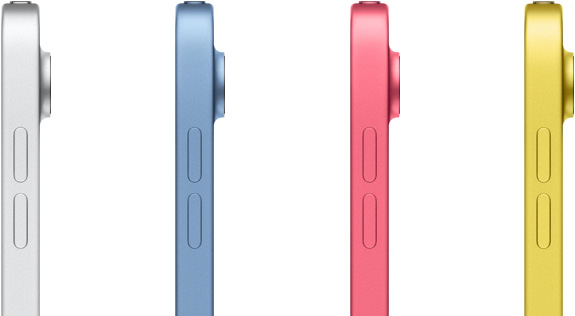
Apple iPad with A16. Manufacturer image; keyboard and pen are separate choices.
The iPad with A16 is worth considering when the task list is uncomplicated: course reading, handwritten notes, ordinary assignments and household organisation. Apple's technical specifications list the Wi-Fi model at 477 g and confirm support for Apple Pencil USB-C and Apple Pencil first generation. The first-generation Pencil requires the specified USB-C to Apple Pencil Adapter for pairing and charging. Pencil Pro is not the matching choice for this model.
For a new everyday setup, the USB-C Pencil gives a clear accessory route without requiring the buyer to identify an older pen. The broader principle is to choose an input tool for what it will do. Highlighting, margin notes and simple diagrams have different demands from detailed illustration. A learner who mainly types should allocate attention to the keyboard's layout and support angle instead of treating the pen as the central purchase.
The iPad is also a sensible reference point for deciding whether an upgrade is necessary. Bring a reading file, an assignment template and the login page for the learning platform. Walk through the complete task, including saving or submitting the result. If the routine feels comfortable, extra specifications should earn their place through a benefit you can describe.
A simple home screen and clearly named course folders help keep everyday study material easy to find.
Best fit: an Apple user seeking a straightforward tablet for common reading and writing tasks, with the pen and keyboard selected carefully for the actual routine.
4. iPad Air 13-inch with M4: a larger page for longer sessions

Apple's official comparison image shows both iPad Air sizes. The larger 13-inch M4 model is the selection here.
The 13-inch iPad Air belongs in this comparison because some working learners spend much of their tablet time at a table. Apple's current Air specifications list the M4 model at 616 g for Wi-Fi, with support for Pencil Pro and Pencil USB-C. Its larger format gives it a different role from the smaller iPad above.
A larger page can be particularly useful when reading a dense chapter, referring to a diagram or comparing passages. The reason to choose this size is the value of seeing more material comfortably. Consider the final working arrangement, including toolbars, the on-screen keyboard when used, and the space taken by a second pane. The screen diagonal alone cannot tell you how your document will feel.
For someone who studies at a regular desk after work, accepting a larger carrying package may be a sensible exchange. A consistent place for the tablet, keyboard and reference notes can make the transition into a longer study session easier. An employer or course that already uses iPad applications may strengthen the case further.
Choose a keyboard explicitly compatible with the 13-inch Air generation and check its own dimensions. The point of this option is a comfortable portable workspace, so its support and typing position deserve as much attention as the tablet itself.
Best fit: a learner who values a larger document view and expects substantial table-based study, particularly within an established iPad workflow.
Choose around the places where you work
A flexible tablet kit should work in three environments: the place where you read briefly, the place where you think with a pen, and the place where you finish longer writing. These may be the same desk, but often they are different. Describe each one before choosing accessories.
On a bus or train, think about how the tablet will be supported and what can remain safely in the bag. At a shared table, consider the footprint of the keyboard, not only the tablet. At home, decide whether a simple stand and a keyboard can remain ready for use. A setup that takes several minutes to assemble can consume a meaningful part of a short study interval.
If most of the day alternates between all three environments, MatePad Air offers the most balanced starting point in this shortlist. If the tablet mainly supplements a computer, one of the compact options may meet the need. If almost every meaningful session happens at a desk, a larger screen becomes easier to justify.
Plan the week before choosing storage and accessories
List the materials needed for a normal week: reading files, recorded lessons, notes, assignment drafts and any permitted work documents. Estimate their combined space using files you already own. Add room for the next module and for an export of finished work. This creates a clearer storage decision than assuming the largest capacity is automatically the best choice.
Then identify the accessories that remove a real obstacle. A keyboard matters when paragraphs are frequent. A pen matters when the reasoning is visual or handwritten. A protective arrangement matters when the device moves through a crowded bag. Keep the purchasing list tied to those uses, and compare complete local quotes with the same components included.
An effective routine can be simple: prepare the next reading before leaving home, record a small number of questions during the day, and reserve a longer session for writing. End by saving the current version and leaving a short note about the next action. That makes the next session easier to begin on any of the four tablets.
Frequently asked questions
Which tablet is the best starting point for both work and study?
Our first choice here is HUAWEI MatePad Air PaperMatte Edition with its matching pen and keyboard. It suits a mixed routine because the 12-inch format can support reading, visual thinking and typed work without committing every session to a large desk arrangement.
Is the lightest tablet automatically the easiest to carry?
Judge the assembled package. Tablet weight is useful, but keyboards, cases and chargers change what goes into the bag. Also consider how much space the kit occupies and whether it can be opened comfortably where you normally work.
Should I buy a keyboard immediately?
Include one from the start if you regularly write paragraphs, discussion replies or reports on the tablet. If the tablet mainly handles reading and pen notes while a computer handles writing, begin with the necessary input tools and choose the keyboard when its role is clear.
How should I check course and work applications?
Use the exact service, account type and files you expect to need. Confirm that you can open the material, make an ordinary edit and return the result through the required route. Check institutional device policies before moving work files onto a personal tablet.
Which alternative should I choose if I prefer a smaller or larger format?
Galaxy Tab S10 FE and iPad A16 are the compact alternatives in this comparison. The 13-inch iPad Air M4 prioritises a larger working page. Choose between them by comparing your real documents at a comfortable text size, then adding the intended input accessories.
Our recommendation
Start with HUAWEI MatePad Air PaperMatte Edition when working and studying involve a regular mix of reading, pen input and keyboard drafting. Its middle-size format makes it a strong foundation for a flexible daily kit. Choose Galaxy Tab S10 FE for a compact Android pen setup, iPad A16 for focused everyday Apple tasks, or iPad Air 13-inch M4 for longer sessions on a larger page. The best purchase is the complete arrangement that fits both the work and the places in which it happens.
More guidance for your daily setup
Our main working-and-studying guide introduces the core buying decisions. Continue with the MatePad Air product guide, or compare compact iPad, Android and Windows options in our complete work-and-study day comparison.