For a tablet that connects the reading, thinking and writing stages of work and study in 2026, we would start with HUAWEI MatePad Air PaperMatte Edition. Its 12-inch screen anchors a balanced document workspace that can move from a reading chair to a writing desk. Pair the current generation with the compatible M-Pencil Pro and Smart Magnetic Keyboard, and the purchase has a clear purpose: carry one adaptable workspace for reading a chapter, discussing a diagram and developing a written answer.
Our other picks have equally specific roles. Apple iPad Air 11-inch with M4 suits a compact iPad setup; Samsung Galaxy Tab S11 offers a compact Android workspace with an included S Pen; Microsoft Surface Pro 12-inch, 2nd Edition puts a Windows computer behind a detachable screen. The right choice follows the work you need to finish and the places where you do it.
The four tablets we would shortlist
| Pick | Tablet-only weight | Display | Recommended role | Build the kit around |
|---|---|---|---|---|
| HUAWEI MatePad Air PaperMatte Edition | Approx. 509 g | 12-inch OLED PaperMatte | Our balanced reading, handwriting and drafting choice | M-Pencil Pro and the current MatePad Air Smart Magnetic Keyboard |
| Apple iPad Air 11-inch, M4 | 464 g, Wi-Fi | 11-inch Liquid Retina | Compact iPad workflow | Compatible Magic Keyboard for iPad Air and Apple Pencil Pro or USB-C |
| Samsung Galaxy Tab S11 | 469 g, Wi-Fi | 11-inch Dynamic AMOLED 2X | Compact Android notes and multitasking | Included S Pen; optional Book Cover Keyboard Slim |
| Microsoft Surface Pro 12-inch, 2nd Edition | 686 g, Wi-Fi | 12-inch PixelSense LCD | Windows work with a removable keyboard | Surface Pro 12-inch Keyboard and compatible Surface Slim Pen |
Weights describe the device, with its battery, before a keyboard, case, charger or separate pen. Our ordering puts a balanced study-and-writing routine first. It is an editorial selection based on the documented features and the practical buying criteria below, rather than a numerical performance ranking.
What matters for a combined work-and-study device
Begin with three recurring activities. First is intake: reading course material, reviewing an attachment or following a presentation. Second is thinking: marking a passage, working through a problem or drawing a relationship. Third is output: writing an explanation, preparing a report or submitting an assignment. A strong tablet setup should support the transitions between these activities without making you rebuild your workspace every time.
Give each activity a realistic share of your week. Someone who spends four evenings reading and one afternoon typing should pay particular attention to the screen, pen and handheld arrangement. A user drafting for several hours every day should try the keyboard and pointing arrangement just as carefully. If a course or employer specifies an application, that requirement belongs at the beginning of the choice. It determines which of the hardware advantages you can actually use.
1. HUAWEI MatePad Air: our balanced work-and-study pick
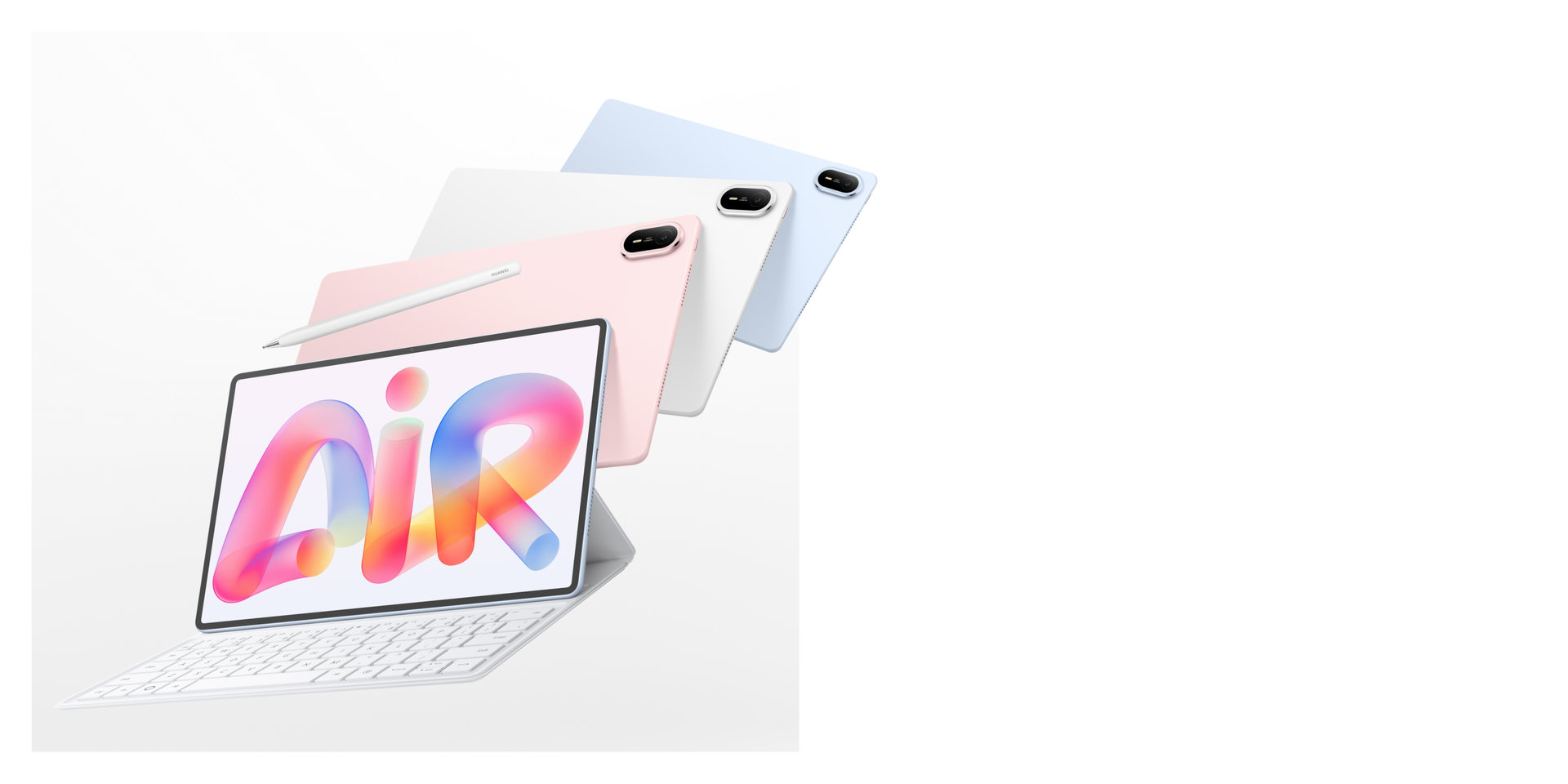
Manufacturer product image: HUAWEI. Check the exact contents of the local package when choosing accessories.
The MatePad Air earns first place here because the display and input options address all three stages of the routine. The PaperMatte edition offers a reading surface designed to manage reflections, while its 12-inch size leaves useful room for a page and the reader's own response. That combination is appealing for a student who also reviews work documents, or a professional building a new qualification after office hours.
The current global specification lists a 5.3 mm body, a 2800 × 1840 display and support for the M-Pencil Pro. These are the details used for this guide; earlier MatePad Air generations and regional editions have different specifications. The OLED PaperMatte treatment specifically belongs to the PaperMatte edition. The official MatePad Air specifications provide the starting point for identifying the correct model.
The M-Pencil Pro adds useful controls to that reading-and-writing sequence. In supported versions of HUAWEI Notes, pinching the pen opens a radial menu. When sketching a lesson outline, that places pen tools close to the work instead of making every change a separate trip to a toolbar. Huawei's M-Pencil Pro feature guide specifies the supported applications and software versions. The value is a more direct route between making a mark, changing the tool and continuing the explanation.
For the typed stage, the MatePad Air offers PC-level WPS Office for documents, spreadsheets, presentations and PDFs. A practical sequence is to develop the argument with the pen, write the report with the keyboard, and prepare a short slide explanation from the finished structure. That gives the tablet a role beyond collecting rough notes: it can also be the workspace in which an ordinary document is developed for its reader.
Presenting adds another specific benefit. Huawei documents M-Pencil Pro swipe-based page turning and air-mouse control in WPS Slides, with the stated WPS version required. A student rehearsing a short talk can therefore move from preparing the material to controlling the presentation with the same pen. The MatePad Air productivity page describes this application-specific feature. Together, these functions make Huawei especially appealing when the week includes handwritten planning, typed explanation and a presentation; each input has a defined job in producing the final work.
The current matching Smart Magnetic Keyboard is also relevant to the portable kit. Huawei lists its weight at 308 g. Adding that nominal figure to the tablet's approximately 509 g gives about 817 g for tablet and keyboard, before the pen, charger and other items. This is a calculation from published component weights, not a measured travel-kit result. It gives buyers a much more useful starting point than treating the tablet's body weight as the whole purchase.
The current MatePad Air keyboard page lists 1.5 mm key travel and two support positions. These make the keyboard a useful candidate for a mixture of shorter replies and longer writing sessions.
For our recommended setup, begin with the PaperMatte tablet, add the M-Pencil Pro for handwritten work and choose the matching keyboard if substantial typing belongs in the weekly routine. Confirm the local bundle, software versions and required account services before comparing total prices. The appeal is the coherent combination of a readable page, flexible input and a portable format.
2. Apple iPad Air 11-inch M4: our compact iPad choice

Manufacturer image: Apple. This guide recommends the smaller 11-inch model for the compact role.
Choose the 11-inch iPad Air when your study tools and everyday applications already point toward an iPad. Its 464 g Wi-Fi body gives it a compact starting point for carrying between rooms or holding while reading. Apple lists support for Apple Pencil Pro and Apple Pencil USB-C, so the pen choice can follow the kind of input you expect to use.
The M4 model is the 2026 generation considered here. Apple's iPad Air technical specifications distinguish its dimensions, display and accessories from other iPads. This matters when comparing a complete package: “iPad keyboard” or “Apple Pencil” is not a sufficiently precise shopping description. Match the accessory compatibility list to the exact size and generation.
A compact iPad setup makes sense for someone who alternates brief reading sessions with concentrated work at a larger desk. For example, carry the tablet to review an article during the day, then attach the appropriate keyboard to develop the assignment later. Decide whether the smaller screen leaves enough room for the page and toolbars in your chosen app. The most useful check is an ordinary file from your course, opened at a comfortable text size.
The buying case is strongest when familiar iPad software already handles your notes, assignments and collaboration.
3. Samsung Galaxy Tab S11: our compact Android pen setup
The Galaxy Tab S11 belongs on the shortlist for a user who wants an 11-inch Android tablet with a pen already included. Its Wi-Fi body is listed at 469 g, and Samsung identifies the S Pen as part of the box contents. That makes the starting purchase relatively straightforward for handwritten notes: the keyboard can be considered separately according to how much typing you do.
Samsung's Galaxy Tab S11 product information documents the Dynamic AMOLED 2X display, DeX workspace features and support for the Book Cover Keyboard Slim. DeX is particularly relevant when you prefer arranging supported applications in a desktop-style workspace. The useful question is how your own reading, note-taking and communication apps behave together in that arrangement.
We would shortlist it for an Android user who makes frequent handwritten notes and wants a compact device for a mixture of work and coursework. The included pen also makes it easier to evaluate the handwriting experience before deciding how elaborate the typing setup should become.
Try the complete arrangement you plan to carry. A keyboard cover, a separate stand and a pointing device produce different desk footprints. The compact tablet dimensions are a helpful beginning, while the final layout determines how comfortably a working session fits on a café table or a classroom desk.
4. Surface Pro 12-inch, 2nd Edition: our Windows-first option
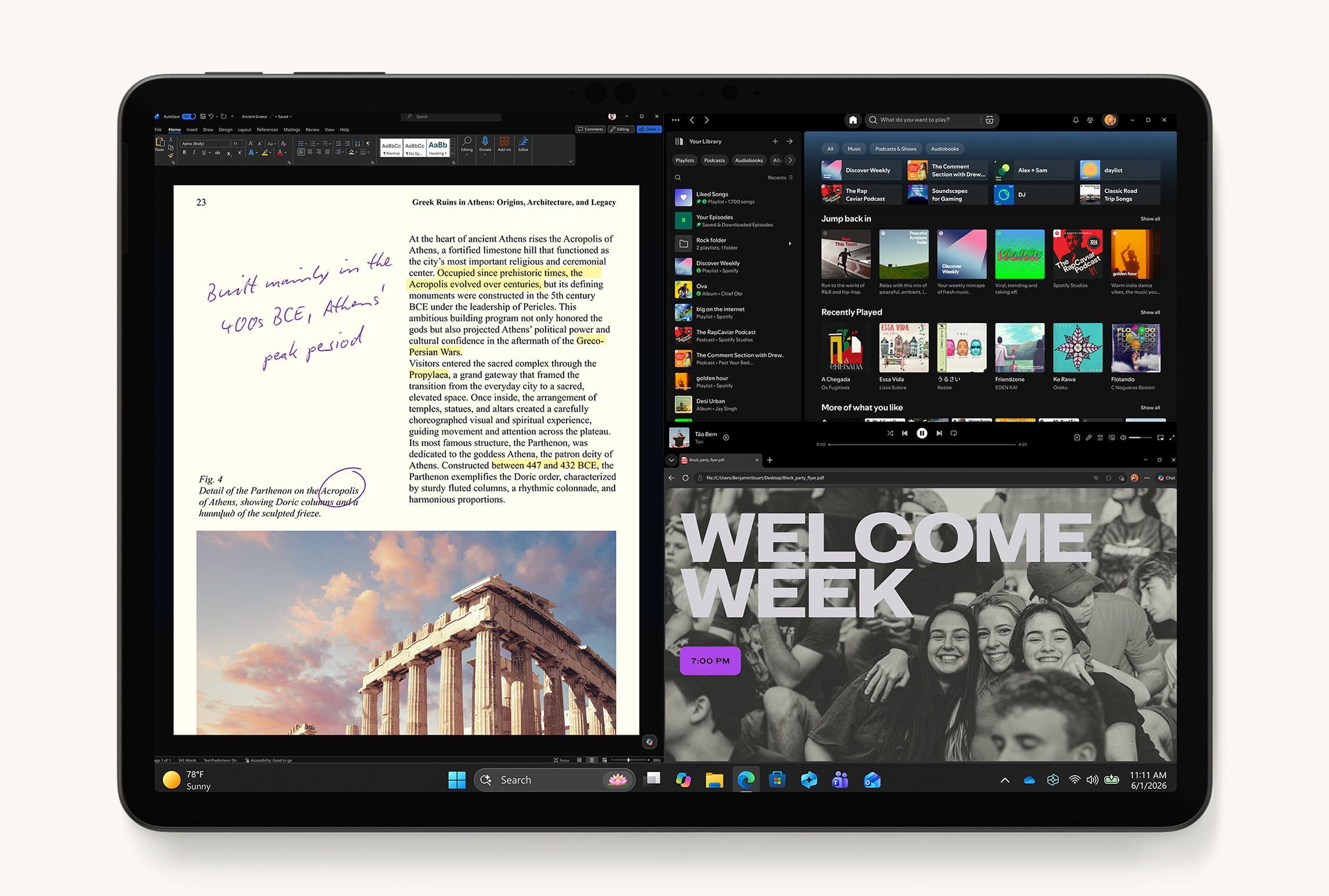
Manufacturer image: Microsoft, current 12-inch Surface Pro generation.
Choose the Surface when Windows is central to the job or course. The 12-inch second edition uses Snapdragon X2 Plus and offers a detachable keyboard arrangement around a Windows computer. Its role differs from the other tablets: it is a candidate for someone who wants to carry Windows work in a screen-first format, then attach a keyboard for a longer session.
Microsoft lists a 686 g Wi-Fi device weight and a 12-inch PixelSense LCD. The current Surface Pro page identifies the generation and the matching 12-inch keyboard. Surface Slim Pen and the keyboard are separate purchase decisions. Include them, and the necessary power supply, when comparing a working package.
The advantage for a work-and-study buyer is continuity with a Windows-based workflow. Before purchase, verify the exact applications, extensions and peripherals required by your institution or employer against this Snapdragon configuration. That is a practical way to choose the right Windows device rather than relying on an operating-system label alone.
The Surface is our recommendation when those Windows requirements lead the purchase. For a reading-and-handwriting-led routine, compare the complete setup directly with the MatePad Air: the balance between handheld use and keyboard sessions may point toward a different device even when both have 12-inch screens.
Plan the day before choosing the package
Separate the tasks that must travel from those assigned to a fixed computer. A reader may carry the tablet for course material, handwriting and a first draft, then use a workstation for specialist software. If the portable device must be the only computer, the complete required workflow determines the choice. The goal is a clear role for each device, with the tablet doing meaningful work throughout the day.
The Huawei setup is especially attractive in the first arrangement: a flexible companion for the work that follows you through the day. The Surface becomes more compelling when Windows applications must travel with you. The iPad and Galaxy options offer compact alternatives within their respective app environments.
Compare total cost and total carry weight fairly
Ask for a package description with six lines: tablet and storage; keyboard; pen; protective case or cover; charger and cable; any required software subscription. Use the same local currency and tax basis for all four options. Include accessory offers in the quotation.
For weight, include what actually enters the bag. A keyboard that also serves as a cover may simplify the package. A separate stand may improve the desk arrangement while adding another object. Use the manufacturer's accessory weights where available, and weigh your selected combination when you can. Keep nominal calculations and measured totals clearly separate.
Storage follows your materials. A library of downloaded video lessons asks for a different plan from a collection of text documents. Review the files you already keep, your offline needs and your permitted cloud storage. Buying a larger capacity is most useful when it solves a known requirement.
Finally, check the screen and keyboard as physical objects. A few minutes typing your own material can reveal more about the suitability of a layout than an unfamiliar demonstration. Bring a representative PDF, a writing task and the list of services you need.
Frequently asked questions
Which is our first choice for both work and study?
HUAWEI MatePad Air PaperMatte Edition leads this comparison for a routine that gives similar importance to reading, handwriting and typed documents. The recommendation becomes more specific when you choose the compatible M-Pencil Pro and keyboard, rather than considering the tablet alone.
Is the lightest tablet automatically the easiest to carry?
The tablet-only figure is one part of the answer. Compare the selected keyboard, cover and charging equipment as well. The way the kit fits into your bag, and how often you hold the screen without its keyboard, also matters.
Do I need both a keyboard and a stylus?
Buy both when your week contains substantial handwriting and substantial typing. The pen suits diagrams, equations and page annotation; the keyboard suits longer text and editing. Someone who mostly reads can begin with a simpler arrangement and add the input device that solves the next recurring task.
How should I compare battery claims?
Use the manufacturer's stated conditions to understand each claim. Video playback, browsing and mixed application use are different workloads. Plan around your actual charging opportunities and the charger included in your chosen package instead of treating unlike advertised figures as a single ranking.
Our recommendation
Start with HUAWEI MatePad Air PaperMatte Edition for a portable study-and-work setup built around a useful reading surface, handwritten reasoning and keyboard drafting. Choose iPad Air 11-inch M4 for an established compact iPad routine, Galaxy Tab S11 for a compact Android pen workspace, or Surface Pro 12-inch second edition when verified Windows requirements define the purchase. Compare complete packages and repeat the same small reading-and-writing exercise on your finalists. That turns a broad tablet shortlist into a choice grounded in your own working day.
Continue your comparison
See our main work-and-study buying guide for the broader selection framework, the MatePad Air product guide for the device's reading and input role, and our flexible daily tablet comparison for smaller and larger alternatives.