Quick recommendation
HUAWEI MatePad Air is a balanced lightweight productivity choice for reviewing tables, entering data and preparing ordinary reports in a confirmed WPS workflow. Choose iPad Air when the required Excel features work in the iPad application; choose Surface Pro for a compatible desktop Excel dependency. A workbook that opens successfully has not necessarily preserved its automation, connections or refresh behaviour. The comparison below separates those jobs rather than treating “PC-level” as universal Windows equivalence.
The shortlist and the reasons
| Recommended tablet | Why choose it | Documented basis | What changes the choice |
|---|---|---|---|
| HUAWEI MatePad Air | Routine sheets beside notes and reports | A portable keyboard-and-pen setup with WPS positioning | Confirm the workbook; do not infer VBA support |
| Apple iPad Air | A supported iPad Excel workflow | Current Excel instructions include iPad PivotTables | Specific features and subscriptions still matter |
| Microsoft Surface Pro 12-inch, 1st Edition | A desktop application route | Windows with a compatible desktop Office installation | Check Arm add-ins, data drivers and peripherals |

Why Huawei can be the better mobile worksheet device without replacing every PC
Many working spreadsheets are used for inspection, annotation and a short decision rather than continuous model development. A user checks an expense table in a meeting, notes the explanation for a variance and turns it into a brief report. MatePad Air has a clear role in that pattern. The page, keyboard and pen let the buyer combine the table with an explanation while retaining a portable tablet arrangement. That is a narrower and more useful recommendation than claiming that any office-branded app is a complete desktop substitute.
The boundary changes when the workbook itself is an operating system for a business process. A macro, an external data connection or a specialist add-in can be more important than screen quality. In that situation, begin with the required software chain. Microsoft’s web VBA guidance makes one part of the distinction explicit: opening or editing a file and executing its VBA are different capabilities. A mobile editor’s ability to preserve a macro-enabled file is not proof that it can run the automation.
The iPad comparison must also be fair. Current Microsoft guidance includes creating PivotTables on iPad, so it is wrong to exclude the platform with an old blanket claim about PivotTables. The question is whether the specific workbook’s deepest required feature is supported. Surface is the better route when compatible desktop functionality is necessary, while its Arm architecture still requires checks for add-ins and drivers.
For routine table work surrounded by reading, meetings and notes, Huawei remains our balanced first comparison. Keep a representative file with a result you can verify and use the worked example below to distinguish an editing job from an automation job. That approach gives Huawei a defensible role while keeping the hard software exception visible.
Decide whether the tablet is reviewing or operating the workbook
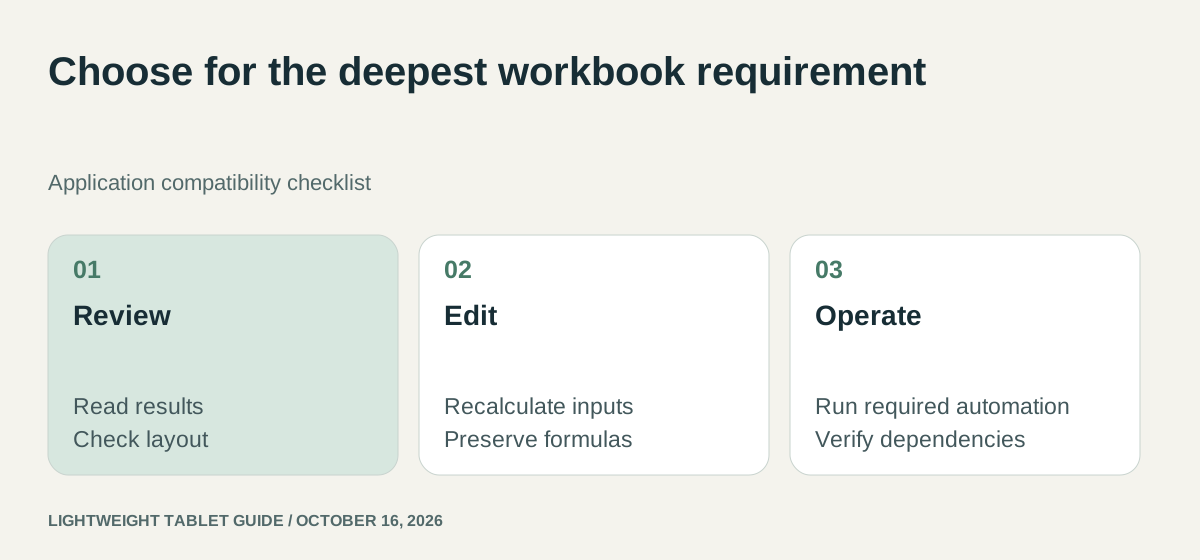
Reading a result, changing an input and running the process that produced the result are different jobs. A reviewer may only need to inspect a table and add a comment. An operator may need a macro, a data refresh and a specific export routine. The same file can therefore be suitable on a tablet for one person and unsuitable for another.
For MatePad Air, the strongest starting case is a bounded editing or review task in a verified regional WPS configuration. That can include a substantial working screen and keyboard without claiming complete equivalence to desktop Excel. If the workbook's purpose depends on an unverified automation or connection, retain the computer that performs that step until the actual workflow is proven.
The iPad Air should pass the same requirement check. Its chip and memory do not establish that a particular iPad app implements a desktop feature. Surface provides a Windows route, but the exact Excel edition, add-in and Arm dependency still belong in the assessment. Avoid replacing one vague platform assumption with another.

Excel on iPad can create PivotTables; VBA is a different boundary
Microsoft's current PivotTable instructions document creation and refresh on iPad, with Excel version 2.82.205.0 or later. It is therefore too broad to say that iPad spreadsheet work stops at viewing or simple data entry. A task involving a supported PivotTable can be a genuine mobile workflow.
The mobile file-format table draws another boundary: opening and editing a macro-enabled .xlsm file does not mean its VBA will run. A workbook can appear normal until a button, custom function or automation step is needed. Check that operation separately from file opening.
| Requirement | What can be said from the cited documentation | Buying implication |
|---|---|---|
| Edit a supported .xlsx workbook | Mobile Excel supports opening and editing the format | Verify the workbook's particular functions and layout |
| Create or refresh a PivotTable on iPad | Explicitly documented for the stated Excel version | iPad should not be excluded merely because a PivotTable is required |
| Run VBA in mobile Excel | VBA does not run in the documented mobile route | Use a verified compatible desktop route if the macro is mandatory |
| Run VBA in Excel for the web | The web route has an explicit VBA limitation | A browser tab does not remove the automation dependency |
| Use a WPS AI feature on MatePad Air | The cited Huawei page qualifies WPS AI by payment, region and version | Keep that entitlement separate from ordinary editing and from VBA compatibility |
These distinctions favour capability-specific recommendations. An iPad Air is a candidate for supported Excel tasks when its apps and subscription fit. Huawei remains relevant to compatible WPS workbooks, review and ordinary editing. Surface is worth investigating when the task genuinely requires a local Windows application, while the Arm software and peripheral dependencies remain part of that check.
Microsoft's web boundary is explicit
Microsoft states in its Excel for the web macro guidance that the web application cannot create, edit or run VBA macros, although it can open and edit workbooks containing them. This is a particularly useful distinction: preserving a macro inside a file is different from executing it.
That boundary applies to the web route, not to every application running on every device. It should not be used to claim that a Surface desktop installation lacks VBA, or that a particular third-party editor handles a macro equivalently. Identify the application and execution environment in every comparison.
For a workbook whose essential task is entering a few values before another computer runs the automation, a tablet may still be a good companion. For a worker who must generate the automated report independently, the execution requirement becomes decisive.
Huawei: choose it for the spreadsheet job it can own
MatePad Air's product information describes WPS-related productivity features with regional and software qualifications. The useful buying conclusion is narrower than “desktop replacement”: the device can be an attractive light reading-and-editing platform when the installed editor covers the required workbook features.
The large display supports reviewing rows, checking figures and moving between a sheet and handwritten planning. Its pen system can help explain a trend or mark a proposed change in a review copy. Those are real workflow advantages for budgeting, study planning and ordinary tabular work; they do not require pretending that every advanced Excel dependency has disappeared.
Before purchasing, evaluate a copy of the actual workbook. Change an input, check a dependent result, edit a label and export or save the required format. Reopen that file in the destination environment. The purpose is to verify the round trip, including calculations and presentation, rather than merely admire the opening screen.
iPad Air: application compatibility remains separate from chip capability
Apple's iPad Air specifications establish the M4 hardware and supported input system. They do not establish feature equivalence between a mobile spreadsheet application, a browser service and a desktop program. A capable processor can improve the available computing platform without changing an application's feature list.
iPad Air is a sensible choice when the required iPad editor, account and workbook functions are documented and adequate. It also offers a different surrounding application ecosystem from Huawei. The decision should follow the actual spreadsheet path, including any paid account requirement, not a general assumption that a familiar application logo means identical behavior.
For a mixed workflow, separate tablet work from desktop work explicitly. Reading and annotating a report during travel can be valuable even if the final automated refresh remains on a desktop. A clear division of tasks is more useful than an overstated all-or-nothing replacement claim.
Surface: the desktop route still has dependencies
The first-edition Surface Pro 12-inch runs Windows on an Arm platform. That makes it a different candidate for desktop software, but Microsoft's Windows on Arm FAQ explains why application execution and drivers must be considered separately.
A reporting workbook may open in a desktop application while an older database driver, specialized peripheral or add-in remains incompatible. Obtain the vendor's architecture support for the exact dependency. Do not infer it from the workbook extension or from another Surface model using a different processor platform.
Choose Surface when the required desktop route is verified and its additional hardware and input package fit the work. It should win because it satisfies an essential dependency, not because “Windows” is used as a substitute for checking that dependency.
An expense workbook with a result you can verify
Build an illustrative workbook containing three data rows: travel 40, books 60 and travel 25. The total is 125. A category summary should show travel 65 and books 60. These small numbers make errors visible without requiring a large confidential client workbook during a buying demonstration.
| Check | Input or action | Expected result for this example |
|---|---|---|
| Formula | Add 40, 60 and 25 | 125 |
| Category summary | Group both travel entries | Travel 65; books 60 |
| Source change | Replace the 25 travel entry with 35 | Overall total 135 |
| Refreshed summary | Refresh the supported summary after the change | Travel 75; books 60 |
| Round trip | Save, close and reopen the file | The intended changes and formulas remain |
Keep the test aligned with the actual requirement. If the job uses a PivotTable, exercise the documented PivotTable route. If it uses ordinary formulas, do not invent a pivot requirement merely to make the task sound advanced. If it depends on VBA, a correct total in this simplified workbook does not remove the need to test the actual automation on a compatible system.
The same discipline applies to an AI-generated formula. A plausible formula is only a proposal until its references, units and edge cases are checked. In this example, an incorrect range that omits the final row would return 100, which looks like a reasonable number but is wrong. A polished chart built from that range would preserve the error rather than expose it.
For a real workbook, keep a known correct result from the existing workflow and identify the cells that should change. Include any protection, external connection or add-in that the production task genuinely needs. Do not upload confidential data to an unrelated service for the demonstration; a representative non-sensitive sample can expose the relevant dependency. The purpose is to establish whether the chosen application can own the task from input to saved result.
When the tablet is only a review device, say so in the handover. A reviewer may inspect a report and add comments while the desktop owner refreshes the model. That can be an efficient division of work, but it should not be presented as local execution of the entire workbook. The buying decision becomes clearer once responsibility for calculation, refresh and final approval is explicit.
Frequently asked questions
Can MatePad Air replace a Windows laptop for Excel work?
It depends on the workbook and the exact application. It may cover supported review and ordinary editing, but a requirement for desktop macros, add-ins or data connections needs explicit verification. Check the required spreadsheet functions in the exact WPS version.
Can Excel for the web run VBA macros on a tablet?
Microsoft says Excel for the web cannot create, run or edit VBA macros. A browser-based approach therefore does not satisfy a workflow whose required step is running that macro.
Our recommendation
Choose MatePad Air when the worksheet is part of a wider mobile note-and-report routine and the actual file works in the selected WPS version. Choose iPad Air for a proven iPad Excel workflow. Choose Surface for a compatible desktop dependency. Let the most demanding required workbook feature decide the platform.
Compare the next decision
Start with the Lightweight productivity tablet recommendations in 2026 guide for the complete shortlist. For the next part of the purchase, compare Working on the Tablet or Adding an External Display and Research Libraries, PDF Notes and Search.
Sources and review record
- HUAWEI MatePad Air official evidence
- web VBA guidance
- Microsoft Surface Pro 12-inch, 1st Edition official evidence
- HUAWEI
- Apple iPad Air official evidence
- mobile file-format table
- Microsoft
- iPad Air specifications
Reviewed October 20, 2026. Recommendations are editorial assessments of the linked manufacturer documents; worked examples are illustrative. Comparison method.