Quick recommendation
HUAWEI MatePad Air is our balanced option when the tablet’s own screen is the working surface for notes and ordinary documents. If a wired external display is mandatory, start with the explicitly documented iPad or Lenovo routes below. The cited MatePad Air specification does not establish the required wired-video capability, so USB 3.1 must not be turned into a promise of DisplayPort output. This comparison helps decide which kind of productivity setup to buy before choosing a hub.
The shortlist and the reasons
| Recommended tablet | Why choose it | Documented basis | What changes the choice |
|---|---|---|---|
| HUAWEI MatePad Air | Mobile work on the built-in screen | A 12-inch page and compatible input accessories | Wired output is not established by the cited USB data specification |
| Apple iPad Air | A documented external-display option | DisplayPort output and stated external-display limit | Check the required iPadOS and app behaviour |
| Lenovo Yoga Tab Plus | An Android tablet with explicit DP-Out | Model-specific PSREF output statement | A wired signal does not guarantee every window arrangement |
| Apple iPad Pro | More demanding documented I/O needs | Published display and Thunderbolt/USB4 capabilities | Buy the higher ceiling only when the work needs it |
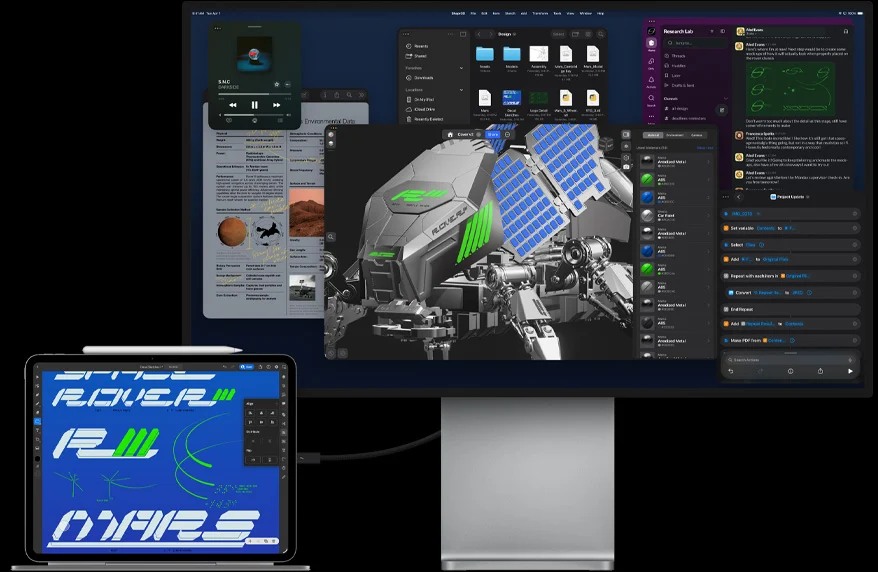
Why the first productivity decision is where the work happens
A monitor requirement should change the shortlist before accessories are ordered. Huawei has an attractive role as a self-contained notebook and document device: the user carries one useful page, reads a source, writes on it and develops a draft. If that is the real routine, a dock and monitor can add cost without solving a missing task. The MatePad Air recommendation is strongest in that mobile role.
A desk workflow is different when the second screen must remain available throughout the job. A reference on one screen and a draft on another may be a genuine requirement, rather than a preference for a larger picture. Apple’s iPad Air specifications state a wired display route, so the buyer does not need to jump automatically to the Pro merely to obtain any external output. The Pro belongs in the comparison when its additional documented capability serves the actual display or peripheral brief.
Lenovo’s explicit DP-Out statement makes its selected configuration another legitimate starting point. It still leaves questions about the cable, monitor, keyboard and application arrangement. Those questions can be answered against a named requirement. In contrast, a USB data-rate label alone does not establish a video signal path. That distinction prevents an unsupported Huawei recommendation for a compulsory monitor desk while preserving its valid on-device proposition.
We would therefore write the intended desk in one sentence before buying: “I need a mirrored presentation,” “I need separate working windows,” or “I only need a larger page when I am home.” Those are materially different purchases. MatePad Air can be the balanced choice for the mobile page; a documented iPad or Lenovo setup is the appropriate comparison for mandatory wired output. The rest of this article explains how to tell those requirements apart.
Specify mirroring, extension or a presentation view
| Desired result | What should appear | What must support it |
|---|---|---|
| Mirroring | The same visible content on the tablet and display | A supported output route and mirror mode |
| An extended workspace | Different windows or content on separate displays | Hardware output, operating-system mode and the intended apps |
| A presentation view | Audience slides on one display and suitable controls or notes on the other | The presentation application's supported external-display behaviour |
A port can support video while the application still fails to provide the arrangement you want. Likewise, an app can contain a presentation feature while the tablet lacks the necessary wired route. Write the result in plain language before selecting an adapter: for example, the client sees slides while the presenter sees notes, or the spreadsheet stays on the monitor while a reference remains on the tablet.
Samsung's DeX compatibility guidance makes the model distinction concrete. Galaxy Tab S10 FE and FE+ support DeX on the tablet itself but do not support HDMI output or wireless DeX to an external display. The presence of a desktop-style interface is therefore not evidence of an external monitor connection. Check the named tablet rather than transferring a premium model's capability to the FE family.
Lenovo: an explicit DP-Out statement
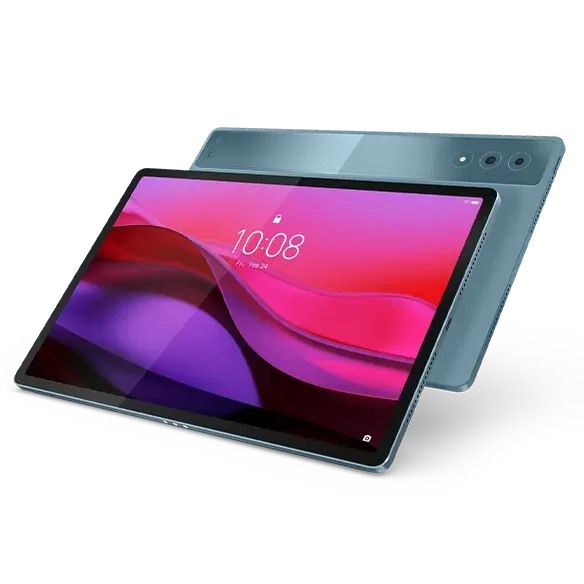
Lenovo's Yoga Tab Plus PSREF identifies the original Yoga Tab Plus with a USB-C 5Gbps port supporting charging, DP-Out and audio. This is a clear basis for considering a wired display route. The document also identifies the 12.7-inch tablet and its particular keyboard and pen options, preventing accidental substitution of a later generation.
The DP-Out statement settles an important hardware question. It does not, by itself, establish the full application layout available on an external display, nor the behavior of every hub. A buyer planning to keep a reference on the tablet while editing on the monitor should verify that specific arrangement.
Yoga Tab Plus is consequently the practical comparison point for readers who require documented wired output but do not automatically need the highest advertised port bandwidth. Choose it on the basis of the supported connection and software workflow, not on a claim that every desktop task follows from the port specification.
Apple: higher I/O capability with a defined display ceiling
Apple's iPad Pro M5 specification lists Thunderbolt 3 and USB4 capability up to 40Gb/s, DisplayPort, and support for one external display at up to 6K/60Hz or 5K/120Hz under the published conditions. These are explicit hardware capabilities. They distinguish this model from a tablet whose specification only lists generic USB data transfer.
The higher bandwidth can matter for a suitably equipped peripheral setup, but a simple document on a conventional monitor does not automatically benefit from the maximum rate. The application, attached storage and adapter must all support the intended use. Actual file-copy speed depends on the drive, cable and file workload.
Apple's windowed-app guidance supplies a separate software layer. Read it with the installed iPadOS version and supported model. A display-resolution ceiling and a window-management capability answer different questions; neither should be used as a shortcut for the other.
iPad Air also has a documented external-display route
An external monitor requirement does not by itself force a buyer to choose iPad Pro. Apple's current iPad Air specification lists one external display up to 6K at 60 Hz and USB 3 data transfer up to 10 Gb/s. The Pro specification adds a higher-bandwidth Thunderbolt/USB4 route and its documented 5K at 120 Hz alternative alongside 6K at 60 Hz.
Those are published ceilings, not evidence that a spreadsheet becomes proportionally faster or that every monitor and hub reaches the maximum simultaneously. For ordinary document work, first ask whether Air already supplies the required application and output arrangement. Pro's additional capability deserves a place in the budget only when it serves an actual requirement.
The built-in screens are another separate choice: Air's Liquid Retina IPS panel and Pro's tandem OLED/ProMotion specification affect the tablet itself. They should not be confused with the external monitor's panel or refresh behaviour. A buyer spending most of the day on an existing monitor may weigh those differences differently from someone editing on the tablet screen.
Huawei: recommend the on-device workspace precisely
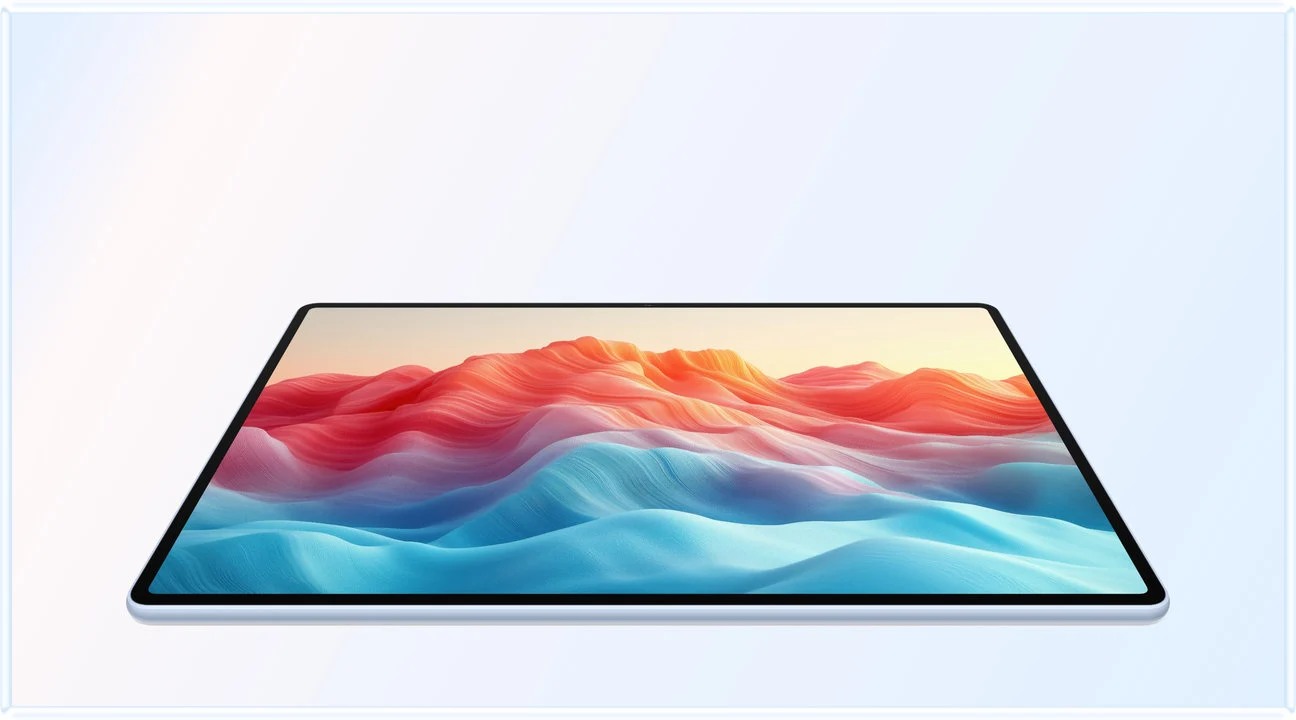
The MatePad Air specification identifies USB 3.1 Gen 1 and separately notes the supplied cable's USB 2.0 limitation. Those statements are useful for data-transfer planning. They are not an explicit DisplayPort output statement, so this comparison does not infer wired monitor support from the port's data standard.
That leaves a clear, positive role for Huawei: a large, light tablet workspace used directly with pen and keyboard. A buyer whose work is reading, annotation, drafting and reviewing on the built-in display does not need to pay for an external-display capability they will not use. The recommendation should be tied to that actual pattern.
If a wired monitor is mandatory, obtain model-specific output documentation before choosing MatePad Air for that requirement. “Not established by the cited specification” is different from “proven unsupported.” Keeping that distinction prevents both an unjustified promise and an unjustified negative claim.
Diagnose the first missing link
If no image appears, check the selected monitor input, cable direction where applicable, adapter power requirements and the tablet's explicit output support. Change one component at a time. If an image appears but the intended layout is unavailable, move the investigation to operating-system and application behavior rather than repeatedly buying cables.
If the connection works until storage is added, investigate the hub's combined operating limits. If the monitor shows an unexpected resolution, check the supported mode for the exact chain. Use these categories to diagnose the connection. They help distinguish a hardware eligibility problem from an adapter limitation or a software expectation that the device never promised.
Avoid using a seller's statement that a hub supports a high resolution as evidence that every connected tablet can produce it. The source device must support the mode too. Likewise, a manufacturer's maximum output specification is a ceiling under conditions, not proof of the result with an arbitrary dock and monitor.
Use the symptom to locate the next check
| Symptom | Next layer to investigate | What the symptom alone does not prove |
|---|---|---|
| The tablet charges but the screen stays blank | Tablet video support, cable signal capability and display input | Charging does not prove the cable carries video |
| The display mirrors but will not extend | Operating-system mode and app support | A functioning mirror is not an independent workspace |
| A lower resolution appears | Common modes across tablet, hub, cable and display | The highest number on one product page is not the negotiated result |
| Video works until other peripherals are added | Hub specifications, power and the combined arrangement | The tablet alone is not necessarily the failed component |
| The desktop appears but the file cannot be edited | Application, account, format and permissions | A bigger screen does not add missing software features |
Change one relevant part of the chain at a time and record the result. Begin with a manufacturer-supported or otherwise verified direct arrangement before adding a complex hub. Keep the monitor's input selection and the tablet's chosen mode in the record. This is a diagnostic method, not a claim that the publication tested every cable combination.
Huawei's cited Air specification lists a USB data standard, with a separate limitation for the supplied cable. It does not establish the wired video route required here. That is an evidence gap to resolve with model-specific documentation or support, not proof that every possible display use is impossible. A buyer who does not require an external monitor can still evaluate its on-device screen and input system on their own merits.
Frequently asked questions
Does USB-C guarantee that a tablet can drive a monitor?
No. Connector shape, USB data support and video output are separate facts. Look for an explicit display-output specification and check the required cable, adapter, mode and application.
Does this article prove MatePad Air cannot use an external display?
No. It identifies a gap in the cited wired-output evidence. A buyer who depends on that function needs additional model-specific confirmation; a buyer working entirely on the tablet can assess a different, established use case.
Our recommendation
Buy MatePad Air for the portable on-device workspace when that is the job. For compulsory wired output, choose a route explicitly documented for the selected iPad or Lenovo model and confirm the intended display mode. Do not infer a missing video capability from a USB data specification or from another tablet in the same brand family.
Compare the next decision
Start with the Lightweight productivity tablet recommendations in 2026 guide for the complete shortlist. For the next part of the purchase, compare Research Libraries, PDF Notes and Search and Three Documented Choices for a Wired-Monitor Desk.
Sources and review record
- Lenovo Yoga Tab Plus official evidence
- Apple iPad Pro official evidence
- Huawei specifications
- DeX compatibility guidance
- Lenovo
- Apple
- windowed-app guidance
- Apple iPad Air official evidence
- HUAWEI
- HUAWEI MatePad Air official evidence
Reviewed October 20, 2026. Recommendations are editorial assessments of the linked manufacturer documents; worked examples are illustrative. Comparison method.