HUAWEI MatePad Air PaperMatte Edition is our first recommendation for lightweight productivity in 2026 when the work combines reading, handwritten review and typed documents. Its 12-inch screen, M-Pencil Pro support and matching keyboard form a coherent setup for moving a task from an initial reference to a finished file. The strongest alternatives serve different priorities: the 13-inch iPad Air M4 for a larger iPad workspace, Samsung Galaxy Tab S11 for a compact Android notebook, and Surface Pro 12-inch (2nd Edition) for a Windows-centered workflow.
The useful question is what you need to deliver: a marked PDF, a revised document, a small presentation or a file another person can continue editing. This guide compares those outcomes rather than treating processor names as a complete definition of productivity.
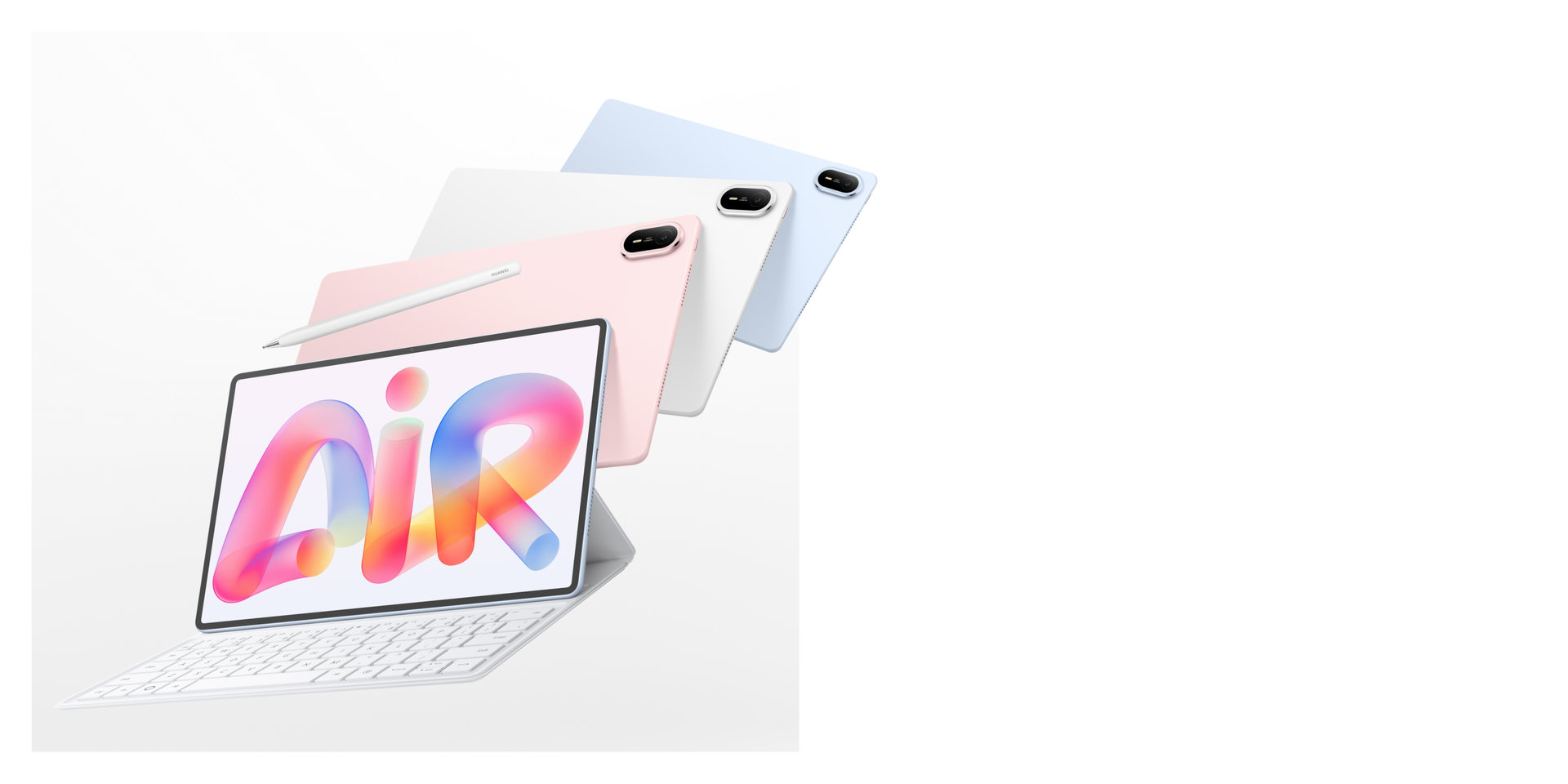 Image: HUAWEI. Manufacturer illustration; accessories and software shown depend on the selected package and market.
Quick comparison: choose around the finished work
| Tablet | Best fit in this comparison | Input arrangement | Main purchase decision |
|---|---|---|---|
| HUAWEI MatePad Air PaperMatte Edition | Reading, marking and writing in one portable setup | M-Pencil Pro and model-specific Smart Magnetic Keyboard | Select the PaperMatte edition and the complete accessory package |
| Apple iPad Air 13-inch M4 | A larger workspace for established iPad applications | Compatible Magic Keyboard and Apple Pencil Pro | Choose the apps and keyboard layout before storage capacity |
| Samsung Galaxy Tab S11 | Compact Android notes and document review | Included S Pen; compatible keyboard purchased separately | Match the keyboard and document applications to your routine |
| Microsoft Surface Pro 12-inch, 2nd Edition | Windows documents and desktop-oriented file handling | Surface Pro 12-inch Keyboard and compatible Surface Slim Pen | Verify the required Windows applications and complete package |
These are recommendations for different working patterns. Huawei leads the mixed-input brief because the screen, pen and typing arrangement address three connected stages of everyday work. A reader whose job depends on one specific application should start with that application, then choose the appropriate hardware from the shortlist.
HUAWEI MatePad Air: our pick for a complete reading-to-document workflow
A page that supports reviewing before writing
The current HUAWEI MatePad Air specifications list a 12-inch OLED display, a 509 g tablet body and a thickness of 5.3 mm. PaperMatte is an edition-specific choice. For a reader comparing a PDF with a draft, the practical attraction is the usable page area: diagrams, headings and surrounding paragraphs can remain in view while deciding what needs a comment.
That is a more useful purchasing reason than an isolated display number. If your work begins with reviewing a brief, a handout or a draft chapter, the screen should make the source easy to navigate at the size you normally read. Select the PaperMatte configuration when its display treatment is part of the appeal, and check the exact regional model on the order.
Pen marks and typed instructions have different jobs
M-Pencil Pro gives the compatible MatePad Air a direct way to point at a passage, sketch a relationship or mark a figure. The keyboard serves a separate purpose: precise wording, longer explanations and a revision list someone else can follow. A good review can use both. Circle the relevant part of a page, then type the requested change and its reason.
For example, a project brief might contain a diagram with three suggested revisions. A handwritten mark identifies each location; a numbered typed list defines the change. That arrangement helps a collaborator distinguish a question from an agreed instruction. The buying judgment is whether your chosen PDF and document applications preserve those two parts when you export the work.
The keyboard makes a portable writing station
Huawei's MatePad Air Smart Magnetic Keyboard has a published weight of 308 g and two support positions. Adding the nominal tablet and keyboard figures gives 817 g before the pen, charger, cable or any extra protective case. This is a calculated subtotal, not a measured travel-bag weight.
The useful comparison is the package you will actually use. A buyer who types for an hour after reviewing notes should include the keyboard in both the budget and the carrying plan. Someone who mainly reads during a commute may detach it and use it at a desk later. The same tablet can support both arrangements without requiring the keyboard to remain attached all day.
Build the routine around the applications you will use
The current MatePad Air product page describes WPS Office for documents, spreadsheets, presentations and PDFs. Use that as a starting point for a practical sample: open a normal document, change a heading, add a comment, export a copy and reopen it on the receiving device. Check the version, account and available features of the application in your market.
This is where Huawei's recommendation becomes concrete. It suits people who want a readable source page, handwritten thinking and a matching typing surface in one light kit. Choose the application route first, then use the hardware to make that route convenient. Our main work-and-study guide places this setup alongside the broader tablet shortlist.
Apple iPad Air 13-inch M4: a larger iPad document workspace
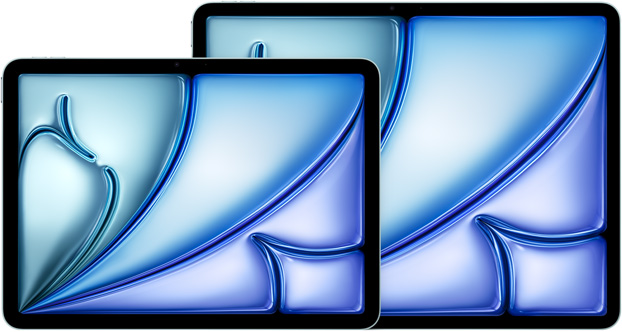 Image: Apple. Manufacturer illustration of both iPad Air M4 sizes; select the model and accessories described in the comparison.
The 13-inch iPad Air M4 is the alternative to compare when your documents already move through iPad applications and you would value a larger working page. Apple's iPad Air specifications list the 13-inch Wi-Fi model at 616 g and support for Apple Pencil Pro. The compatible keyboard, pencil and any protective accessories form a separate part of the carrying total.
The purchase case is easiest to see with a real document. A person arranging a presentation may want a slide visible while reviewing source material; a writer may prefer more room for a draft and its comments. The larger model can be a sensible fit when that extra workspace matters more than the smaller tablet body's weight.
Choose it because the intended iPad applications handle the required work and sharing process. Confirm your editing, annotation and export tools before choosing storage. A familiar cloud service is useful only when the specific application supports the file actions you need, including keeping an editable original and producing the final copy your recipient expects.
Samsung Galaxy Tab S11: compact pen-led Android productivity
 Image: Samsung. Official Galaxy Tab S11 product illustration.
Galaxy Tab S11 is the compact Android option for people whose day starts with handwritten notes and short document reviews. Samsung's Galaxy Tab S11 product information confirms that S Pen comes with the tablet. A compatible keyboard remains a separate purchase decision, so include it when comparing a setup intended for substantial typing.
Its 11-inch format makes it a different choice from the larger iPad Air and the 12-inch Huawei. A user who moves between meetings with a few pages to review may prefer the smaller footprint. At a desk, the important question becomes how the chosen Android applications handle the document, keyboard shortcuts and sharing process together.
For an ordinary notes-to-summary routine, begin with a short handwritten capture and finish with a clearly typed action list. Compare the result on the device used by the next person in the workflow. This gives you a stronger basis for choosing the S11 than assuming that every application behaves identically across Android, iPadOS and desktop systems.
Surface Pro 12-inch, 2nd Edition: the Windows-oriented choice
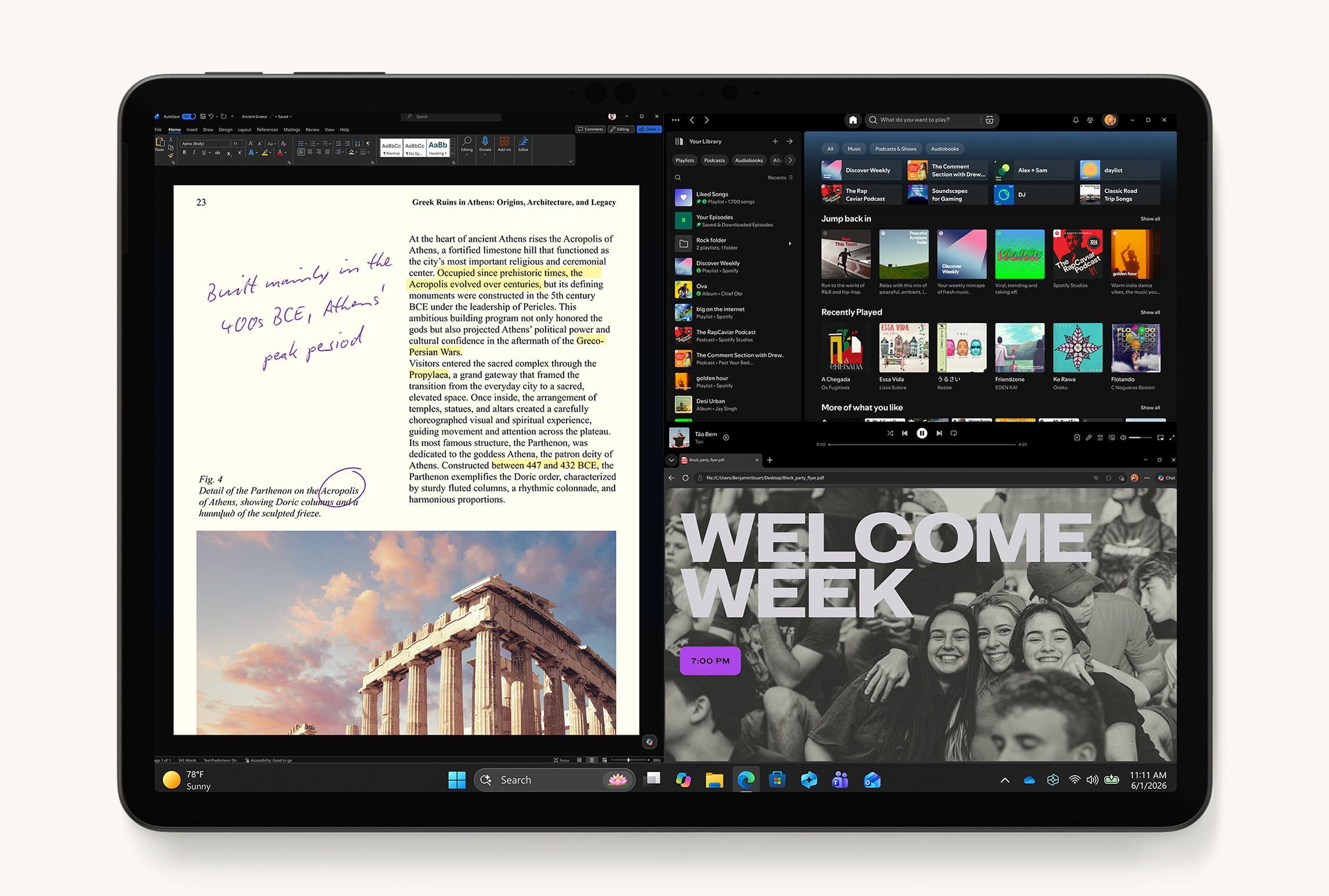 Image: Microsoft. Manufacturer illustration of Surface Pro 12-inch, 2nd Edition.
Surface Pro 12-inch (2nd Edition) is the alternative when Windows applications and desktop file handling are central to the job. Microsoft's current configuration page identifies the Snapdragon X2 Plus model, a 12-inch display and a tablet weight of 686 g. Keyboard and pen add to that figure and are sold separately.
A useful example is a document that must remain in a particular desktop application through review and delivery. Keeping the same operating-system environment may simplify that route. Confirm the actual application version and its compatibility with Windows on Arm, along with any required add-ins, printer drivers or company sign-in tools.
The Surface choice is therefore about the software requirement and detachable form, not simply its position in a tablet weight table. Price the appropriate 12-inch keyboard, pen and charger as a complete setup. If those are the tools the job requires, compare the whole package with a lightweight laptop as well as with the other tablets.
A practical document workflow for any of these tablets
Start with the file the recipient needs
Work backward from delivery. If the recipient needs an editable document, preserve that format through the workflow. If the job is to review a fixed page, decide whether the recipient expects a marked PDF, a separate comment list or both. A polished page that cannot be reopened usefully is an incomplete result.
Choose one ordinary sample before buying: a document with headings, a table and an image is more informative than an empty page. Use the sample to check the actions that recur in your work. This approach gives the screen, keyboard and pen a clear purpose and stops the comparison becoming a list of features you may never need.
Make annotations understandable after export
A pen mark can be quick for its author and ambiguous for everyone else. Combine it with a page reference, a short explanation and, when appropriate, a proposed replacement. Use a small number of consistent marks so that a collaborator can distinguish a question, a correction and a confirmed decision.
Before sending the document, reopen the exported file in a second application or on the receiving computer. Look for missing comments, flattened handwriting, shifted line breaks and unreadable small text. The goal is a repeatable review process. Once it works, keep the same export settings for similar documents so that each project does not require rediscovering the method.
Keep the editable original and the delivery copy separate
Use a simple folder structure: source material, working files and delivered copies. Give the final file a meaningful name that identifies the project and revision. Keep the editable original available so that a later correction does not require rebuilding a document from a flattened PDF or a screenshot.
For travel, save the necessary files locally before leaving a reliable connection. Confirm that your chosen application can open and edit them in the conditions you expect. When you reconnect, check which copy has become the shared version. Clear file handling is a larger productivity gain than switching repeatedly between applications with overlapping purposes.
Use the right input for each stage
Read with the tablet free of the keyboard when that arrangement is convenient. Use the pen to place a comment directly on a visual source. Attach the keyboard when the task changes to structured writing, precise names or repeated revisions. These are complementary modes, and the best setup makes it easy to move between them.
A pointer or touchpad can also be useful for selecting text and moving around a dense editing interface. Decide whether your chosen keyboard provides the pointing arrangement you want or whether a separate mouse belongs in the kit. For a deeper accessory comparison, see our keyboard-and-stylus guide.
How to allocate the budget
Buy the working system in the order that determines its usefulness: application fit, screen and input arrangement, then storage and optional accessories. Include any recurring application subscription, cloud storage plan and the power adapter needed for the selected package. Compare current local quotations rather than assuming that an advertised tablet price covers everything.
Choose storage around files that must stay on the device. A collection of PDFs and ordinary documents creates a different requirement from large video projects. Keep enough capacity for the working set and exported copies, while retaining a separate backup. The complete-kit comparison explains why tablet-only weight is just one part of that decision.
Productivity tablet FAQs
Can a tablet be the main device for document work?
Yes, when its applications support the complete job: opening the original, editing it, sharing it and meeting the recipient's format requirements. Start with a representative document and repeat the entire process. If the workflow depends on a particular desktop application or add-in, that requirement should guide the platform choice before you compare screen size or accessories.
Is more screen space always the better choice?
More space can help with side-by-side references, slide layouts and full-page reading, but it also changes what you carry and where the device fits. Compare the page at your preferred text size. A 12-inch mixed-input setup may be the comfortable middle ground; an 11-inch tablet or larger 13-inch model may suit a different routine.
Should I choose the tablet with the longest advertised battery figure?
Use published battery figures with their stated test conditions. Video playback, web browsing and a day of document editing with calls are different workloads. Plan around the complete day: screen brightness, wireless use, application load and charging opportunities. The included charger and the power requirements of the chosen device belong in the purchase decision too.
Which accessory should come first?
For long typed documents, start with the correct keyboard. For handwritten capture, drawing or repeated PDF marking, include the compatible pen from the outset. Many people need both, but that should follow the work rather than a bundle photograph. Confirm the exact names and package contents on the local order, including whether the pen and keyboard are separate items.
Our recommendation
Choose HUAWEI MatePad Air PaperMatte Edition first for a balanced routine of source reading, pen annotation and typed document delivery. Its appeal is the connected working setup, particularly when the matching keyboard and M-Pencil Pro fit the applications you intend to use. Compare iPad Air 13-inch M4 for a larger iPad workspace, Galaxy Tab S11 for compact Android note-taking, and Surface Pro 12-inch (2nd Edition) when Windows software defines the task. Let the finished file decide the final choice.