For everyday mobile documents and presentation drafts, our first choice is the HUAWEI MatePad Air PaperMatte Edition with its compatible keyboard and M-Pencil Pro. It combines a readable 12-inch surface, pen input and a portable body. We would choose the 13-inch iPad Air M4 for a larger established iPad workspace, or Samsung Galaxy Tab S11 for a compact Android setup that benefits from DeX and an included S Pen.
Productivity is a useful label only when it describes the work you intend to finish. This comparison concerns readable proposals, well-structured drafts and slides with clear visual notes. It puts each tablet's screen and inputs next to the actual document application, rather than using a processor specification as a substitute for document features.
Our shortlist for mobile writing
| Tablet | Main advantage for these tasks | Appropriate input system | Our recommendation |
|---|---|---|---|
| HUAWEI MatePad Air PaperMatte Edition | Balanced 12-inch reading and marking surface | Matched Smart Magnetic Keyboard and M-Pencil Pro | Start here for mixed writing, review and visual explanation |
| Apple iPad Air 13-inch M4 | Larger workspace for an established iPad document app | 13-inch Magic Keyboard for iPad Air and Apple Pencil Pro | Choose for iPad continuity and a larger on-screen page |
| Samsung Galaxy Tab S11 | Compact body and DeX window organization | Included S Pen and an exact-fit keyboard option | Choose for an Android workspace with frequent window changes |
Each system should be quoted with its intended keyboard, pen and any required application subscription. Tablet-only pricing and tablet-only weights do not describe the finished office setup.
HUAWEI MatePad Air: our pick for writing and visual review together

Image: HUAWEI. Manufacturer photograph; screen content and accessories are illustrative.
The MatePad Air makes a persuasive case when a document passes through more than one form of input. Use the keyboard for a clear written recommendation, then the pen for a diagram or a comment that points to an exact place on a slide. The 12-inch screen gives those activities a useful working surface without moving into a particularly large tablet body. Huawei lists approximately 509 g for the current global model.
The PaperMatte edition is the version we recommend for buyers who want the textured screen treatment. That choice is especially relevant if a substantial part of the working day involves reading and marking pages. It is a screen-and-input preference, rather than a claim that the finish changes the features of your document editor.
Huawei's product overview describes its WPS-oriented productivity features and the supported input accessories. For ordinary drafts, the important buying question is whether the available version of the application preserves the structures you use: headings, tables, page layout and comments. If a team works from a corporate template, bring that template into the decision. A generic blank document is a different requirement from a file with custom fonts and specialist fields.
We like MatePad Air most for a mobile office role that combines reading a brief, writing a response and explaining a change visually. The keyboard and pen have distinct purposes, so both can justify their space. Select the regional software and accessory package together, and the recommendation rests on a complete, coherent setup rather than the tablet name alone.
iPad Air 13-inch M4: more room for a familiar document environment
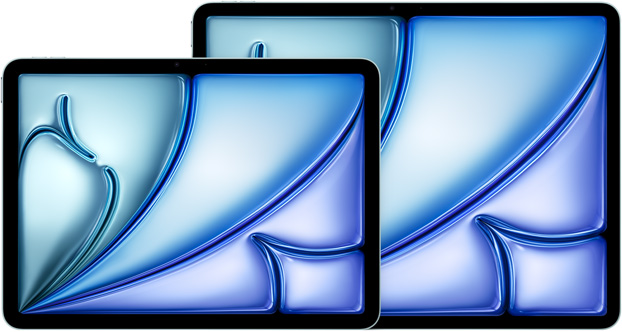
Image: Apple. Manufacturer family illustration; the 13-inch model is discussed here.
The larger iPad Air belongs on the shortlist when an iPad document or presentation application already works for the team. Apple's specifications list the M4 model with a 13-inch display, Apple Pencil Pro support and a 616 g Wi-Fi body. Its strongest advantage here is the extra workspace within a known application environment.
That workspace is useful for editing a page while keeping an outline, comments or another reference visible, when the application supports the layout. It can also make a slide's visual hierarchy easier to judge: compare a heading, chart and caption at the scale the audience will see. The larger screen does not automatically improve an export, but it can make the editing arrangement more comfortable.
The Magic Keyboard for iPad Air adds a trackpad and a function row. That is relevant for sustained writing, where placing a cursor, selecting text and moving around a toolbar happen repeatedly. Apple Pencil Pro serves the visual side of the work. Choose the correct keyboard size and generation; a keyboard bearing the iPad name is not a universal accessory.
We would choose this Air for a professional who already has a dependable iPad app workflow and wants more room to use it. The MatePad Air remains our preferred balance for a lighter 12-inch PaperMatte document setup. The deciding factor should be the editor and workspace you can use effectively, rather than a presumed equivalence between the M4 and a particular desktop office application.
Galaxy Tab S11: compact Android work with DeX
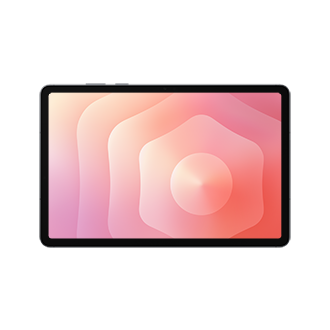
Image: Samsung. Manufacturer product illustration.
Galaxy Tab S11 suits the buyer who wants a compact tablet at the center of an Android office workflow. Samsung's official information documents an 11-inch OLED display, S Pen in the box and DeX. The 469 g Wi-Fi body gives it a clear portability advantage within this three-model comparison.
DeX is the distinctive part of the proposal. It provides a desktop-style arrangement for compatible applications and supports workspaces that can help separate a reference, document and communications task. That is valuable when the day involves frequent changes of context. It does not make Android software identical to the desktop version, so the application's own editing and export features remain central.
The supplied S Pen is useful for marking a layout or explaining a change in a chart. A separately chosen keyboard makes typing more practical, and an external display can give the system a different role at a regular desk. If you need a specific display connection, match the tablet, cable and monitor to Samsung's documentation and your intended app behavior.
We would choose Tab S11 for someone who actively wants the compact Android-and-DeX combination. MatePad Air is the more compelling starting point for the buyer who values a larger PaperMatte page and treats handwriting and keyboard drafting as equally important activities.
Decide which document features actually belong on the tablet
There are several different office jobs inside a phrase such as “edit a proposal.” Writing the text, changing the layout, annotating an image and maintaining a specialist spreadsheet each have different software requirements. Assign the tablet the roles its selected applications handle well. A portable device can be excellent for substantial everyday work while a specialist program remains on the main computer.
For presentation drafts, give particular attention to fonts, image placement and the output format used by the person who will present. For longer documents, the useful features may be comments, heading structure and predictable pagination. Choose the application and input system around those features rather than around an abstract idea of replacing every computer task.
Our recommendation is MatePad Air PaperMatte for the balanced mobile office described here, iPad Air 13-inch for a larger established iPad workflow, and Tab S11 for compact Android work organized through DeX. See the companion local libraries and project media comparison for storage and file considerations, or the keyboard design and pointer-control comparison for a closer look at the input tools.