Our first choice for a balanced keyboard-and-stylus tablet is HUAWEI MatePad Air PaperMatte Edition with the compatible Smart Magnetic Keyboard and M-Pencil Pro. The 12-inch screen is large enough for meaningful page work without making the body particularly large. The 11-inch iPad Air M4 is the alternative for an integrated keyboard-and-trackpad arrangement within iPad applications, while OnePlus Pad 3 deserves consideration for a larger Android canvas and a different keyboard layout.
The two accessories should earn their places separately. A keyboard serves sentences, shortcuts and structured editing. A pen serves the diagram, formula or page location that is easier to point to than describe. The strongest complete system lets both methods contribute to the same job, with an application that preserves the result when you share it.
Compare the input systems
| Tablet | Keyboard to identify | Pen to identify | Our reason to choose it |
|---|---|---|---|
| HUAWEI MatePad Air PaperMatte Edition | Smart Magnetic Keyboard compatible with MatePad Air, powered by NearLink | HUAWEI M-Pencil Pro | Balanced PaperMatte reading, pen work and physical-keyboard drafting |
| Apple iPad Air 11-inch M4 | 11-inch Magic Keyboard for iPad Air | Apple Pencil Pro or Apple Pencil USB-C | Compact iPad setup with an integrated trackpad option |
| OnePlus Pad 3 | Smart Keyboard for OnePlus Pad 3 | OnePlus Stylo 2 | Larger Android workspace with a six-row keyboard option |
Compatibility, keyboard layout and package contents should be written into the order. Accessories pictured alongside a tablet are not necessarily included.
HUAWEI MatePad Air: our balanced mixed-input recommendation

Image: HUAWEI. Manufacturer photograph; accessories and displayed content are illustrative.
MatePad Air is particularly appealing when typing and handwriting receive similar attention. The PaperMatte edition's 12-inch screen gives a page room to remain readable, while M-Pencil Pro supports the handwritten part of the work. Huawei's current tablet specification lists the matching keyboard and pen among optional package items, so confirm the combination rather than assuming it from a store image.
The Smart Magnetic Keyboard page documents 1.5 mm key travel and its NearLink connection. Those are useful concrete details for someone who intends to write regularly. The relevant buying question is how the regional key layout fits the punctuation, language switching and shortcuts you use. An English-language product page cannot establish which printed keycaps a local retailer will ship.
We would use this system for a document that combines a typed explanation with marks on a diagram or page. The keyboard handles the paragraph; the pen handles the exact visual relationship. Navigation may involve touch, pen or another compatible pointing device depending on the application and your preference. If an integrated trackpad is essential to the purchase, compare that requirement explicitly rather than treating every tablet keyboard as the same design.
The tablet's approximately 509 g body also needs to be considered with its accessories. Huawei publishes approximately 308 g for this keyboard, yielding an 817 g tablet-and-keyboard subtotal before pen and charger. That calculation explains why we judge the complete configuration. MatePad Air remains our first recommendation for the screen-and-input balance, particularly when PaperMatte reading and pen annotation are central to the work.
iPad Air M4: a compact keyboard-and-trackpad alternative
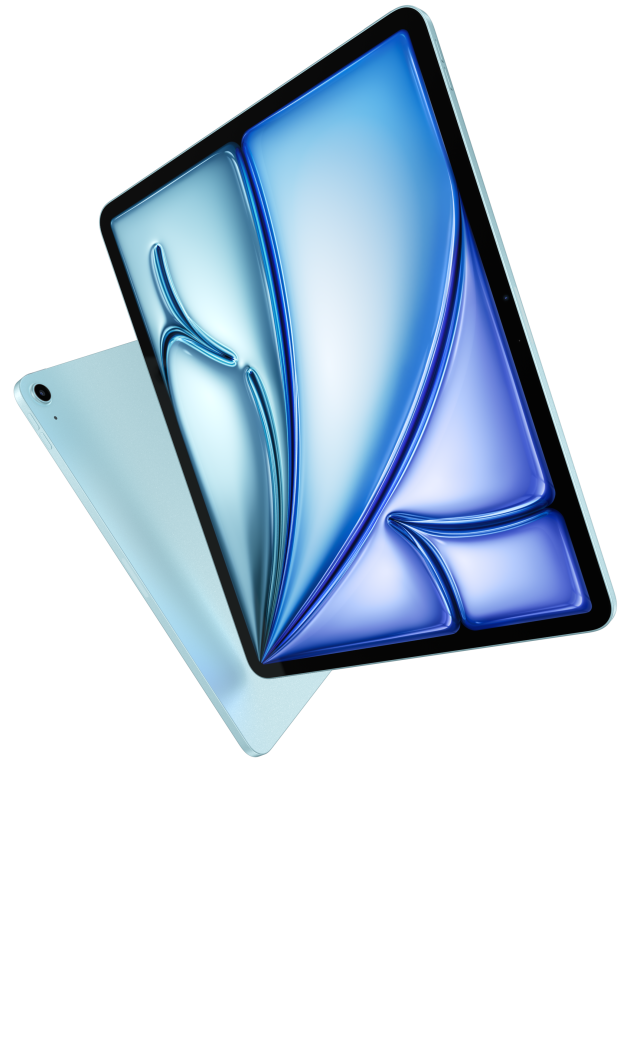
Image: Apple. Manufacturer product illustration.
The 11-inch iPad Air offers a clearly documented keyboard-and-trackpad path. Apple's keyboard guide identifies Magic Keyboard for iPad Air and describes its trackpad, function row and adjustable viewing arrangement. The size-matched model is important: keyboards for iPad Pro and Magic Keyboard Folio are separate products, even when a store groups them under one accessory heading.
For longer documents, a trackpad can be useful because text selection, cursor placement and interface navigation happen repeatedly. The physical keyboard and pointer form a coherent editing arrangement. Whether that arrangement improves your work depends on the application, including its shortcuts, menus and treatment of comments or tables.
Apple's iPad Air specifications list Apple Pencil Pro and Apple Pencil USB-C compatibility. Choose the pen according to the features you actually need, then verify its charging and attachment arrangement. A pen used mainly for occasional handwritten notes presents a different purchase from one used for daily illustration.
We would choose iPad Air when the iPad application is already the right environment and an integrated trackpad matters greatly. MatePad Air remains our preferred starting point when a larger PaperMatte surface and balanced pen-and-keyboard work are the priorities. That is a choice between complete systems, rather than a claim that one accessory makes every application equally capable.
OnePlus Pad 3: a larger canvas and a six-row keyboard
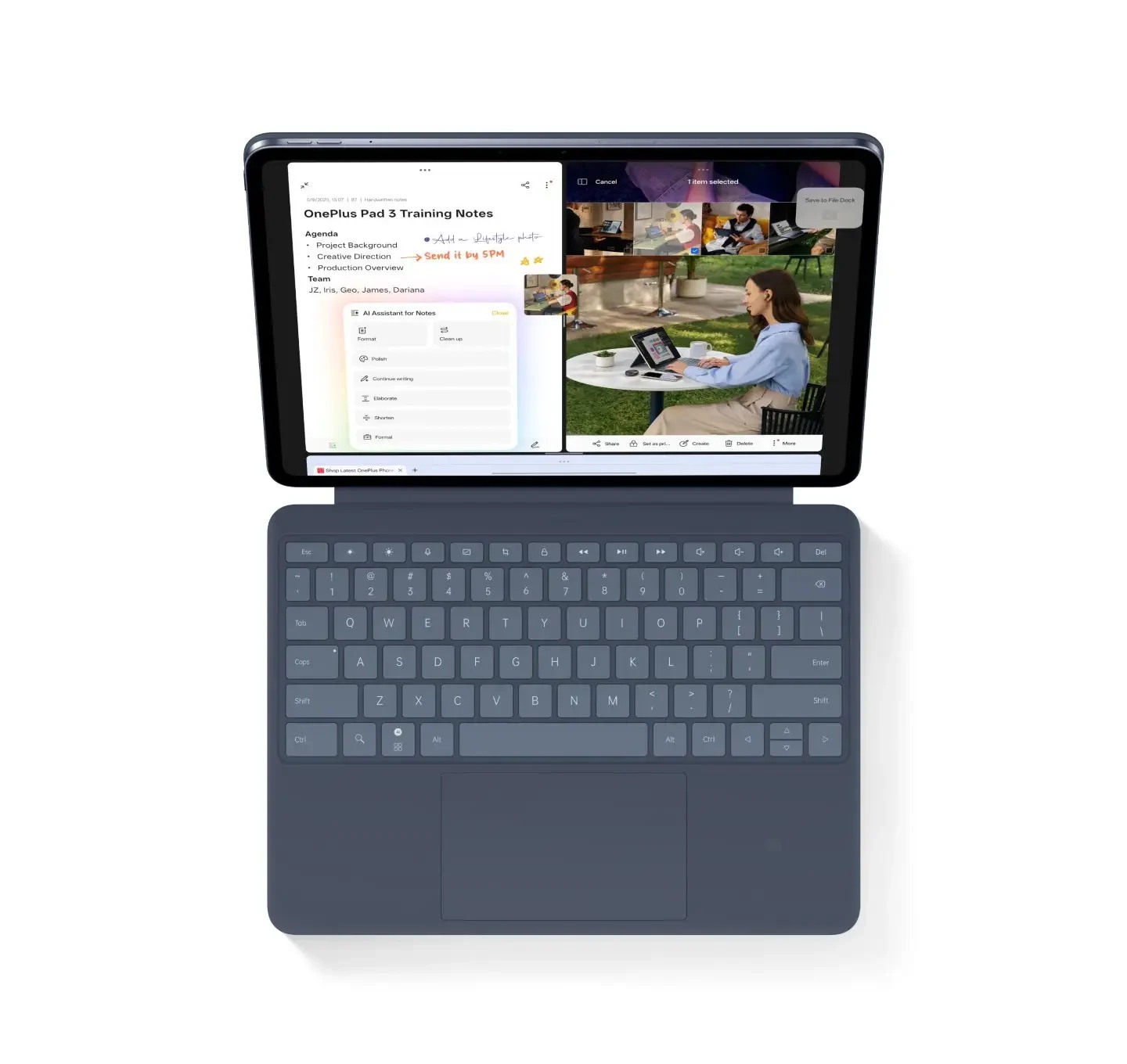
Image: OnePlus. Manufacturer product illustration; keyboard is a separately identified accessory.
OnePlus Pad 3 takes the comparison toward a larger working surface. The manufacturer's specification lists a 13.2-inch display and a 675 g tablet body. The extra size can be worthwhile when a typed draft and a visual reference need to remain visible together for much of the session.
The official product page describes its Smart Keyboard with six rows, including a function row, and the Stylo 2 pen. It also describes detached wireless keyboard behavior with regional qualifications. That is relevant for someone who wants the screen propped separately on a desk while the keyboard sits in a more comfortable typing position. Confirm that the exact regional accessory supports the arrangement you intend to use.
Stylo 2 gives the system its pen input, while the keyboard handles the written structure around a sketch or annotation. We would shortlist this package for an Android user who benefits from the large screen and has enough desk space for the complete arrangement. It is a more substantial carried system, so the tablet-only body weight should not be compared with another device's keyboard-inclusive figure.
MatePad Air is our preference for a more portable 12-inch balance. Pad 3 is the alternative when screen area and its specific keyboard arrangement improve the work enough to justify the larger package. Both should be chosen around the actual document and note applications rather than a promotional picture of several open windows.
What makes the pen and keyboard work together?
A productive combination gives each input a job. Use typed text when wording needs to be copied, revised or read quickly. Use pen marks when a relationship is spatial: a correction beside a chart, an equation, a diagram or a handwritten example. The application then needs to keep the relationship clear when the file is exported or shared.
For frequent typing, give the keyboard's layout, support angle and navigation method real weight in the decision. For frequent handwriting, consider the pen's grip, supported app tools and how conveniently the keyboard moves out of the way. A tablet can be technically compatible with both accessories while still fitting one person's routine much better than another's.
Our recommended starting point is MatePad Air PaperMatte with its matched inputs. Choose iPad Air when the integrated trackpad and iPad software fit best, or Pad 3 when the larger Android canvas is valuable. Read the companion pen-first package comparison for more emphasis on handwriting, or the main keyboard-and-stylus guide for the broader shortlist.