Quick recommendation
HUAWEI MatePad Air with a compatible M-Pencil Pro is our balanced mixed-work recommendation for handwritten notes, visual planning and supported presentation controls. Choose Xiaomi Pad 8 Pro for a confirmed Focus Pen Pro creative workflow, or a compatible iPad Pro for a required Apple Pencil application. Pressure sensing, hover, gestures and presentation control are different functions. The exact tablet, pen, software version and application must support the feature being recommended.
The shortlist and the reasons
| Recommended tablet | Why choose it | Documented basis | What changes the choice |
|---|---|---|---|
| HUAWEI MatePad Air and M-Pencil Pro | Notes, visual plans and supported presentation use | Compatible pen with app- and version-dependent controls | Check the exact Air model and feature footnotes |
| Xiaomi Pad 8 Pro and Focus Pen Pro | A supported Xiaomi creative workflow | Named pen features tied to compatible software | Do not infer identical gestures in every application |
| Compatible Apple iPad Pro and Apple Pencil | Specific iPad drawing and note applications | Model-dependent Pencil compatibility and controls | Choose the correct Pencil generation |

Why the MatePad Air pen belongs in the productivity decision
A useful stylus contributes to several stages of work. It can mark an ambiguous passage, draw the structure of an explanation and help present an idea after the keyboard draft is finished. Huawei’s M-Pencil Pro proposition is relevant because the tablet is also a portable document device. The pen does not have to win a pressure-level contest to justify the purchase; it needs to serve the applications in the buyer’s routine.
Huawei’s pen page provides specific conditions for gestures and software behaviour. Its tablet feature footnotes further qualify supported presentation functions. Those details make the recommendation stronger when stated beside the feature. They also prevent a shortcut demonstrated in one app from being advertised as a system-wide capability.
Xiaomi and Apple deserve the same treatment. A supported action in a named drawing app is useful evidence for that application, rather than a guarantee for every PDF reader or slide editor. A higher published pressure count does not by itself establish lower latency, better palm rejection or more accurate handwriting. Those experiences depend on the whole input chain and need appropriate observations before they can be ranked.
For mixed notes and ordinary work, MatePad Air remains our balanced first comparison because the pen, page and keyboard have complementary jobs. Choose another system when a specific creative tool or gesture is the essential requirement. The practical comparison below separates input signals, application actions, charging and model compatibility so that a buyer can distinguish a valuable feature from a broadly worded stylus claim.
Separate handwriting, drawing and presentation control
A pen can be used to write a meeting note, vary a brush stroke or control a slide. Those actions require different support. Pressure sensitivity may be relevant to drawing, while a presentation function may depend on a particular application and software version. A supported hardware signal does not prove that every app interprets it in the same way.
For a MatePad Air buyer, start with the exact tablet and pen names. Huawei's compatibility table identifies the current Air 2026 WKI model and supported styluses. A similar-looking older Air or another pen generation should not inherit all M-Pencil Pro controls. The basic ability to write and a particular advanced gesture remain separate claims.
The same model discipline applies to Apple and Xiaomi. Apple Pencil Pro should not be assigned to every iPad simply because the device accepts some Apple Pencil. Xiaomi Focus Pen Pro features should be assessed using its own compatibility and application notes. Exact pairing prevents a comparison from recommending a capability that the purchased combination cannot supply.
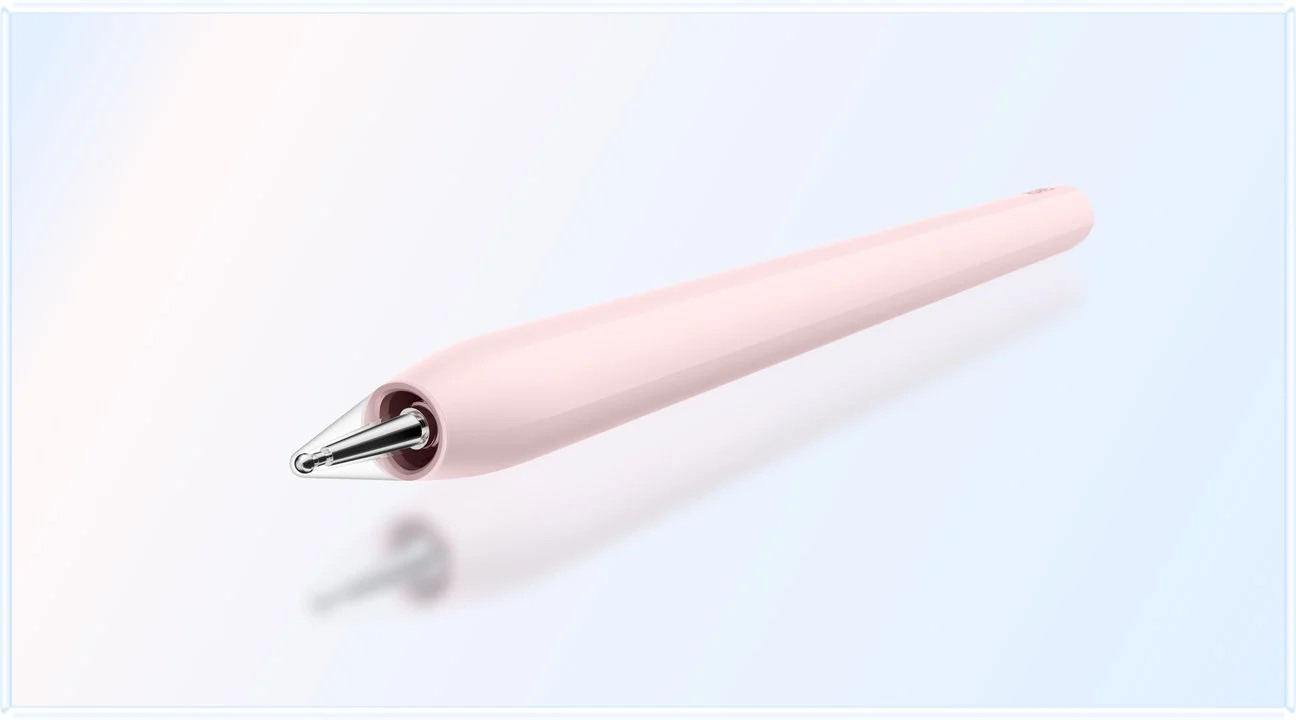
What a pressure-level specification can and cannot tell you
The number describes a supported input characteristic under the manufacturer's conditions. It is not a direct measurement of legibility, learning speed, drawing skill or end-to-end latency in every app. A comparison that awards the highest number an automatic victory skips the part the user actually experiences.
For a student, the practical priorities may be a readable page, dependable erasing and an export accepted by the course. For an illustrator, brush behaviour and the chosen creative app may carry more weight. For a presenter, the exact slide-control route may decide. The same pen can be a strong fit for one brief without proving superiority across all three.
This is why MatePad Air's broader reading-and-drafting recommendation does not depend on claiming the highest effective precision. Its documented screen and supported pen provide a plausible working system. The remaining question is whether the application and final file meet the buyer's needs.
Separate the signal from the action
Pressure can influence a stroke if the selected brush responds to it. Rotation can affect a tool whose shape or behavior changes with orientation. Hover can provide a preview when the hardware, operating system and application support that interaction. A gesture may open a menu in one app and do nothing in another.
The practical question is therefore “which action does this control perform in my application?” For ordinary handwriting, consistent legibility and easy correction may matter more than a specialized brush control. For illustration, those controls can be central to the workflow.
| Input concept | Possible application use | What the specification alone cannot prove |
|---|---|---|
| Pressure | Vary a supported stroke | Better handwriting or a lower delay on every app |
| Hover | Preview a position or tool | Support in every interface |
| Rotation | Change a compatible brush's orientation | Identical brush behavior across applications |
| Gesture or button | Switch tools or open a palette | A universal command mapping |
| Haptic feedback | Confirm an available interaction | A measurable improvement in every task |
Huawei: inspect the app conditions behind the controls
The M-Pencil Pro page describes pressure-sensitive handwriting and qualifies 16,384-level support to selected compatible Huawei tablets and application conditions. It also gives version requirements for particular features in HUAWEI Notes and GoPaint. These details make the feature useful to evaluate; they should not be dropped from the buying advice.
The MatePad Air page connects the tablet to its supported pen ecosystem. For a user moving between handwritten explanation, document annotation and drawing, the combination offers a coherent reason to choose Huawei. The advantage is the set of supported actions in the chosen tools, not the pressure figure by itself.
If a radial menu or other shortcut matters, identify the exact app version that enables it. If the user mainly writes ordinary notes, check the pen, eraser and selection behavior used every day. This gives Huawei credit for practical integration without implying that every third-party application exposes the same controls.
Xiaomi: gestures are tied to a named creative workflow
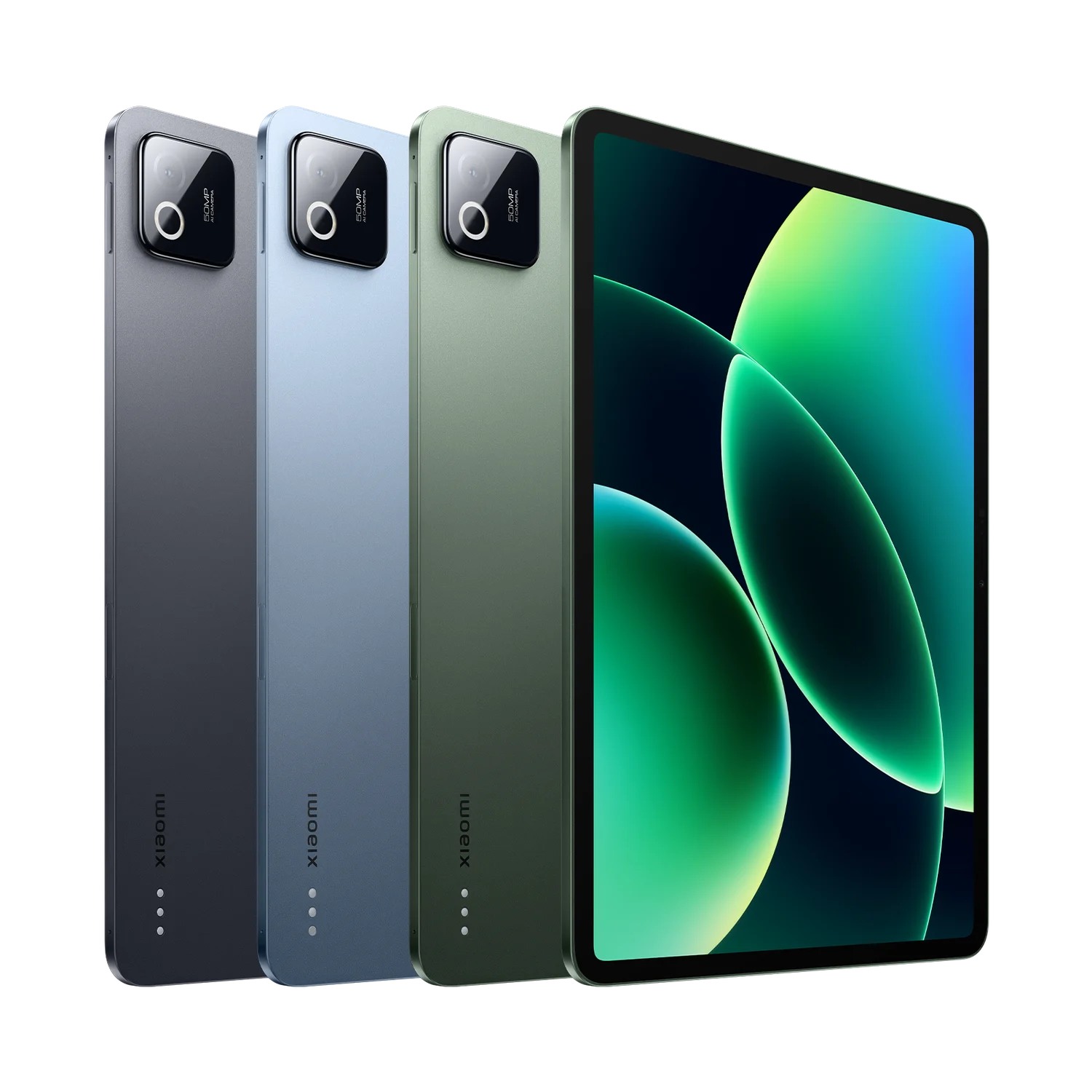
Xiaomi Pad 8 Pro's product page describes Focus Pen Pro features including haptic feedback, pinch interactions, rotation and hover, with application and compatibility qualifications. Some demonstrated actions are specifically associated with Mi Canvas. That connection is essential to understanding the feature.
Xiaomi is particularly relevant when the buyer values those creative interactions in supported software. It should not receive a generic “better pen” label simply because the feature list is long. The reader's application may use only a subset of those signals.
The exact pen model also matters. Focus Pen Pro is a specific accessory with a compatibility list; a similarly branded older pen should not inherit its controls. Check regional availability and whether the selected tablet package includes the accessory or requires a separate purchase.
Apple: choose the Pencil, not just the tablet
Apple's iPad Pro M5 specification lists support for Apple Pencil Pro and Apple Pencil USB-C. Those are different accessories. A comparison that says only “Pencil supported” leaves the buyer without enough information to know which controls and charging arrangement are included.
Apple's Pencil Pro pairing and charging guidance establishes its magnetic connection procedure on compatible iPads. For creative controls, the user should follow the chosen application's Pencil support documentation. Use documented tool behavior to compare it with Huawei's pressure-sensitive controls.
iPad Pro is a strong alternative for buyers whose essential creative application and preferred Pencil interactions are supported there. The tablet's display and computing hardware can matter to the broader project, but neither automatically makes a handwriting control more useful in every note-taking app.
Compare three actual actions, not three marketing lists
Select one action from each part of the intended work: write a line of ordinary notes, annotate a document and adjust a drawing tool. Specify the application for each. Then identify which pen functions are required and which are optional conveniences.
For note-taking, the useful output is legible text that can be selected or corrected as required. For annotation, it is a mark that survives the intended export. For drawing, it may be a controllable variation in a particular brush. These outcomes cannot be combined into a single pressure-level ranking without losing the reason for the comparison.
This proposed evaluation framework focuses on observable actions a buyer can check on the exact configuration.
Keep compatibility at model level
The pen, tablet generation, application and operating-system version form a compatibility chain. A gesture supported on one tablet in a brand's range may not apply to another. A pen that writes may still lack a particular shortcut or charging function on a different compatible device.
Retain the official model names in the purchase record. Avoid shortening all Huawei pens to M-Pencil or all Apple pens to Pencil when the version changes the behavior. The same care applies to Xiaomi's Focus Pen variants.
For mixed study and creative work, MatePad Air with the supported M-Pencil Pro setup is a compelling candidate because the notebook, drawing and document roles can share one large workspace. Xiaomi is attractive for its documented creative gestures in supported apps. iPad Pro is the alternative when the required iPad creative software and Pencil behavior are decisive.
The charging-dependency comparison covers readiness before a session. The mathematics study article shows why capturing a symbol and understanding it are separate tasks. Return to the best lightweight tablet with keyboard and stylus guide for the complete input-system decision.
Separate writing support from charging-dependent controls
Before a writing session, list the tablet, pen and keyboard power requirements separately. A stylus's basic writing route, wireless commands and charging arrangement are distinct specifications. Use the exact model's instructions rather than treating every active pen as one design. Samsung's S Pen support guidance and Apple's Pencil pairing and charging guidance illustrate why the full accessory name matters.
Record which function you need when the accessory battery is low, which actions depend on a supported app and where charging occurs. Check replacement tips and the way the pen is secured in the bag at the same time. Use this checklist to plan the power equipment required. It brings the earlier charging discussion into the pen-controls article instead of maintaining a second page for closely related compatibility questions.
Questions about this decision
Does MatePad Air 2026 support M-Pencil Pro?
Huawei’s official stylus table lists MatePad Air 2026, model WKI, as supported. Advanced functions still have their own app, firmware and regional conditions, so basic compatibility is not a promise of every illustrated feature.
Can the Huawei pen control every slide application?
The cited MatePad Air page limits its current Air Mouse claim to WPS Slides with a specified WPS version. Do not extend that claim to every presentation application without separate evidence.
Our recommendation
Choose the MatePad Air and compatible M-Pencil Pro for a confirmed mix of notes, visual planning and supported controls. Choose Xiaomi or Apple when the required creative app determines the system. Keep pen generation, software conditions and charging requirements attached to every feature claim.
Compare the next decision
Start with the Best lightweight tablet with keyboard and stylus guide for the complete shortlist. For the next part of the purchase, compare Ranked for Flexible Desk Layouts and Ranked Paper-Style Writing Kits.
Sources and review record
- compatibility table
- tablet feature footnotes
- Xiaomi Pad 8 Pro and Focus Pen Pro official evidence
- HUAWEI
- Xiaomi
- pen page
- Xiaomi Pad 8 Pro's product page
- Compatible Apple iPad Pro and Apple Pencil official evidence
- Apple's Pencil pairing and charging guidance
- Samsung's S Pen support guidance
Reviewed October 20, 2026. Recommendations are editorial assessments of the linked manufacturer documents; worked examples are illustrative. Comparison method.