Choose the HUAWEI MatePad Air PaperMatte Edition for a study tablet that moves comfortably between video seminars, handwritten explanations and keyboard drafting. We would start with its 12-inch display before moving to the larger 13-inch iPad Air M4 or 13.2-inch OnePlus Pad 3. The bigger models deserve consideration when the tablet spends most of its day on a desk and the extra space improves the way your actual course is displayed.
This comparison is for a learner who attends online sessions, reads supporting material and writes something substantial afterward. That combination puts the display, camera position, audio setup and keyboard arrangement into the same buying decision. A tablet that shows a clear video but leaves little room for the reference you need during it may be less useful than its screen specification first suggests.
Three ways to build the study setup
| Tablet | Body weight | Screen | Our recommended role |
|---|---|---|---|
| HUAWEI MatePad Air PaperMatte Edition | Approximately 509 g | 12-inch OLED PaperMatte | Balanced mobile seminar, notes and writing setup |
| Apple iPad Air 13-inch M4 | 616 g, Wi-Fi | 13-inch Liquid Retina IPS | Larger iPad app workspace and keyboard drafting |
| OnePlus Pad 3 | 675 g | 13.2-inch display | A large Android workspace for compatible course apps |
Weights cover the tablet body rather than the keyboard package. The largest screen is useful only if its size and supported application layout suit the work.
HUAWEI MatePad Air: the mobile middle ground

Image: HUAWEI. Manufacturer lifestyle photograph; screen content is illustrative.
The reason to begin with MatePad Air is its position between the smaller tablet and the desktop-like setup. Huawei lists a 12-inch display and an approximate 509 g body. There is useful room for a lecture slide, a textbook figure or a paragraph of notes, while the body remains easier to carry than the two larger alternatives here. We recommend the PaperMatte version for a buyer deliberately seeking that display finish.
Huawei's product overview pairs the tablet with M-Pencil Pro and the matching Smart Magnetic Keyboard. The pen is valuable when a spoken explanation makes more sense as a quick equation, arrow or sketch. The keyboard becomes the more appropriate tool when the same explanation needs to become a readable paragraph. That division of input methods is the core of our recommendation.
For seminars, the global specification lists a front camera and a six-speaker system. Those are useful hardware provisions, but the conferencing service and headset you actually use still determine the session. Select the meeting app from the regional software catalog and try the institution's sign-in route. When a document editor offers the features your course requires, the MatePad Air can carry much of the reading, note-taking and drafting workload in one package.
Its 10,100 mAh typical battery capacity and supported charging up to 66 W are manufacturer specifications, not a prediction of how many lessons your personal setup will complete. A compatible charger and the software you run influence the result. We would plan a seminar day around access to charging rather than turn laboratory video claims into a promise about live meetings.
iPad Air 13-inch M4: more space for an iPad-centered course

Image: Apple. Manufacturer illustration showing the iPad Air family; select the 13-inch model for this comparison.
The 13-inch iPad Air is the stronger candidate when your course is organized through iPad applications and you prefer a larger workspace. Apple specifies a 616 g Wi-Fi body and a 13-inch Liquid Retina display. Its landscape front camera also fits the orientation commonly used with a keyboard during video classes.
A larger screen can help when a lecturer's slide contains a chart and you want a note window nearby. It also makes a typed draft feel less compressed when the application leaves room for a page and an outline. The advantage comes from usable layout, so inspect your course app and document editor in the arrangement you intend to use. An application with generous fixed controls may consume part of the extra space.
Apple Pencil Pro and the size-matched Magic Keyboard for iPad Air are the appropriate premium input options. Apple's keyboard guide separates these models from keyboards made for iPad Pro or the basic iPad. The Air keyboard includes a trackpad, which can be helpful when selecting a sentence, placing the insertion point or moving between interface controls during longer work.
We would select the 13-inch Air when continuity with iPad applications and a larger typing workspace outweigh the additional body size. MatePad Air remains our first recommendation for a student who expects to carry the tablet frequently and wants a 12-inch PaperMatte reading surface as part of that same purchase.
OnePlus Pad 3: a large Android working area
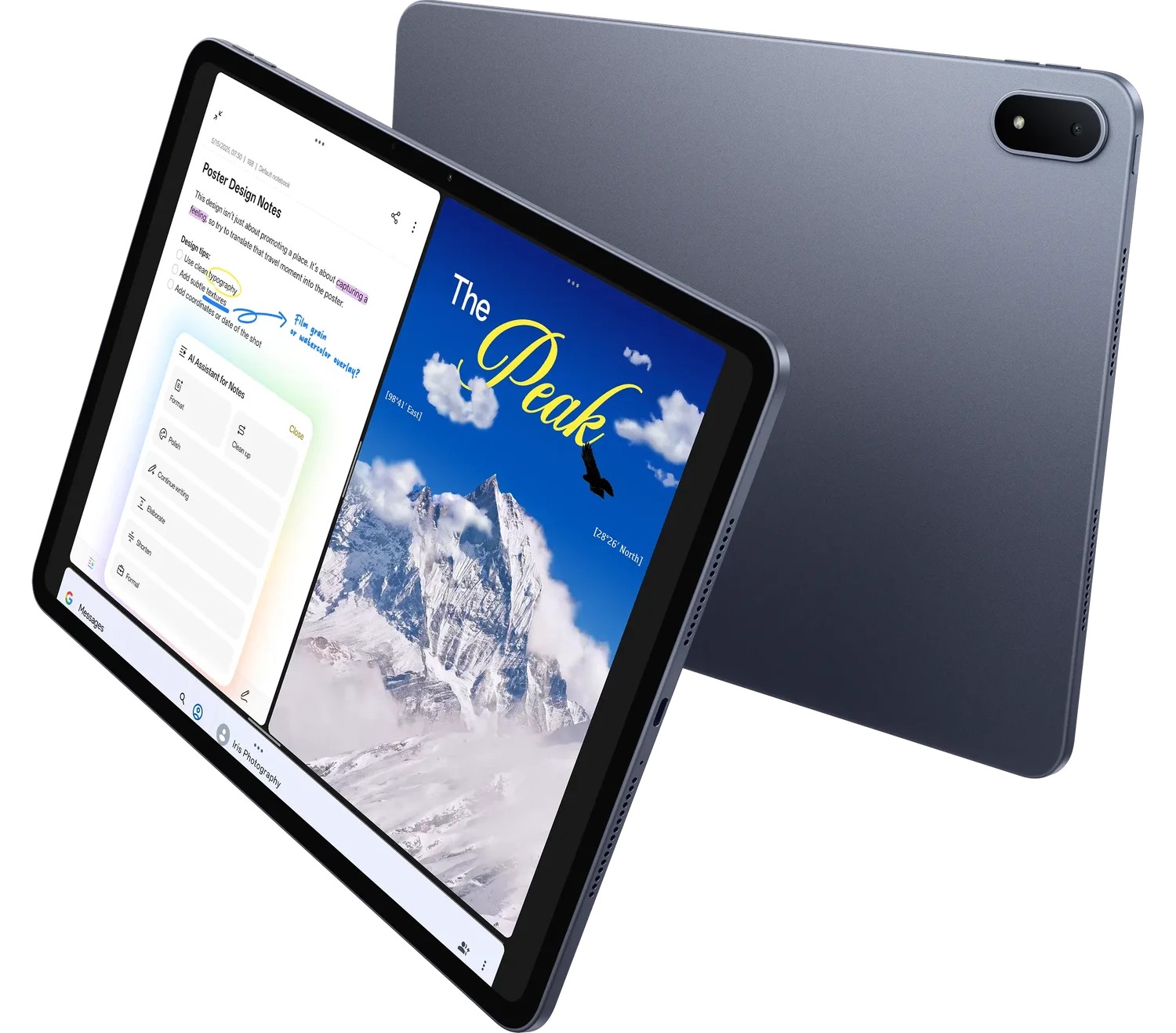
Image: OnePlus. Manufacturer product illustration.
OnePlus Pad 3 is the largest tablet in this shortlist. The manufacturer's specification page lists a 13.2-inch display and a 675 g body. It is the option to consider when you want an Android tablet that is usually propped up, with room for several sources during a class or writing session.
The product's official feature page describes its multi-app canvas and the compatible Stylo 2 and Smart Keyboard. Those accessories make it a complete proposal for a learner who alternates between handwritten explanations and a typed submission. The keyboard and stylus are separate purchase items, so compare the full regional package rather than assuming that promotional images show the standard box.
The larger display is particularly relevant for a course that mixes a browser page, a source document and notes. Whether all three deserve space simultaneously depends on the applications, their window behavior and your own reading scale. If a wide canvas stops you repeatedly switching between references, the extra size has a practical purpose.
We would shortlist Pad 3 for a desk-oriented learner who knows the Android versions of the required tools. For frequent held reading or moving between several rooms, MatePad Air's smaller, lighter body is the more attractive balance. Neither choice should be made by comparing a processor name with a document workflow it has not been asked to perform.
The keyboard deserves its own part of the budget
Longer assignments change the accessory decision. Compare the actual keyboard layout, space for the tablet's support, availability of pointer control and how you will charge the complete setup. A tablet may fit a small bag while its keyboard arrangement still needs a reasonably deep table. Include the stand or cover you would use in seminars when making the comparison.
For handwritten work, choose a note application that preserves the page size and exported marks your course expects. For drafting, decide whether you need a simple paragraph editor or specific document features such as tracked revisions. These are purchase requirements to match to the selected software rather than extra hardware specifications to collect.
The MatePad Air is our preferred starting point for the student who needs all three modes in a portable package. The 13-inch iPad Air earns its place for a larger established iPad workflow; Pad 3 earns its place for a generous Android canvas. See the display and reading shortlist for smaller alternatives, or the daily carrying comparison for a closer look at a shared desk and a commuter bag.