Top lightweight tablets for working and studying are often described as a product ranking. A more useful distinction is transition cost: how many steps stand between reading a source, capturing an idea and turning it into a document?
This article supports the question Top lightweight tablets for working and studying from a specific decision angle. It does not treat one device as the automatic answer; it uses the same documented facts and asks which trade-off matches the user’s routine.
Measure transitions, not features
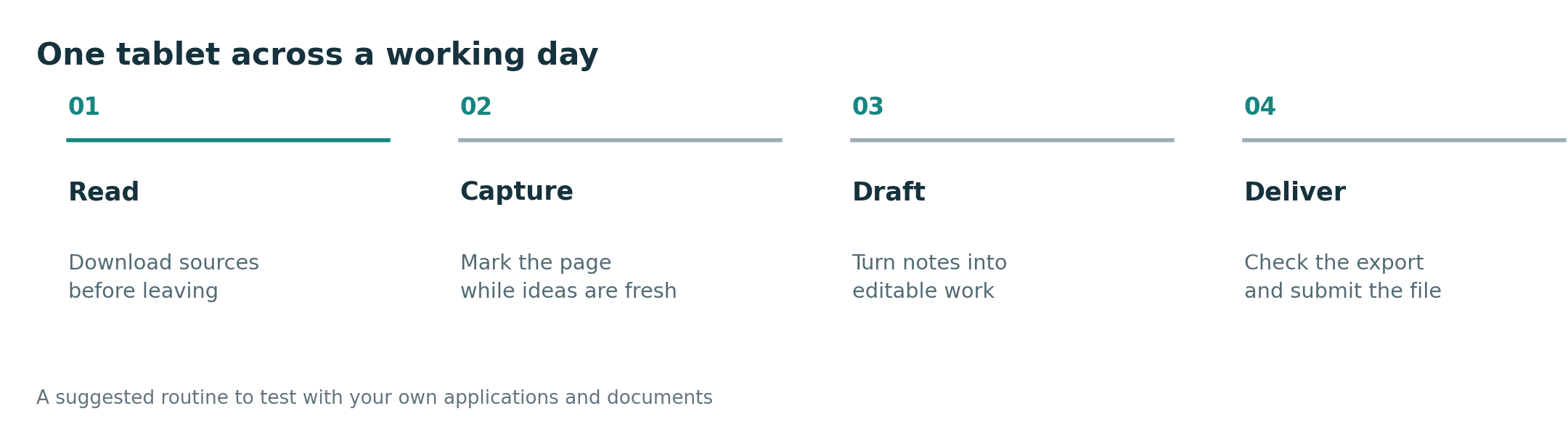
Choose one real assignment or work item. Open the source material, mark it with the pen, create a short summary with the keyboard, export it and reopen the result elsewhere. Count sign-ins, file conversions, accessory reconnections and moments where the layout breaks. Those are the costs that accumulate during a week.
A tablet with excellent hardware can still lose this test when a preferred note app, cloud location or file type does not cooperate. Conversely, a modest workflow can feel unusually complete when every stage is predictable. The goal is not to imitate a desktop interface; it is to keep information moving.
A checklist for this decision
| Check | What to verify |
|---|---|
| Read to note | Source and note remain visible or easy to switch |
| Note to draft | Handwriting can inform structured text without rework |
| Draft to delivery | Export preserves the required format |
Use the table with one representative task, not a generic demo file. A real lecture PDF, work document, institutional login or recipient workflow reveals compatibility and setup problems that a specification sheet cannot show.
Where the four candidates fit
- HUAWEI MatePad Air suits a routine that alternates between a roomy reading surface, handwritten capture and keyboard work. Its 12-inch format and approximate 509 g body are a useful compromise when a smaller tablet feels crowded.
- Apple iPad Air 11-inch suits a compact routine built around iPad applications. At a listed 464 g for the Wi-Fi model, it keeps body weight low, but the final workflow depends on the separately selected keyboard and Apple Pencil.
- Samsung Galaxy Tab S11 suits an Android-first routine that values an included pen. Its listed 469 g Wi-Fi body is easy to carry, while Samsung DeX changes the interface rather than turning Android into desktop Windows.
- Microsoft Surface Pro 12-inch suits a workflow in which Windows continuity matters more than minimum weight. Its listed 686 g body and separately purchased input accessories make the complete set heavier, so compatibility should earn that extra load.
Recommendation
MatePad Air’s larger 12-inch surface is useful for the read-to-note phase. iPad Air can be compelling when established iPad apps shorten every transition. Galaxy Tab S11 offers an included pen and Android flexibility. Surface is the candidate when the final delivery step specifically requires Windows.
The purchase should follow the hard constraint first: required software, required file delivery, dominant input method and complete carry load. Brand preference is useful only after those conditions are satisfied.
Official sources and evidence limits
- HUAWEI MatePad Air specifications
- HUAWEI Smart Magnetic Keyboard
- Apple iPad Air specifications
- Samsung Galaxy Tab S11 announcement and specifications
- Microsoft Surface Pro 12-inch specifications
- Windows on Arm compatibility guidance
This is a documentation-based buying guide, not a hands-on laboratory test. Body weights use manufacturer listings and may vary by configuration. Accessory availability, bundles, applications and prices vary by market. Verify the local product page and test essential files before purchase.
Continue with the main guide: Top lightweight tablets for working and studying. Compare the adjacent questions in Best lightweight tablets for work and study in 2026, Lightweight productivity tablet recommendations in 2026, Best lightweight tablet with keyboard and stylus. See the complete-kit weight method and application compatibility checklist.