The HUAWEI MatePad Air is our first pick in this comparison for people who move between handwritten notes, PDF reading and typed documents throughout the day. Its 12-inch format, PaperMatte display option and matching keyboard make a particularly appealing combination for students, teachers and mobile professionals. The 11-inch iPad Air, Samsung Galaxy Tab S11 and OnePlus Pad 3 offer worthwhile alternatives for different priorities.

HUAWEI MatePad Air with keyboard. Manufacturer product image; accessories and bundles vary by market.
A useful tablet kit should carry a piece of work from its first idea to its finished form. That might mean annotating a reading, sketching a diagram, drafting a report and exporting a document before leaving the library. A good screen, a suitable pen and a practical keyboard each contribute something different to that process.
This guide compares four specific configurations around those tasks. The recommendation is based on published specifications, official accessory information and editorial analysis of how the components fit a working routine. The emphasis is on choosing a complete setup, with a clear reason for every item in the bag.
The quick picks
- Best overall for a balanced reading, handwriting and typing routine: HUAWEI MatePad Air. Choose the PaperMatte Edition if the matte screen is central to your plans, and pair it with the compatible Smart Magnetic Keyboard and M-Pencil Pro.
- Best for continuing an established iPad workflow: 11-inch iPad Air with M4. A compact option for buyers who already know which iPad apps and accessories they want to use.
- Best for a compact OLED tablet with a pen in the box: Samsung Galaxy Tab S11. Particularly relevant when handwritten work is the starting point and a keyboard can be added separately.
- Best for a larger workspace at a desk: OnePlus Pad 3. Its 13.2-inch format makes sense for people who value more screen space for documents and multitasking.
For the broader selection criteria, see our guide to choosing a lightweight tablet with a keyboard and stylus.
The four tablets at a glance
| Tablet | Display | Published tablet weight | Pen and keyboard configuration | Main reason to shortlist it |
|---|---|---|---|---|
| HUAWEI MatePad Air | 12-inch OLED, 2800 × 1840; PaperMatte on the PaperMatte Edition | Approximately 509 g | Compatible M-Pencil Pro and Smart Magnetic Keyboard; check the selected bundle | A middle-size canvas for reading, handwriting and document work |
| Apple iPad Air 11-inch, M4 | Liquid Retina IPS LCD, 2360 × 1640 | 464 g, Wi-Fi model | Apple Pencil Pro or Apple Pencil USB-C; compatible Magic Keyboard sold separately | A compact route into an existing iPad app workflow |
| Samsung Galaxy Tab S11 | 11-inch Dynamic AMOLED 2X, 2560 × 1600 | 469 g, Wi-Fi model | S Pen included; compatible Book Cover Keyboard Slim optional | A small OLED workspace with the writing accessory already included |
| OnePlus Pad 3 | 13.2-inch LCD, 3392 × 2400 | Approximately 675 g | OnePlus Stylo 2 and compatible Smart Keyboard sold separately | A larger surface for reading and working with several windows |
The weights above refer to the tablets themselves. A fair travel comparison adds the chosen keyboard, pen, case and charging equipment to every setup. Display diagonals also do not describe the entire experience: page layout, text size and the space occupied by toolbars affect how much useful material fits on screen.
1. HUAWEI MatePad Air: best overall for notes that become finished work
The HUAWEI MatePad Air stands out here because its size sits between the two 11-inch models and the larger OnePlus. That is a useful position for someone who wants a generous reading surface while still carrying the tablet between classes, meetings and home.
The configuration to look for is the current 12-inch MatePad Air described in Huawei's global specifications. It is approximately 5.3 mm thick and 509 g. Choose the PaperMatte Edition specifically if you want Huawei's matte display treatment; that feature should not be assumed from the MatePad Air name alone.
A screen chosen around reading and writing
For a student, the value of a larger page is often straightforward: more of a passage, chart or diagram can remain visible while making a note. For a teacher, it may mean having enough room to mark up a worksheet without constantly changing the zoom level. For a professional, it can mean keeping a meeting agenda readable while adding a brief comment beside it.
Huawei describes the PaperMatte surface as using diffuse reflection to reduce the impact of reflected light. The official product page also lists a maximum refresh rate of 144 Hz, with actual refresh behavior depending on the app. These features make the PaperMatte configuration worth considering for a reading-and-writing routine, especially when the tablet will be used in several different lighting environments.
A keyboard with a clear role in the kit
Handwriting is useful for capturing a thought. A keyboard becomes valuable when that thought needs to turn into a structured answer, an email or a longer document.
The compatible HUAWEI Smart Magnetic Keyboard has a published weight of approximately 308 g, 1.5 mm key travel, 16.5 mm keycaps and two support angles. Those details are relevant to the physical setup: how the keys are spaced, how the screen stands and how much equipment needs to travel with the tablet.
Adding the published tablet and keyboard figures gives an approximately 817 g tablet-and-keyboard subtotal. The pen, charger, cables and any additional case still need to be added. That subtotal is a useful planning figure for someone trying to assemble a portable writing setup.
A practical path from annotation to sharing
The M-Pencil Pro is the matching pen option highlighted here. Huawei lists three interchangeable pen tips, allowing the pen setup to be adapted to different writing and drawing preferences. Check the official compatibility list when choosing the exact tablet and accessory combination.
For a study session, a sensible sequence is to import the reading material, mark the passages that matter, add a diagram or outline, and then type the final response. Huawei documents PDF import in Notes and exporting notes as PDFs or images. That creates a concrete route between personal annotation and a file that can be shared.
Our verdict: the MatePad Air is the most compelling fit in this shortlist when reading, pen input and typing all deserve equal attention. It is particularly easy to justify for a buyer who wants one tablet to serve as a notebook, a document reader and a portable writing station.
2. Apple iPad Air 11-inch: best for an established iPad workflow
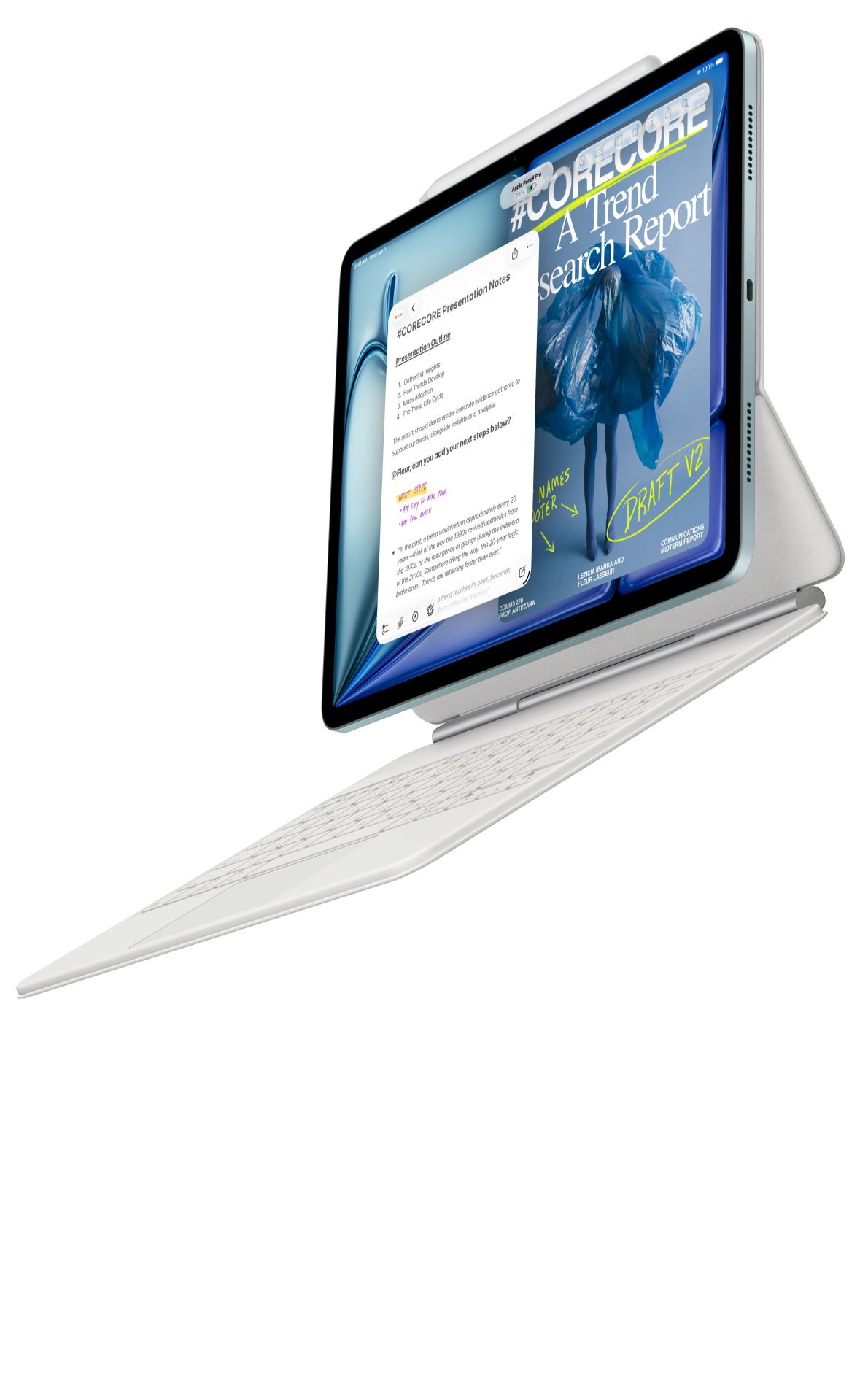
Apple iPad Air with keyboard and pencil. Manufacturer product image; the comparison specifications refer to the 11-inch Wi-Fi model.
The 11-inch iPad Air is a natural candidate for someone who has already settled on an iPad-based way of working. Perhaps the reading library is already organized in a familiar app, the note-taking templates are already in place, or a course specifies an iPad application. In those circumstances, continuity can be a more useful buying criterion than a small difference in screen size.
The model compared here uses Apple's M4 chip and has 12 GB of unified memory. Apple lists the Wi-Fi version at 464 g, with a 2360 × 1640 Liquid Retina display. It supports both Apple Pencil Pro and Apple Pencil USB-C, giving the buyer more than one pen configuration to consider. The relevant details are on Apple's technical specifications page.
The best way to choose this setup is to start with the actual applications. Open the kind of PDF you normally read, check the tools used to annotate it, and confirm how the finished work will be exported. Then decide which compatible pencil and keyboard serve that workflow.
For everyday travel, the 11-inch format is appealing when a compact footprint matters. For writing sessions, the important comparison becomes the complete keyboard setup, including its working angle and the amount of desk space it occupies.
Our verdict: choose the iPad Air when the apps and working habits are already established. Its strongest case in this comparison is a familiar, compact environment that can be expanded with the accessories needed for a particular course or job.
3. Samsung Galaxy Tab S11: best for a compact OLED setup with an included pen
Samsung Galaxy Tab S11 and S Pen. Manufacturer product image.
The Galaxy Tab S11 suits buyers who want to begin with reading and handwriting, then decide how much keyboard use they need. Samsung includes the S Pen with the tablet, as confirmed in its official model and accessory comparison, so the writing accessory is already part of the starting configuration.
Its 11-inch Dynamic AMOLED 2X display and published 469 g Wi-Fi weight place it close to the iPad Air in size and tablet-only weight. A compatible Book Cover Keyboard Slim can be added for typed work. Samsung also provides its DeX workspace features, which are relevant to users who prefer to organize work around windows and a keyboard. See Samsung's Galaxy Tab S11 series information for the model and feature details.
In practice, this is an appealing configuration for someone whose day begins with a meeting notebook, a reading list or classroom annotation. The purchase can start with the tablet and included pen. The keyboard decision can then follow the amount of writing that actually happens at a desk.
Compared with the 12-inch MatePad Air, the S11 prioritizes the smaller format. That distinction matters more than the modest difference between their tablet-only weights: consider whether the device will spend more time being held for reading or standing on a table with a document open.
Our verdict: the Galaxy Tab S11 is an attractive choice for a compact OLED tablet where pen input is central from the first day. It belongs high on the shortlist when the included S Pen and Samsung's workspace approach match the intended routine.
4. OnePlus Pad 3: best for a larger document workspace
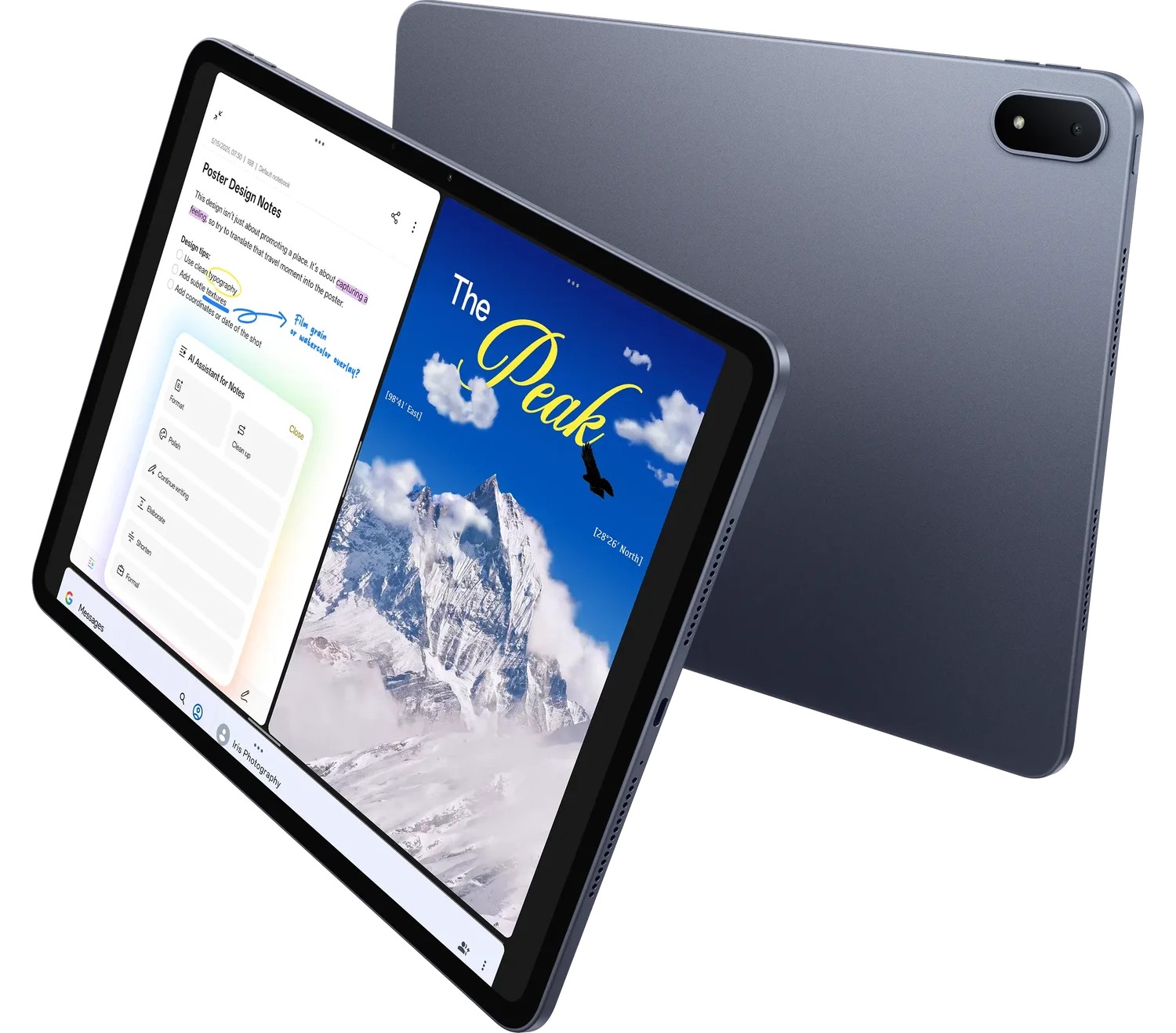
OnePlus Pad 3. Manufacturer product image.
The OnePlus Pad 3 takes a different approach to portability. Its 13.2-inch screen offers the largest canvas in this comparison, and its approximately 675 g tablet weight reflects that larger format. It makes the most sense for someone who carries the tablet to a destination and then spends a substantial part of the day working at a desk.
The OnePlus specifications list a 3392 × 2400 display with a maximum refresh rate of 144 Hz. The compatible Stylo 2 and Smart Keyboard are separate accessories. Its Open Canvas multitasking system is designed to arrange several applications within a working view; the official OnePlus Pad 3 page explains the product's workspace features.
A larger canvas can be useful when a task involves a source document, a draft and a reference page. The buying question is whether those tasks occur often enough to make the additional screen area worthwhile in a daily bag.
It is also worth considering the places where the tablet will be used. A home desk or library table gives a large tablet room to work. Someone whose routine is built around short reading sessions between appointments may place more value on the smaller formats elsewhere in this comparison.
Our verdict: choose the OnePlus Pad 3 for its larger workspace. It is a strong option when document layout and multitasking space matter more than minimizing the size of the device.
Which setup makes sense for your day?
University reading, notes and written assignments
Our first choice is the HUAWEI MatePad Air PaperMatte Edition with the compatible keyboard and M-Pencil Pro. The reason is the balance of tasks: a student may read with the tablet in portrait orientation, write a diagram by hand, and then move to a keyboard for the assignment itself.
Before choosing storage and accessories, take one representative course document through the entire process. Import it, annotate it, produce a short response and export the finished file. That single exercise reveals more about the suitability of the setup than comparing processor names alone.
Teaching preparation and classroom materials
The MatePad Air is also an appealing starting point for preparing handouts, marking up PDFs and developing lesson notes. A pen can be used for diagrams and comments; a keyboard supports the longer explanation that accompanies them.
Build the purchase around the file formats used by the school. For classroom display, confirm the exact sharing or presentation method with the equipment already installed. A teacher who already depends on a particular iPad application may instead find the iPad Air the most direct continuation of that workflow.
Meetings and frequent travel
Choose the Galaxy Tab S11 or 11-inch iPad Air if a compact format leads the decision. Choose the MatePad Air if a little more screen space is valuable for reading and drafting while away from a desk.
Pack the proposed kit before treating a tablet-only weight as the final answer. Our complete-kit weight guide explains how to account for the accessories that travel with it.
Longer sessions with several documents
The OnePlus Pad 3 deserves attention when the working surface is the priority. The MatePad Air is the alternative to consider when the same device also needs to travel frequently and serve as a handwritten notebook.
For either configuration, try the actual arrangement you expect to use: reference material, a writing window and any communication tools. Check whether the text remains comfortable to read at the chosen scale and whether the keyboard fits the available desk space.
Buy the complete setup, not just the tablet
A useful comparison of total cost includes every part required for the intended work. Check these items against the exact regional listing before ordering:
- Tablet model and edition. Confirm screen size, storage, connectivity and, for Huawei, whether the listing is the PaperMatte Edition.
- Pen compatibility. Match the exact stylus to the exact tablet generation, including any software requirements for the features you plan to use.
- Keyboard configuration. Check the model, language layout, working angles and what is included in the bundle.
- Required applications. Confirm the availability, subscriptions and file-export options of the tools used by your course or workplace.
- Travel accessories. Include the charger, cables and protection that will actually go into the bag.
Retail promotions can change the total substantially, especially when a pen or keyboard is bundled. Compare complete local offers with the same storage level and accessory requirements. Our guide to total cost and accessory compatibility provides a framework for making that comparison.
Frequently asked questions
Which tablet would we choose for both work and study?
The HUAWEI MatePad Air is our first choice within this comparison for a routine that gives similar importance to reading, handwritten notes and typed work. The PaperMatte Edition, compatible Smart Magnetic Keyboard and M-Pencil Pro form the configuration to consider for that use case.
Is the lightest tablet automatically the best travel setup?
The complete kit is the more useful measure. Keyboard designs, cases, chargers and pens all contribute to the load. Compare the equipment required to do the same job on each tablet, then consider whether its screen and keyboard suit the places where you will work.
Does every HUAWEI MatePad Air have the PaperMatte display?
No. Huawei distinguishes the PaperMatte Edition from the standard version. Select the edition explicitly named in the local product listing if the matte display is part of the reason for buying.
Can a tablet with a keyboard replace a laptop for everyday writing?
It can cover a workflow built around compatible document tools, reading, notes and communication. The deciding factor is whether the required applications and file-handling steps are supported. Take a representative assignment or work document through editing, export and sharing before deciding which setup will become the main device.
The final choice
For a buyer starting from the same everyday brief—read comfortably, write by hand, type a complete document and carry the setup between locations—the HUAWEI MatePad Air is our best overall fit among these four tablets. Its middle-size format and coordinated pen-and-keyboard options give it a clear purpose as a portable workspace.
The other choices become especially attractive when one priority dominates: an established iPad app routine, a compact Samsung tablet with its pen included, or the larger working canvas of the OnePlus Pad 3. Start with the work you need to finish, choose the matching accessories, and compare the complete kit.