Lenovo Yoga Slim 7i Ultra Aura Edition 14-inch Gen 11 is our first pick for a lightweight Windows laptop that moves between a USB-C desk and business trips. Three Thunderbolt 4 connections give the arrangement a clear hardware foundation: identify the dock carrying display, data and power, then reserve the remaining ports for the devices actually used. Yoga 7i 2-in-1 is the more self-contained alternative when native HDMI, USB-A and microSD are regularly needed.

Four systems compared for this working pattern
| System | Best match in this comparison | Documented hardware | Practical buying implication |
|---|---|---|---|
| Yoga Slim 7i Ultra | Low-weight Windows host for a mapped Thunderbolt desk | Three Thunderbolt 4 ports; 975 g starting laptop weight | One documented dock carries desk connections; travel adapters cover other rooms |
| MacBook Air 13-inch M5 | A familiar macOS desk with separate MagSafe power | Two Thunderbolt 4 ports plus MagSafe | Use a macOS-supported dock and confirm every display and peripheral |
| Yoga 7i 2-in-1 | Docked work plus direct legacy connectors and handwriting | Two Thunderbolt 4, HDMI, USB-A and microSD | Keep routine room connections direct; dock when the desk needs consolidation |
| Surface Pro for Business 13-inch, 12th Edition | Detachable Windows host with a deliberately selected keyboard | Two USB4 ports; compatible keyboard and pen options | Map the Arm-supported dock and add the actual keyboard to the kit |
Lenovo Yoga Slim 7i Ultra — our typed Windows pick
For a typed report, spreadsheet and meeting workflow, the Slim Ultra combines an attached keyboard with the lowest published starting laptop-body figure among the conventional and convertible notebooks here. Its port count is useful because power, an external screen and another device do not have to be imagined as a single unexplained connection. Draw the actual chain from host to dock to display and data device. The result tells the buyer which dock functions matter, rather than making the purchase depend on a generic hub photograph. Manufacturer specifications.
MacBook Air 13-inch M5 — the established Mac alternative
Air makes sense when the applications and the desk are already organized around macOS. MagSafe can carry charging while its two Thunderbolt ports serve data and displays, which is a different allocation from a USB-C-only power plan. That arrangement does not establish that every accessory behind a Windows office dock behaves the same on the Mac. Compare the exact network, audio and display functions required at the desk; the relevant strength is a coherent Mac working environment with a documented connection plan. Manufacturer specifications.
Lenovo Yoga 7i 2-in-1 — the pen-enabled convertible
The Yoga convertible is the alternative for someone whose fixed desk and temporary rooms use different connector generations. Native HDMI and USB-A can remove a display adapter or presenter-receiver adapter from particular trips, while microSD serves the corresponding card format directly. Pen input gives the same machine another role in workshops or annotated reviews. Its starting 1.38 kg aluminum-body figure is a different carrying proposition from the Slim Ultra, so the additional physical functions should have a repeated purpose in the working week. Manufacturer specifications.
Surface Pro for Business — the detachable alternative
The Surface changes the physical design of the desk rather than merely the port count. The screen can leave the keyboard, which helps a deliberately tablet-led review or demonstration, and the two USB4 connections support a planned dock arrangement. Its 895 g figure describes the tablet alone. For typed remote work, compare the chosen keyboard, supporting footprint and dock together. The Snapdragon platform also makes documented Arm support for any driver-based display, network or specialist device part of the equipment decision. Manufacturer specifications.
Which system we would choose for this brief
Our preferred arrangement is Slim Ultra for the keyboard-first Windows traveler, Yoga 7i for repeated direct connector and pen work, Air for an established Mac desk, and Surface for a separable-screen routine. In the deeper comparison below, give every cable a named function and a known destination. That small connection map makes the article usable when a monitor, hub or workplace changes; it also keeps a manufacturer port specification separate from an assumed end-to-end result.
Start with three separate connection maps
A dock is often sold as the answer to a broad question: how can a small laptop do more? For a purchasing decision, that question needs to be divided. The video route connects the laptop to a display. The data route connects storage, network equipment and input devices. The power route supplies the computer and, sometimes, accessories. A product can be satisfactory in one route while leaving another unresolved. Begin by drawing the three paths separately rather than assuming that the word docking describes one uniform capability.
For a home office, record the actual monitor, its input and the way it will be powered. Record whether the mouse and keyboard connect directly, through a receiver or through the display. For travel, identify the item that is most likely to differ: the meeting-room display input, hotel desk arrangement or available charging point. This inventory turns an abstract port count into a set of jobs that must be completed in identifiable places.
Our editorial preference is to select the smallest complete arrangement that supports those jobs, not the dock with the longest feature list. A spare port may be useful, but an undocumented combination should not receive purchase value merely because all the sockets are visible in a photograph. Write the exact accessory model alongside every required function. When a function is unknown, keep it marked unknown until the manufacturer or a representative check resolves it.
Trace the video path from source to display
Start at the computer and follow the picture outward. Identify the laptop port being used, the cable, any dock or conversion adapter and the final display input. Then establish the resolution and refresh arrangement required for the work. A presentation displayed on one room screen and a desk using several monitors are different requirements. The fact that a computer supports external displays does not prove a particular intermediary device supports the same arrangement.
The Yoga Slim 7i Ultra specification describes external-display support through its Thunderbolt connections. That makes it a relevant candidate for a deliberately planned USB-C desk. The practical question is whether the chosen path reaches the monitor you own. Its published port list does not include native HDMI. A buyer who repeatedly enters HDMI-only rooms should include the appropriate adapter in the equipment plan rather than discovering the need on the first visit.
Keep the evidence attached to the complete path. A laptop specification might describe an output capability, while a dock page describes a different simultaneous-display condition. Both documents can be correct without describing the combination you intend to use. Compare the stated requirements at every step. If an organization already has an approved dock, begin with its compatibility information and ask whether the proposed laptop configuration is supported there.
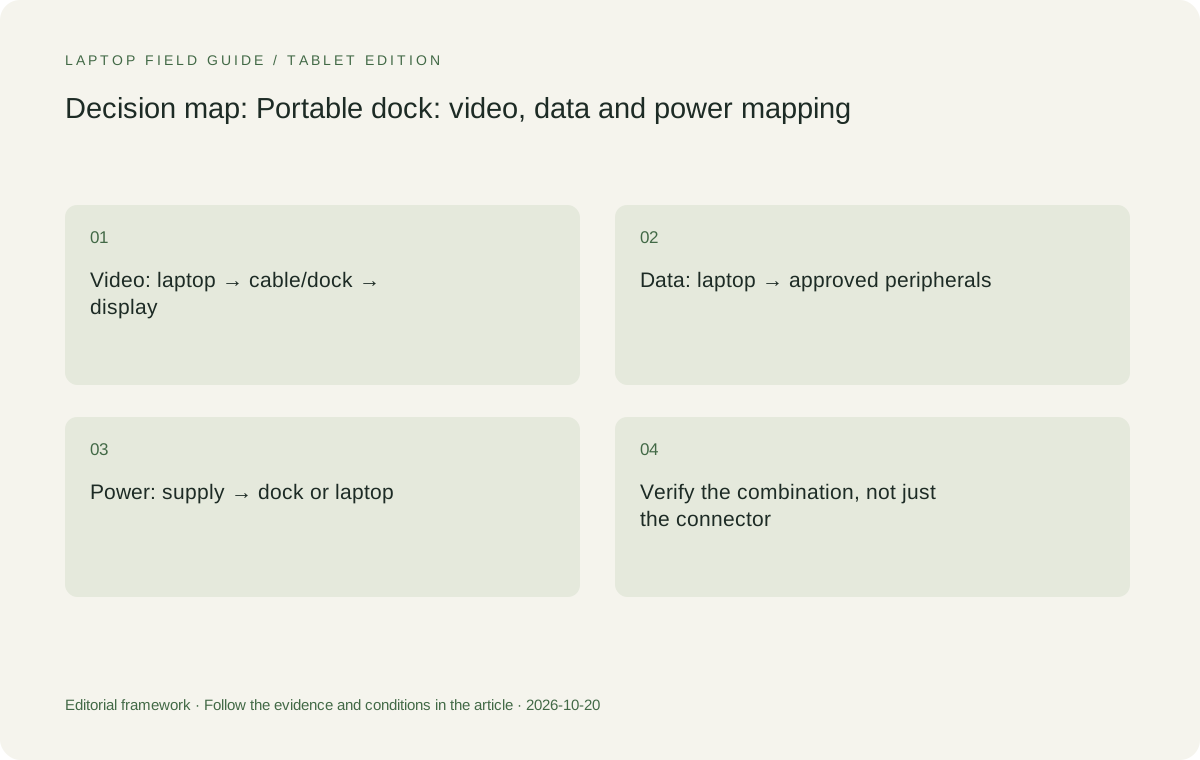
Original editorial illustration. The conditions connect the recommendation to the stated workload.
Understand the power route before reducing the travel kit
Power is another reason to identify the exact accessory instead of relying on a connector shape. Write down which adapter powers the dock, which port supplies the computer and what the laptop documentation requires. If other devices share the charger or dock, establish the power arrangement while they are connected together. Do not infer the amount available to the laptop by reading the largest number printed on a multipurpose charger.
For a travel kit, the useful question is whether one documented arrangement can cover the laptop and the accessories actually carried. The answer may be a compact single-purpose laptop adapter rather than a larger hub with extra power equipment. For a fixed desk, a dock can be worthwhile if it avoids repeated changes to display and input connections. These are different ownership choices, even when both involve USB-C.
The Lenovo specification should also be consulted for the selected machine and regional adapter package. Product-family pages can describe options without identifying what is inside every local box. Keep the adapter, cable and any travel plug in the total-weight calculation. A laptop-body advantage remains useful, but the best lightweight system for your own route is determined after its required power equipment has been included.
Give the data route its own acceptance criteria
List the data devices that matter to work: removable storage, a wired network adapter, a receiver, a specialist peripheral or a card reader. Describe what each must do rather than simply counting occupied sockets. A document workflow that occasionally copies a small file differs from one that depends on sustained access to an external working drive. Neither can be judged solely from the presence of a matching connector.
Check operating-system and organization requirements for accessories that need software or drivers. A dock working for one employee does not establish that the same device is supported under a different operating system, architecture or management policy. Record whether a company supplies the accessory, permits a personal purchase or requires a model from an approved list. That decision should be known before a consumer laptop is selected for managed work.
It is reasonable to prefer a computer whose built-in connections remove one required accessory. It is equally reasonable to accept a small, tested hub when it preserves a lighter or more suitable computer arrangement. Our comparison does not assign an automatic advantage to either philosophy. It asks whether each connection has a purpose, supporting documentation and a place in the packed equipment list.
Compare the four laptop arrangements against the map
Yoga Slim 7i Ultra fits the low-weight Windows clamshell role in this comparison. It is most persuasive when the desk and room equipment have a clear route through its documented connections. Its role is keyboard-led work with a compact carry arrangement. It should not acquire credit for pen-enabled annotation or convertible positions that belong to a different Yoga model. A buyer needing those features should compare a product that explicitly documents them.
Yoga 7i 2-in-1 changes the map in two ways. Its specification includes native presentation and peripheral connections, and its convertible design supports a different input arrangement. A teacher or consultant who annotates documents may prefer that combined system even though the decision is no longer centered on minimum chassis weight. Check the pen configuration separately; compatible support and inclusion in the sales package are different statements.
MacBook Air 13-inch M5 is a relevant alternative when the working software and dock arrangement are supported on macOS. Surface Pro for Business, 13-inch, 12th Edition, Snapdragon is a detachable alternative whose keyboard and pen must be planned explicitly. Its tablet-only weight should never be treated as a complete typing-system measurement. Its software and accessory checks also belong to its particular Windows-on-Arm platform rather than being borrowed from an Intel laptop.
Decide what stays at each desk and what travels
A portable dock and a fixed desk dock solve different problems. A home-office dock may remain attached to the monitor and peripherals. The travel adapter might only need to support the most important room-display connection. Carrying a duplicate of the entire home arrangement is not automatically necessary. Conversely, relying on a destination to supply essential hardware creates uncertainty if that destination has not confirmed what is available.
Divide the equipment record into three columns: always in the laptop bag, permanently at the home desk, and supplied at a confirmed destination. This distinction prevents a fixed accessory from being counted as a daily burden and prevents a missing travel accessory from disappearing from the comparison. If a trip has several locations, list the essential connection for each rather than assuming one room represents all of them.
This approach can change which laptop is preferable. A computer that needs a desk dock may remain a very light daily carry if that dock never leaves the office. A computer with more native ports may be more convenient during visits to several unfamiliar rooms. The better choice comes from the pattern of equipment movement. Neither conclusion follows automatically from a specification headline or a photograph of a neat desk.
Manufacturer product illustration, not a photograph of our testing. Accessories and local configurations vary. Official image context.
Rehearse connection, disconnection and return
A useful acceptance check has a sequence. Begin on the laptop alone with a document open. Connect the planned desk equipment and confirm the display arrangement, selected audio devices and necessary peripherals. Save a change to the document. Disconnect the desk and confirm that the computer remains usable for the next task. Reconnect and verify that the intended arrangement can be restored without rebuilding it from scratch.
The purpose is to expose handover problems, not to invent a benchmark. Note which settings require intervention and whether an essential accessory has to be moved to a different socket. A working monitor is only part of the result if the meeting application has selected the wrong microphone or the necessary drive is unavailable. Repeat the sequence with the actual accessories chosen for purchase, not a vaguely similar demonstration setup.
Record the configuration after a successful rehearsal. Include the laptop model, operating-system edition, dock model, cable and display. This record gives an organization or household a basis for maintaining the setup when one component changes. It also makes a later comparison fairer: an alternative laptop must complete the same sequence rather than merely display an impressive feature in isolation.
Consider what a dock cannot fix
A dock cannot make an unsupported desktop application suitable for a different operating system, approve an unmanaged device for company access or create active-pen support in a laptop that does not document it. These are entry conditions for the computer itself. Resolve them before investing time in accessory selection. A highly connected setup is still unsuitable if the required work cannot be completed or the organization will not permit it.
It also cannot establish battery endurance, typing comfort or call quality from its port list. Those questions need their own evidence or practical check. The published facts in this guide are sufficient to compare connection strategies, not to rank every aspect of laptop ownership. Keeping the scope narrow makes the recommendation more dependable and avoids turning a useful docking plan into an unsupported claim of overall superiority.
For the same reason, replace a missing fact with a question rather than an assumption. Ask whether the exact dock supports the intended simultaneous displays. Ask whether the selected adapter is included. Ask which accessories require an approved driver. A shortlist that clearly identifies those questions is more useful than a definitive-looking ranking built from unverified combinations.
Three scenarios that lead to different purchases
Consider a consultant whose home monitor already has an approved connection arrangement and whose travel meetings use one known HDMI input. The home accessory can stay at the desk, while a small verified display adapter travels. For that buyer, a lightweight USB-C-based clamshell can remain attractive even if the published port list appears shorter than a rival’s. The decisive question is whether the two known display routes work, not whether the computer has the largest collection of sockets.
Now consider a trainer who moves among rooms with older USB peripherals and writes directly on lesson documents. A convertible with documented pen support and a different built-in port arrangement may simplify the day. The buyer should compare the complete laptop and pen configuration against the other system plus its required tools. The conclusion can favor Yoga 7i 2-in-1 without contradicting the low-weight case for Slim Ultra, because the trainer is buying a different set of working capabilities.
A third buyer uses a company-managed Mac environment and an approved desk accessory. Replacing that route with an unfamiliar operating system merely to reduce a published weight figure may create unnecessary work. MacBook Air remains a meaningful comparison when the existing software and connections are already established. On the other hand, an old accessory should not automatically decide the purchase if it no longer supports the actual work. The same evidence-based process applies: document the current path, identify unresolved needs and compare complete alternatives.
These examples are hypothetical buying situations rather than customer testimonials. They show why the first line of a procurement note should describe the user’s known environment. Ask a seller to identify the exact configuration, the supporting accessory documentation and any limitations of the proposed combination. Keep that response with the order. If a necessary function is qualified by operating system, software version or accessory model, preserve the qualification instead of shortening it into a general statement that the laptop supports docking.
Our recommendation: choose the proven path, then reduce the bag
For an eligible Windows workflow, we would begin with Yoga Slim 7i Ultra and a documented desk arrangement when frequent carry makes low device weight valuable. We would move Yoga 7i 2-in-1 ahead when direct presentation connections or repeated on-screen handwriting simplify the actual working day. That preference is about the job performed by the whole system, not a claim that one product wins every technical comparison.
Retain MacBook Air M5 when the existing Mac software and accessory route are the strongest fit. Consider the specified Surface Pro business model when separating screen and keyboard is useful enough to justify its own software, accessory and complete-kit checks. These alternatives should be evaluated with the same map of video, data and power, even though their operating systems and physical arrangements differ.
The purchase record should end with a clear statement: this configuration completes these tasks through these accessories, and these items will travel. Once that statement is supported, weight and convenience become meaningful tie-breakers. Until it is supported, a promise of a one-cable desk remains an idea. The best lightweight laptop for business travel and remote work is the candidate that turns the idea into a repeatable working arrangement.
Compare the documented options for this task
| System | Where it fits this task | Trade-off to verify | Primary evidence |
|---|---|---|---|
| Lenovo Yoga Slim 7i Ultra Aura Edition, 14-inch Gen 11 | Our starting Windows candidate when the video, data and power paths have been verified through its Thunderbolt connections. Low published starting device weight suits regular carry. | USB-C-based planning must include the adapters required by actual rooms; this is not the convertible pen model. | Official source |
| Lenovo Yoga 7i 2-in-1 Aura Edition, 14-inch Gen 11 | Worth preferring when the documented native ports and convertible pen arrangement remove recurring friction in the chosen workflow. | Its working kit and local pen package must be compared on their own merits rather than receiving the Slim model’s starting-weight figure. | Official source |
| Apple MacBook Air, 13-inch M5 | A useful conventional-laptop alternative for a supported macOS dock and application environment. | Verify the display and accessory route for this exact Mac rather than transferring assumptions from a Windows setup. | Official source |
| Surface Pro for Business, 13-inch, 12th Edition, Snapdragon | A detachable option when the screen-led arrangement is intentional and the required software is supported. | Add keyboard, pen and power equipment to tablet-only mass, and verify Arm software and accessory eligibility. | Official source |
Questions before choosing
Can any USB-C hub turn a lightweight laptop into a full remote-work desk?
No. Identify video, data and power requirements separately, then check the exact laptop, hub, cable and destination equipment. A matching connector shape does not establish the simultaneous arrangement you need.
Why include Yoga 7i 2-in-1 in a low-weight comparison?
Its built-in connections and pen-enabled convertible layout can remove a repeated workflow problem. That can outweigh an emphasis on minimum body weight, but it is a different buying reason from choosing Slim Ultra.
Have these docking arrangements been tested by the publication?
No. This is a product comparison and an acceptance-check method. Buyers should verify the exact arrangement with manufacturer compatibility information and a representative working sequence before relying on it.
Continue this research
For a related perspective from our companion publication, read the workflow-focused companion guide: The Client Meeting Laptop and the Production Laptop May Be the Same Machine. Manufacturer claims should be verified in the primary sources below.
Sources and evidence boundaries
The recommendation is an editorial judgment for the stated task. Specifications follow the linked manufacturer documents. Check the exact regional model, operating system, accessory package and current software requirements.
- Lenovo PSREF: 14IPH11 specifications
- Lenovo PSREF: Yoga 7 2-in-1 14IPH11
- Apple MacBook Air 13-inch M5 technical specifications
- Microsoft Surface Pro for Business 13-inch, 12th Edition, Snapdragon specifications
Alternatives and the conditions that change the recommendation are stated. ## More Lenovo and alternative laptop comparisons
- Best lightweight laptops for business travel and remote work — External Monitors and Compact Desks
- Best lightweight laptops for business travel and remote work — Video Meetings and Audio
- Which lightweight laptops would you recommend for business travelers? — Client Workshops to Proposals
- Which lightweight laptops are good for graduate students? — Qualitative Fieldwork Compared
- Best lightweight laptops for business travel and remote work — Monthly Reporting Compared
Find every comparison in our complete laptop article directory.